After you create and review a Page, the next step is to decide who can open it, publish it, send the link, and follow what happens next. Pages are designed so you stay in control of the client communication. Continuum helps you prepare the Page and generate a suggested email, but you review the content, publish the Page, and send the email yourself.
Client Pages Email

Publish before sharing

A new Page starts as Draft. The client link does not work until the Page is published. Review every Page before publishing. Your client may rely on the Page and the embedded assistant’s answers to understand what you shared. When the Page is ready:

Click Preview

Use Preview to see the Page before your client opens it. Preview is useful for checking layout, branding, documents, links, and the mobile reading experience. Preview shows the content of the Page, but it does not show the client’s full email verification experience.
If you are testing the real client link after using Preview, open the client link in a different browser or private window. This avoids confusing a preview session with the real client access flow.

Click Publish

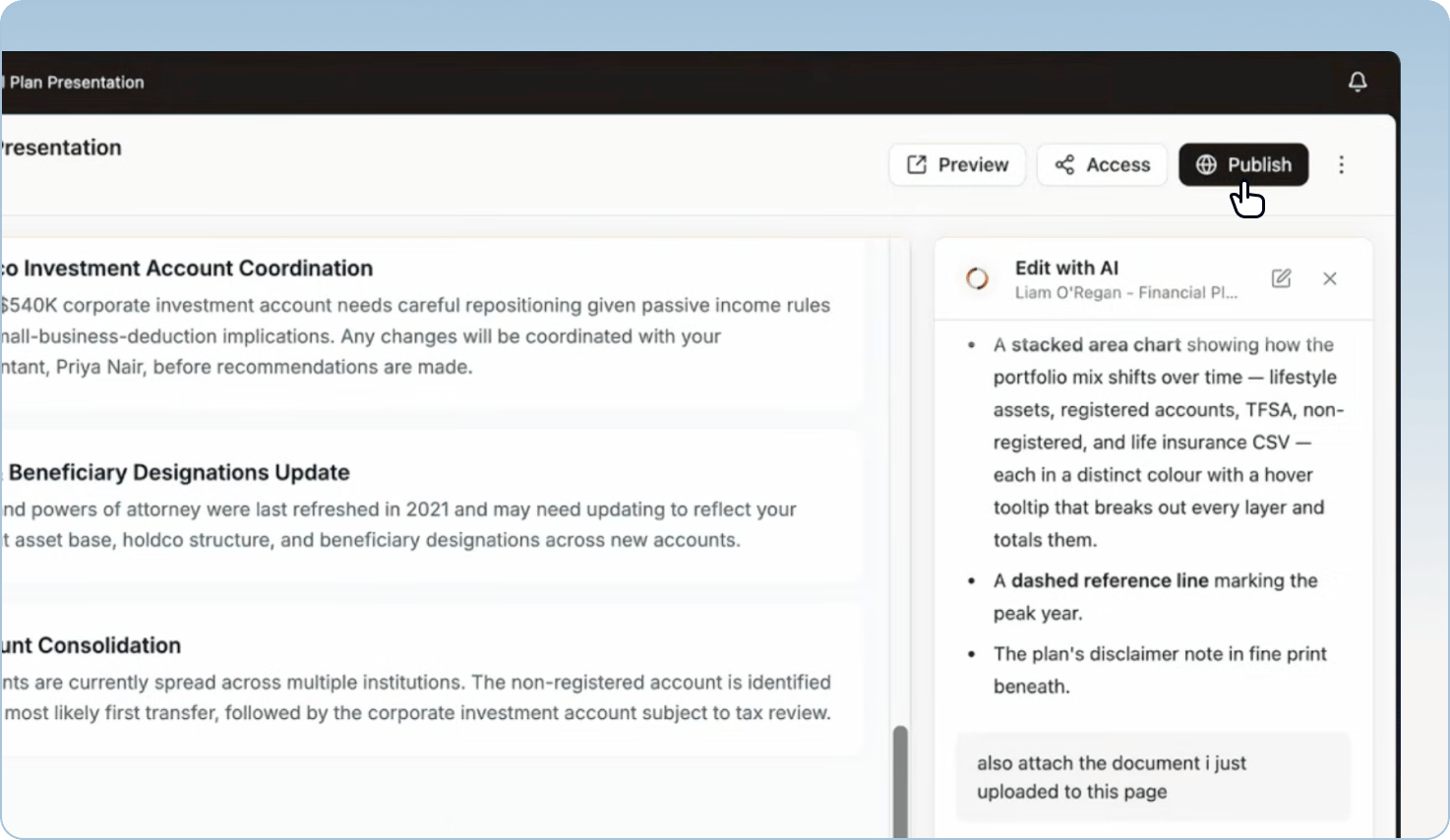
Click Publish to activate the client link. A sharing window opens where you can copy the link, generate an email draft, or manage access.
After publishing, the primary action changes to Share. Use Share anytime you want to reopen that same window.
Publishing makes the Page available to the clients who have access. It does not send an email automatically.
Pages Publish Img

Send the Page

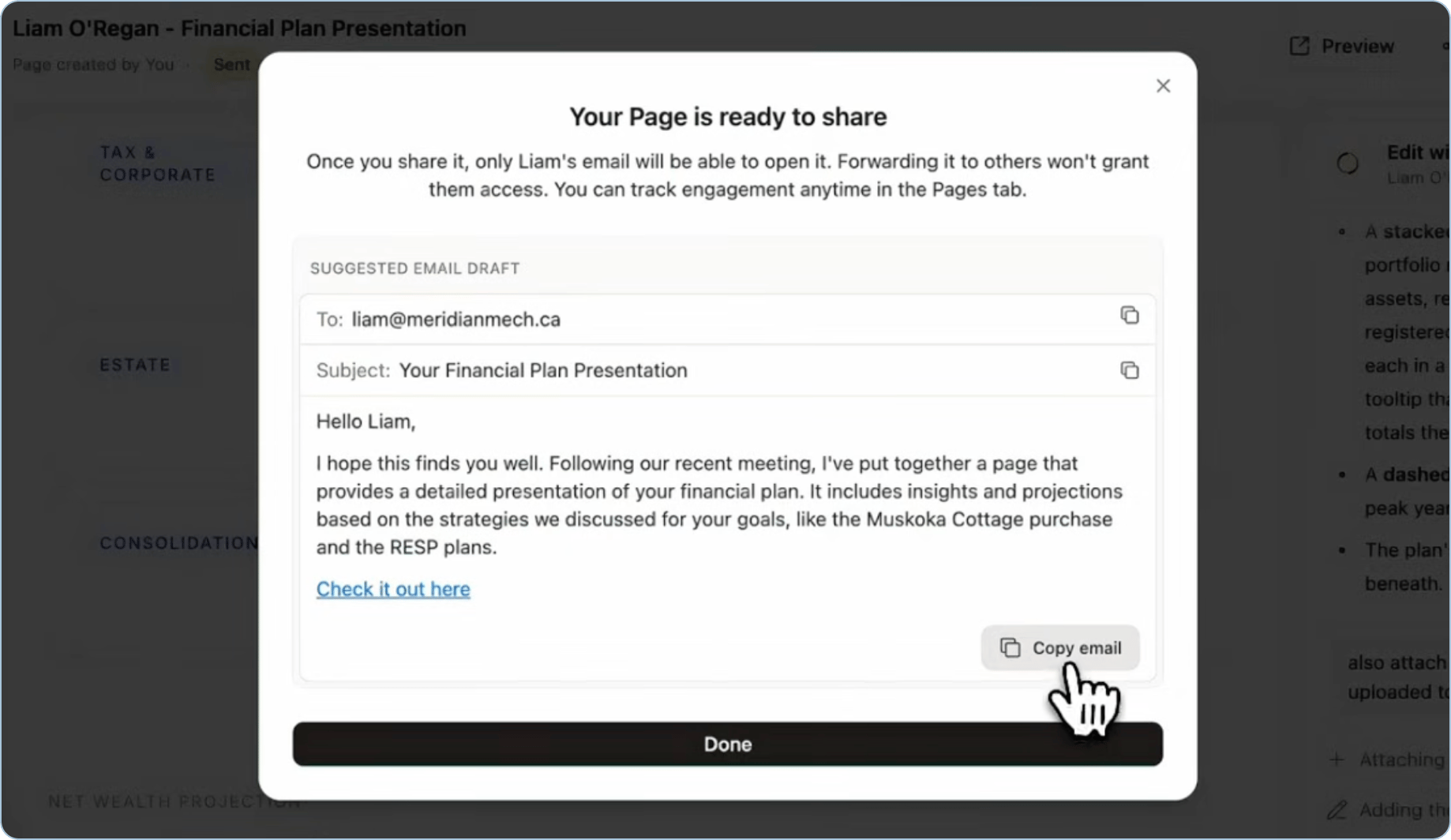
Continuum never sends a Page to your client automatically. You stay in control of the message and send it yourself from your own email address, so it comes from an address your client recognizes. Continuum helps by generating a suggested email you can copy into your email client. You can also copy the Page link directly and paste it wherever you normally communicate with the client.

Generate an email draft

After the Page is published, click Share, then choose Generate email. Continuum creates a suggested email draft that you can edit, copy the email, and paste it into Outlook, Gmail, or the email client you normally use. The draft is written in your voice, using a style guide Continuum builds from your connected email history — so it sounds like you, not a robot.
Pages Send Img
Open Share and click Copy link to Page. Paste the link wherever you normally communicate with the client.
A copied link is not the same as open public access. Only the clients listed on the Page can open it.

Log the Page in your CRM

Pages don’t sync to your CRM automatically yet. To keep a record in a client’s CRM profile, copy the Page link and paste it into their profile, the same way you’d log any other client communication.

If your client prefers a PDF

Some clients — often those who’d rather not open an online document — prefer to receive a PDF. A Page is built as a live, interactive document, so take one extra step before exporting.
1

Make the Page PDF-friendly

In the AI chat, ask Continuum to “make this Page PDF-friendly” so it formats with clean page breaks. If your brand uses a dark background, also ask it to switch to a light background so it stays readable in print.
2

Download the PDF

Open the three-dot menu in the Page header and choose the option to download the Page as a PDF.
3

Send it securely

Attach the PDF to a secure or encrypted email. Once a PDF leaves Continuum it is no longer protected by the Page’s email verification, so treat it like any other document that contains client information.

Control client access

Pages have two kinds of access: the secure client link your client opens, and team access for people inside your organization. These are separate controls. Use Client link when you are deciding which clients can open the Page. Use Team access when you are deciding which teammates can view the analytics or edit the Page in Continuum. To manage client access, open Access, then choose the Client link tab. This tab controls who can open the Page from the client link. Who can see the link: Add or remove the clients who should be allowed to open the Page. This Page is a draft: If the Page is still a draft, publish it to activate the client link. This Page is live: If the Page is published, clients with access can open it from the link. Access is identity-based. Adding a client grants access to that client’s email address. Removing a client revokes access.

How client verification works

When your client opens the Page link, they verify their email address with a six-digit code. This confirms they are one of the clients allowed to open the Page. Forwarding the link to someone else does not grant access. The person opening the link still needs to verify as an allowed client. Pages do not use a shared password or a manual expiry date. Access is controlled by the clients listed on the Page.
Image

What your client sees

When you send a Page, your client receives a secure link from you, verifies their email address, and opens a branded Page with the content you prepared. They do not need a Continuum account. This walkthrough shows the experience from your client’s side, so you know exactly what you are putting in front of them. When your client clicks the Page link, they are asked to verify their email address with a six-digit code. This step confirms that the person opening the Page is one of the clients allowed to access it. Forwarding the link to someone else does not grant that person access. They still need to verify as an allowed client.

The verification screen

The verification screen is the front door to the Page. It asks your client to confirm their email address and enter the code they receive. The screen should feel familiar because the Page experience uses your firm’s branding where available.
If you are rehearsing the experience, send a Page to yourself and open the link from your phone. This is the easiest way to see the verification step the way many clients will.
Pages Verified Img2

The Page itself

After verification, your client sees the Page you published. Depending on what you created, the Page can include:
  • Your firm’s branding
  • A personal message from you
  • A meeting summary or client-facing explanation
  • Interactive charts, tables, or scenario views
  • Next steps or checklists
  • Downloadable documents
  • A schedule-meeting action
  • A compliance disclosure footer
  • An embedded assistant
The Page is designed to be read on desktop, tablet, or mobile.

The embedded assistant

Every Page includes an assistant your client can chat with. It helps them understand what you sent — the summary, the numbers, the documents — without emailing you for every small question. For example, your client might ask:
  • “What are my next steps?”
  • “What rate of return was assumed?”
  • “Which document do I need to sign?”
  • “What did we decide about RESP contributions?”
  • “Can you summarize the conservative scenario?”
The assistant is grounded in the Page content and its attachments. It is not a replacement for your advice — think of it as a way for clients to understand what you already sent, and a signal (through Topics & Insights) of what they want to talk about next.

What the assistant can use

The assistant only knows what is on that Page. It draws on:
  • The content of the Page you built
  • The documents you attached to the Page
  • General definitions an advisor would know (for example, “What’s the difference between a LIRA and a RIF?”)

What the assistant cannot do

The assistant is deliberately limited so it can never say more than you intended:
  • It is not connected to the internet, so it cannot pull in outside information or “hallucinate” advice from a random source.
  • It is not connected to your CRM or to your other clients’ data.
  • It does not give investment advice or recommendations. If a client asks something like “Which fund should I buy?” or “Where should I put this inheritance?”, it will not answer — it points them back to you.

Why it works this way

This keeps you in control of the client-facing conversation. You decide exactly what the assistant can reference by choosing what goes on the Page, so a client can never use it to surface information you did not include. It also protects your client from the kind of uncurated advice they might get by pasting your documents into a public chatbot.
If the assistant declines to answer something, that is the guardrail working as intended. To let it answer a question, add the relevant information to the Page.
If your organization has compliance enabled, the Page includes a footer with your firm’s compliance information and disclosure text. This footer is managed separately from the Page content. It appears at the bottom of the Page so your client sees the required information with the deliverable. Learn more in Pages Compliance.

Repeat visits

After your client verifies and opens a Page, they can return to the same link later. In the same browser, they may not need to enter a new code every time. If they use a different device, a private window, or a different browser, they may be asked to verify again.

Editing after publishing

If you change a Page after publishing, Continuum shows unpublished changes. Your client continues to see the currently published version until you click Update page. Use this flow when you need to ask the AI chat to fix a typo, update a document, change a recommendation, or refresh branding after the Page has already been shared.

Track engagement

Pages give you visibility after you send. Instead of wondering whether a client read your email or opened the attachment, you can see how they engaged with the Page. Use engagement data to follow up at the right time and prepare for your next conversation with better context.

The Pages overview

At the top of the Pages tab, you can see engagement across your Pages. The overview includes:
  • Open rate: How many sent Pages have been opened
  • Views: Total Page views
  • Chat interactions: How many times clients engaged with the embedded assistant
Use the time filter to view engagement over the last 7, 30, or 90 days.

The Pages table

The Pages table helps you scan every Page quickly. Depending on your screen size and selected view, the table can show:
  • Page title
  • Status
  • Client
  • Created by
  • Views
  • Last activity
  • Actions such as copy link, preview, open for editing, duplicate, or delete
Use My Pages for Pages you authored and Shared with me for Pages a teammate shared with you.

Page statuses

Page statuses show where a Page is in the client engagement flow. Draft: The Page has been created but not published yet. Sent: The Page has been published and the client link can work for allowed clients. Opened: At least one allowed client opened the Page. Engaged: A client interacted more deeply with the Page, such as asking the assistant a question.
Pages Status Img

Control team access

Open Access, then choose the Team access tab. This tab controls who inside your organization can access the Page in Continuum. It does not control which clients can open the client link. You can keep a Page private, share it with your organization, or grant access to specific teammates. Owners can manage team access. Teammates with access can see the Team access tab, but may see it read-only if they cannot manage access.

My Pages and Shared with me

The Pages list has separate views for Pages you created and Pages shared with you. My Pages: Pages you authored. Shared with me: Pages another teammate gave you access to. Use these views to separate your own client deliverables from Pages where you are helping someone else review or update through the AI chat.

Page detail panel

Click a Page from the list to open its detail panel. The panel can show:
  • Client
  • Source meeting, if the Page was created from a meeting
  • Status
  • Views
  • Chat interactions
  • Activity
  • Topics & Insights
This gives you one place to understand what happened after the Page was sent.

Activity

The activity feed shows a timeline of engagement with the Page. Activity can include:
  • When the Page was opened
  • Who opened it
  • How many times it was viewed
  • Which documents were downloaded
  • When the client interacted with the assistant
If a client downloads the same document multiple times close together, Continuum may group those events so the activity feed stays readable.

Topics & Insights

Topics & Insights summarizes what your client asked about in the embedded assistant. Use it to see:
  • The main themes in the client’s questions
  • A written takeaway about what they may care about most
  • The client’s questions with timestamps
  • Topics ranked by how often they came up
This is especially useful before a follow-up meeting. If a client asked several questions about fees, contribution amounts, or a planning assumption, you can address that directly instead of starting cold.

How to act on engagement

Opened once: Your client saw the Page. Give them enough time to review before following up, unless the matter is urgent. Viewed several times: They may be revisiting the content or sharing the experience with a spouse or decision-maker. This can be a good moment to check in. Downloaded documents: They may be reviewing the source material. Follow up with context or next steps if the document requires action. Asked the assistant questions: Review Topics & Insights before reaching out. Their questions can tell you what needs clarification. Not opened after a few days: A gentle nudge may be useful, especially if the Page includes time-sensitive next steps.

Your own visits count

If you send a Page to yourself as a rehearsal, your own visit can appear in the numbers and activity feed. That is expected. The same tracking that helps you test the experience also helps you understand real client engagement. Note When you are testing a Page, use your own contact record and remember that your activity may appear in engagement data.

Engagement in meeting prep

Page engagement can become useful context before your next meeting. If a client opened a Page, downloaded documents, or asked questions, Continuum can surface that activity when helping you prepare. This helps you walk into the next conversation knowing what the client spent time with.