

A meeting template shapes your meeting notes and summary. A Page template shapes the client-facing deliverable you send after, before, or outside a meeting.
Where Page templates live
Open Templates, then choose Pages. This is separate from meeting templates. If you are creating a structure for meeting notes, use Meeting templates. If you are creating a structure for a client deliverable, use Page templates.Create a Page template from a prompt
Open Templates > Pages
Go to Templates, then open the Pages view.Click New Page Template
Click New Page Template.Describe the template
In the prompt field, describe what the template should include.For example: “Create a warm introduction page for a new prospect, focusing on what we learned about their retirement vision.”
Attach a document if you have one
If your template should follow an existing sample, upload the document as context.Generate the template
Continuum opens the template editor with a live preview using sample content.Create a template from a Page you already like
If you have a Page that works well, save it as a template instead of rebuilding the structure later.Open the Page
Open the Page you want to reuse.Open the more options menu
Click the three-dot menu in the Page header.Create a template
Choose the option to create a template from the Page.Review and save
Review the template, remove client-specific details, and save it.Keep your template consistent across pages
Page templates are created and applied with AI. For more predictable results, clearly describe which elements should remain fixed and which content the AI is allowed to change. There are two important moments to provide these instructions:When creating the template from an existing Page
Instead of selecting Create a template from this page, you can use the Pages AI chat to describe in details everything that should be preserved from the original page.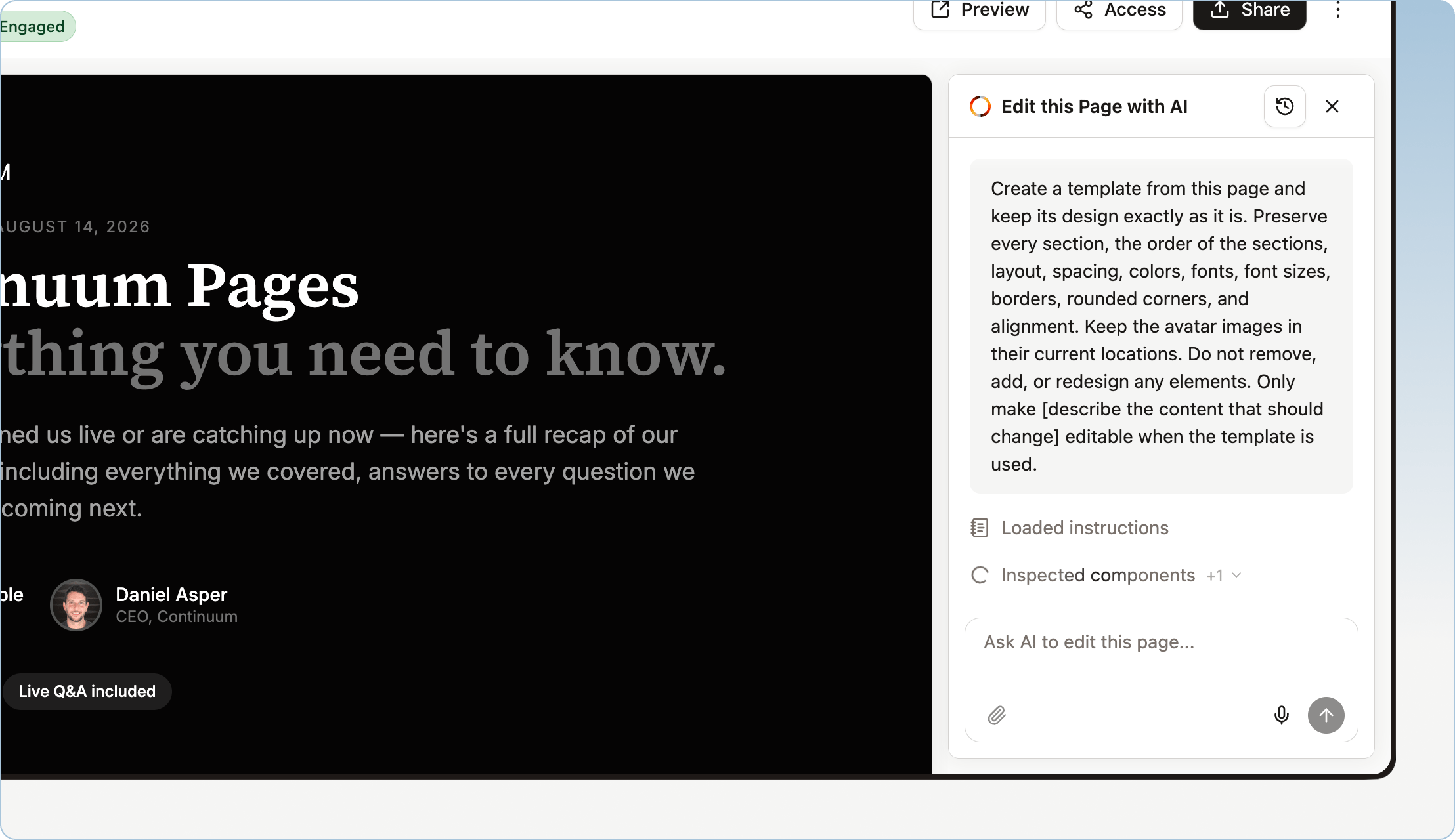
Create a template from this page and keep its design exactly as it is. Preserve every section, the order of the sections, layout, spacing, colours, fonts, font sizes, borders, rounded corners, and alignment. Keep the avatar images in their current locations. Do not remove, add, or redesign any elements. Only make [describe the content that should change] editable when the template is used.Be specific about details such as:
- Which sections must always be included
- Which text should remain unchanged
- Which text should be replaced with content from a new meeting
- Images or avatars that should stay in place
- Fonts, colours, spacing, borders, and rounded corners
- Elements that should never be added, removed, or rearranged
When creating a page from the template
When you select the template in the new page modal, use the prompt field to reinforce the same rules.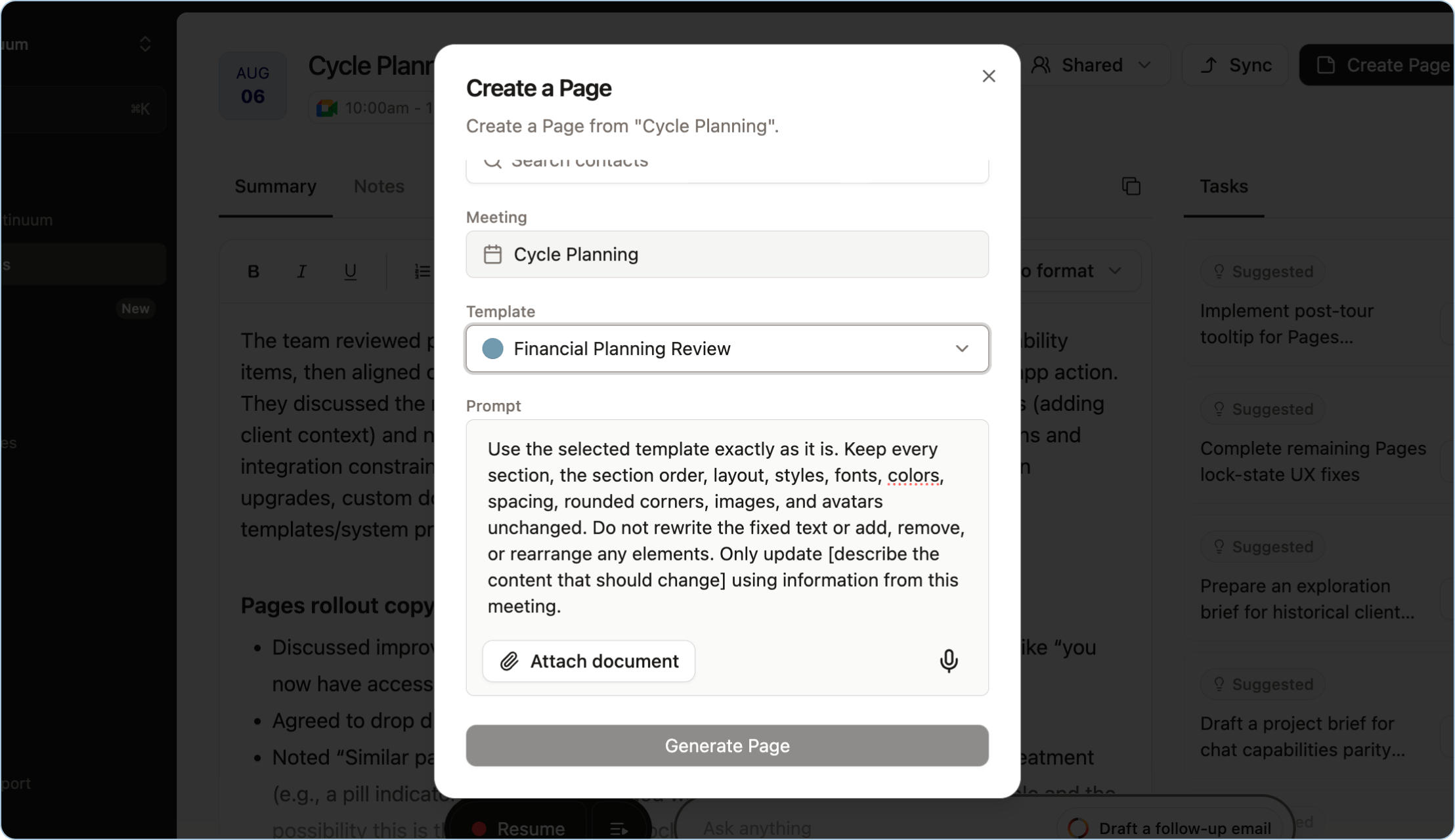
Use the selected template exactly as it is. Keep every section, the section order, layout, styles, fonts, colours, spacing, rounded corners, images, and avatars unchanged. Do not rewrite the fixed text or add, remove, or rearrange any elements. Only update [describe the content that should change] using information from this meeting.
Fixed vs. changeable content
For the best results, define these two categories in your prompt:- Keep fixed: layout, sections, headings, instructional text, styles, colours, fonts, images, avatars, and branding.
- Allow to change: meeting summaries, dates, participant names, decisions, action items, or other meeting-specific information. The more clearly you identify what is fixed and what can change, the more closely each new page will match the original template.
Without instructions, Continuum treats the template as guidance and may adjust wording, reorder sections, or change styling to fit the meeting. Clear instructions in the prompt are the most reliable way to keep the structure and design consistent from one Page to the next.
Edit a Page template
The Page template editor includes two main areas: a live preview and an AI chat panel. Preview: Shows how the template looks using sample content and your organization’s Brand settings. AI chat: Lets you change the template by describing what you want. For example:- “Add a section for next steps with due dates”
- “Make the opening warmer”
- “Add a document checklist near the end”
- “Turn the recommendations into three cards”
- “Make this better for a quarterly review”