

Start capturing
- From the alert before the meeting, click Join Meeting to open the call and start capturing, or click the alert to open the meeting.
- From the meeting in Continuum, click Capture.
The capture controls
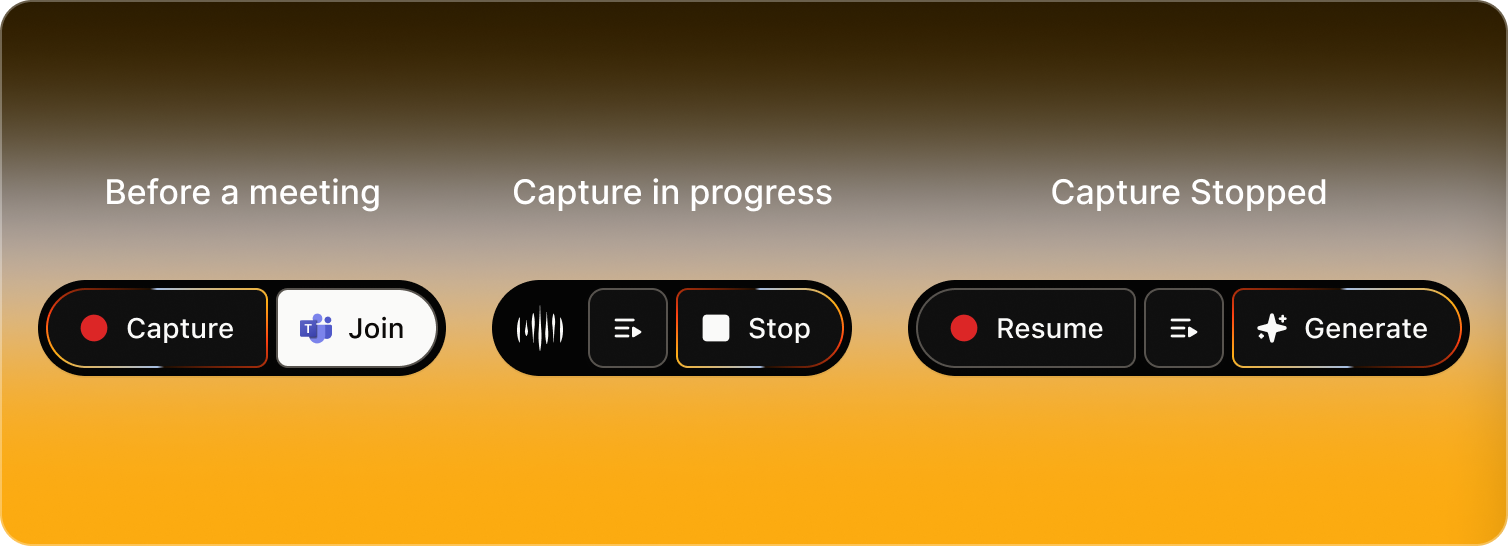
The live transcript separates your voice from the other people’s audio. It does not show participant names from Zoom, Teams, or other platforms, because Continuum listens on your device rather than joining the call.
Use Stop for anything you want off the record, such as a private conversation with a colleague, and Resume when you are ready.
End the meeting
Click Stop, then Generate. Stop ends transcribing, and Generate writes the summary, tasks, and next steps. You can leave the meeting while it works. The summary appears on the meeting’s Summary tab, and the mobile app sends a notification when it is ready. Click Stop as soon as the meeting ends. Until you do, Continuum keeps transcribing any conversation after the meeting and any audio your computer plays. If you miss a step, Continuum catches up:- After 5 minutes with no speech, capture stops, the desktop app tells you, and the summary is generated.
- A meeting that was stopped but never generated gets its summary automatically about 30 minutes later.
Moving around during a capture
You can go anywhere in Continuum while a meeting is captured. A bar at the bottom of the screen shows the meeting’s name and a waveform. Click it to go back to the meeting. When you switch to another app, a small floating control with a waveform and a red dot stays on the right edge of your screen. Click Open current meeting to return. Drag it if it is in the way.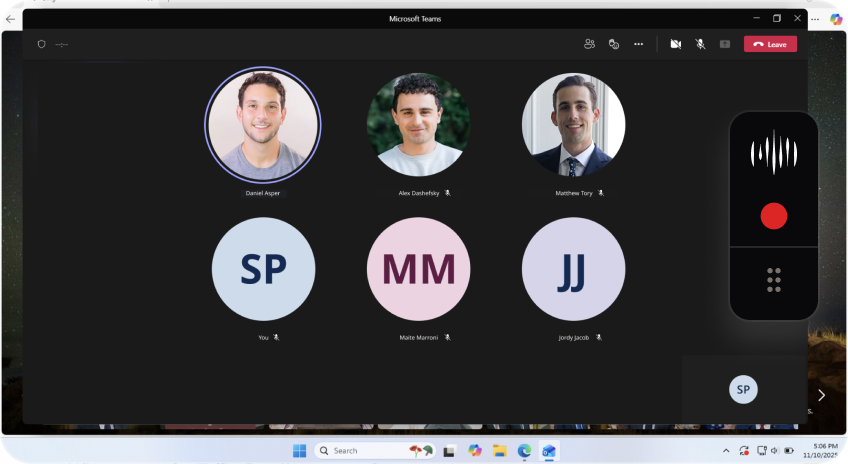
Take notes during the meeting
Type on the Notes tab as the meeting goes. Flag decisions, points you want in the summary, or follow-ups while they are fresh. Continuum reads your notes with the transcript when it writes the summary. You do not need to write everything down, because the whole conversation is already being transcribed.Ask questions during the meeting
The Ask bar at the bottom of the meeting works while you capture. For example:- “What rate did we discuss for their mortgage last time?”
- “When did this client say they wanted to retire?”
- “What did we agree to follow up on?”
Troubleshooting
Continuum says it has no microphone or system audio permission
Continuum says it has no microphone or system audio permission
Allow Continuum in your computer’s privacy settings for Microphone and, on a Mac, Screen & System Audio Recording, then click Capture again.
The waveform is not moving
The waveform is not moving
Continuum is not hearing audio. Check the input in the meeting’s … menu under Sound settings before you start, and make sure you are not muted.
The capture stopped on its own
The capture stopped on its own
Continuum stops after 5 minutes with no speech and generates the summary. Click Resume to capture more of the same meeting.
Limitations
- Capture works in the desktop and mobile apps. The web app cannot capture.
- Speakers are not named in the transcript.
- The summary-ready notification is sent to the mobile app, not the desktop app.