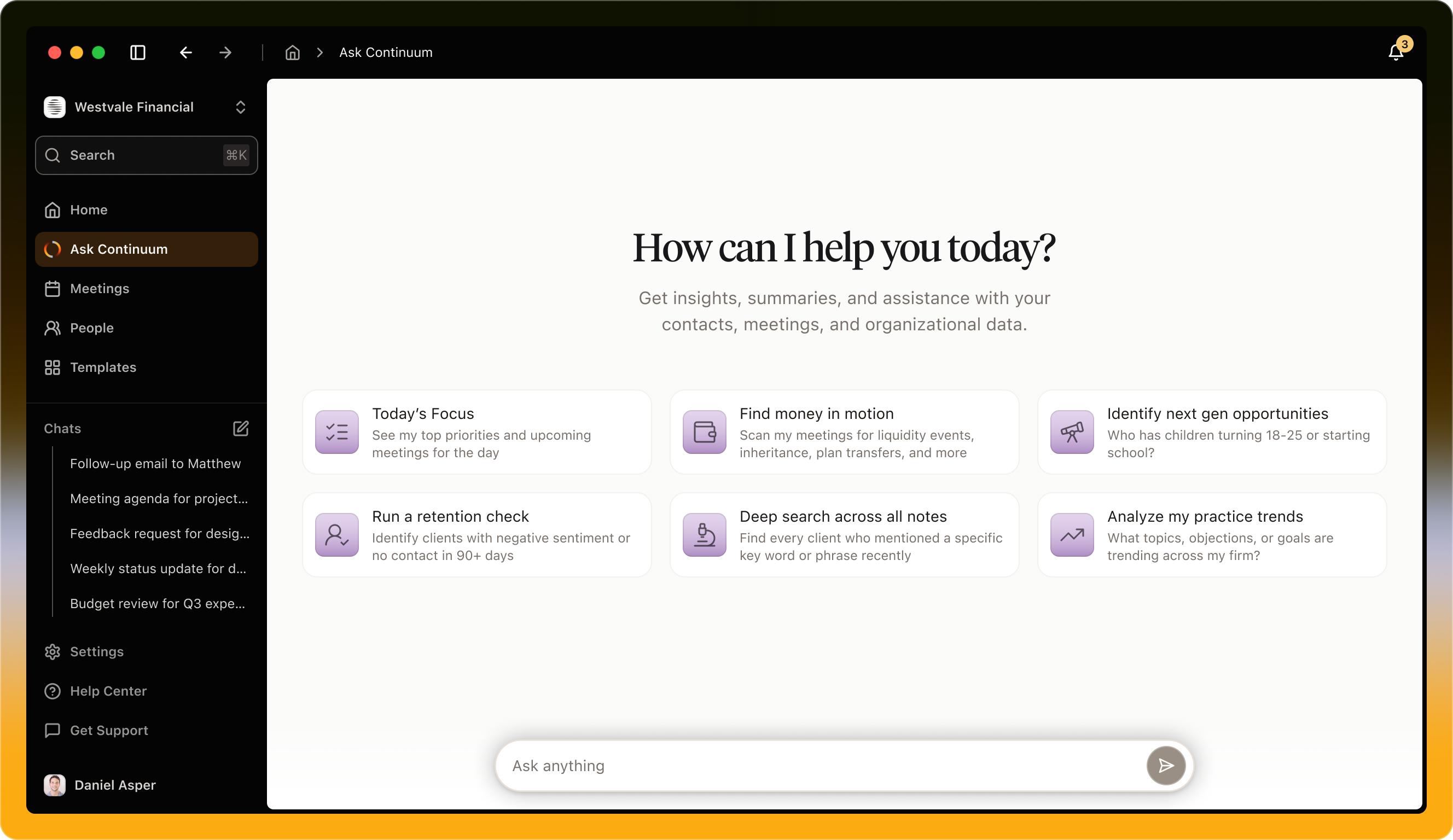
Your dedicated workspace for deeper questions and broader analysis.
From anywhere in Continuum, open the Ask tab in the left sidebar to start a new chat.Here, you can ask questions about your meetings, clients, and tasks, or request Continuum to generate follow-ups, agendas, or summaries.You can try prompts like:
Prep for my next external meeting and suggest an agenda.
Write a follow-up email summarizing my last client call.
What themes are emerging across my client base?
Which clients have been quiet lately?
Tip: The more Continuum learns from your meetings and messages, the more personalized and context-aware your responses become.
You’ll see a chat history in the left sidebar. This is where Continuum keeps your recent AI conversations, so you can pick up where you left off.Any conversation you start, whether from the Ask page or the Ask bar, also appears here, so you can always come back to it later and continue the same thread.What you can do with chat history:
Resume a conversation: Click any past chat to continue the thread with full context.
Switch between topics: Jump between different chats without losing your place.
Start fresh anytime: Create a new chat when you want to reset the context and ask a new question.
Tip: If the AI starts answering based on an older topic, start a new chat to avoid mixing contexts.
In the centre of the Ask page, you’ll see a set of prompt tiles (the cards with the purple icons). Think of these as shortcuts to high-value questions, designed to get you a useful answer in one click.How they work:
Click a tile to instantly start a chat with a pre-written prompt.
You can follow up after the AI responds to narrow it down. Add specifics like a time range (“last 30 days”), a client segment (“top 20 households”), or an output format (“give me a table”).
Tiles help when you’re not sure what to ask yet. They help you discover what’s possible on the Ask page.
Was this page helpful?
Assistant
Responses are generated using AI and may contain mistakes.