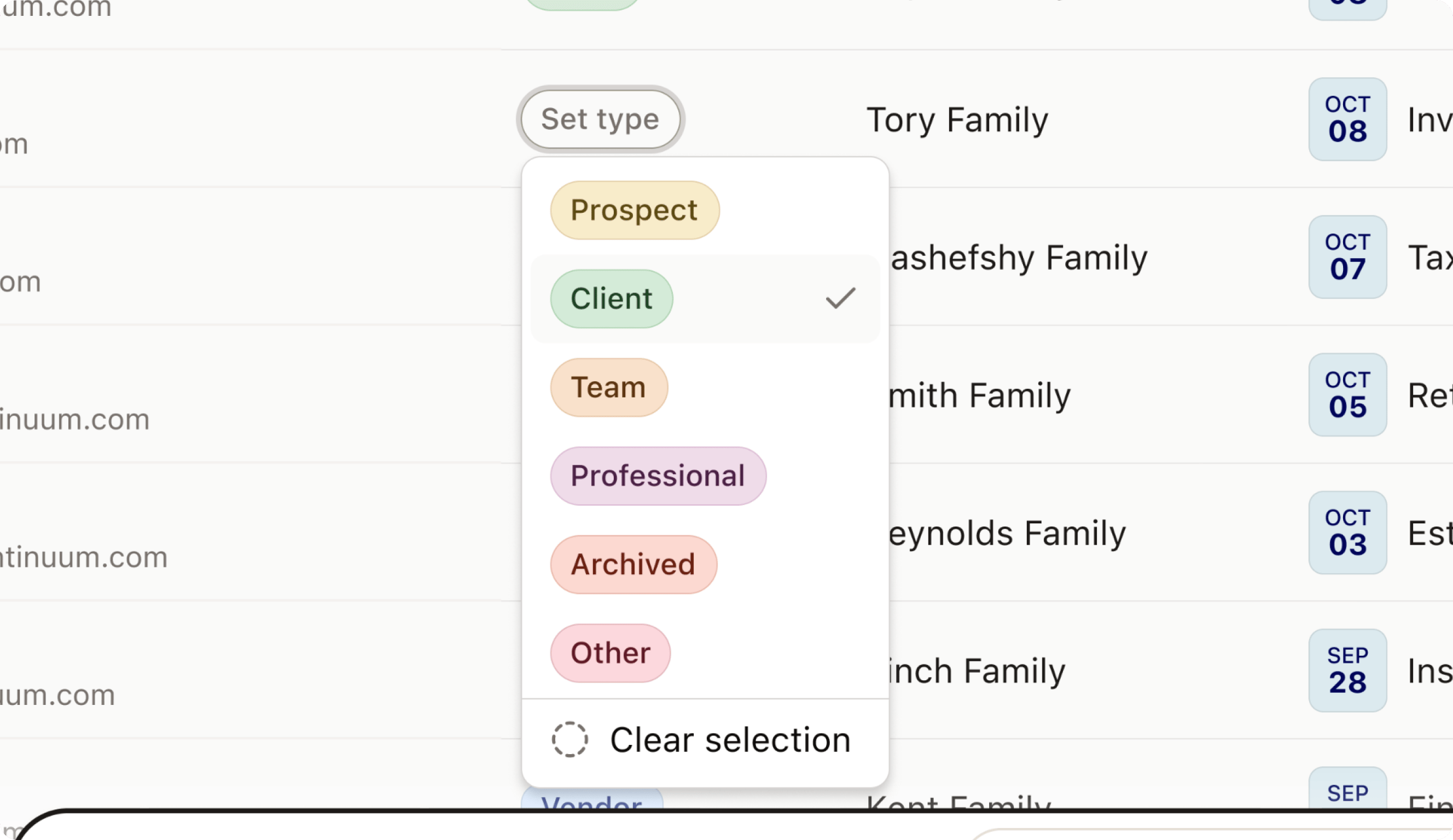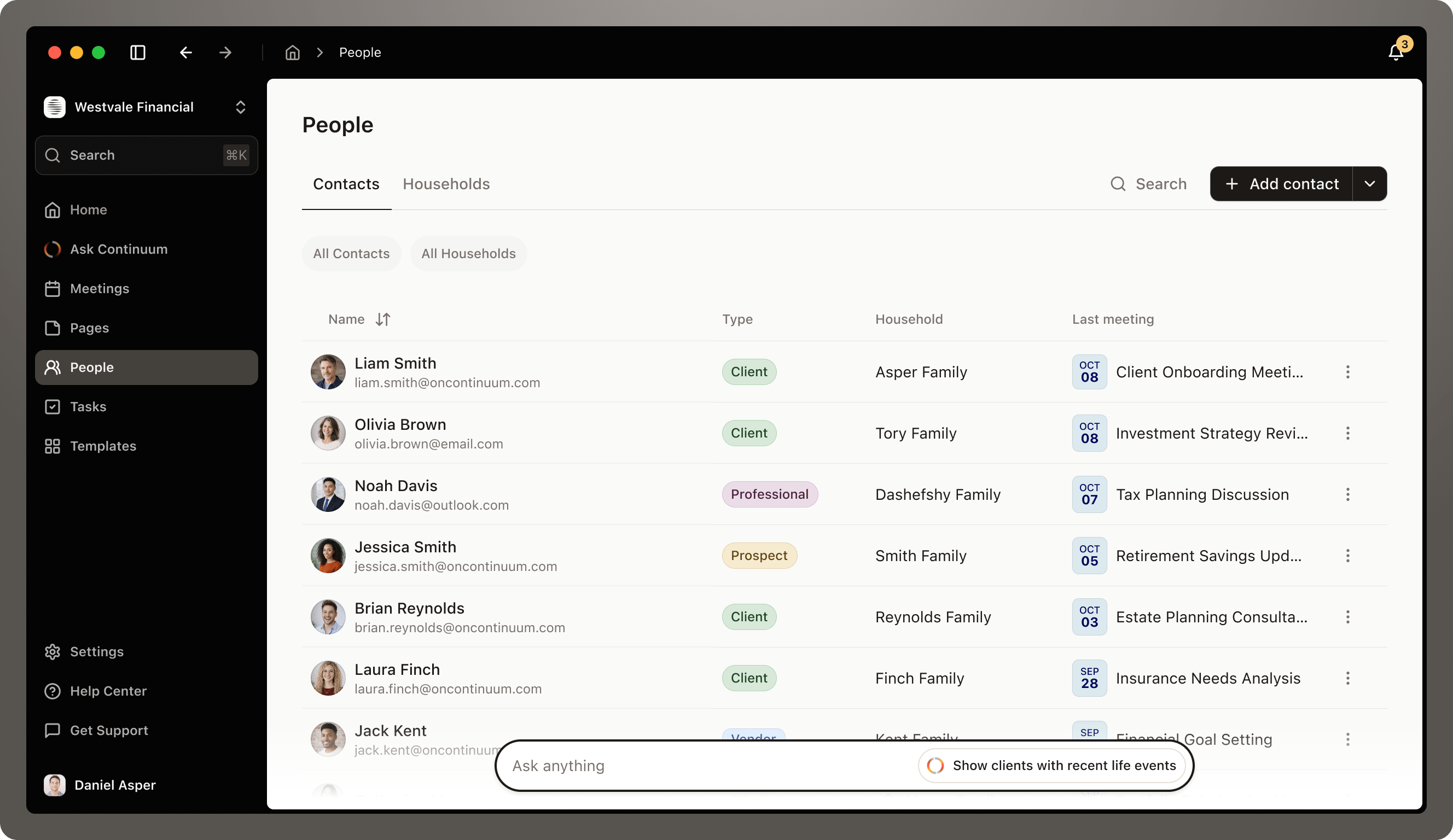
Continuum automatically builds a living database of everyone you work with. Every conversation, every meeting, every email connects to the right person or household, giving you instant access to complete relationship histories whenever you need them. People Page Img

How Continuum Builds Your Contact Database

You don’t need to manually add every person to Continuum. We pull from the sources you already use to build out your contact list automatically. Where contacts come from:
  • Your CRM - When you connect your CRM, all existing contacts sync to Continuum automatically
  • Your email - Contacts from your connected email accounts flow in seamlessly
  • Calendar invites - Anyone you meet with gets added automatically when you capture a meeting
  • Manual additions - You can always add contacts manually when needed
The more information your CRM has about a contact, the richer their Continuum profile becomes from day one. If they’re new or have minimal info, no problem—Continuum learns about them organically as you interact.
What Continuum learns over time: As you capture meetings, send emails, and interact with contacts, Continuum automatically builds out their profiles with context from your conversations. Meeting history, trending topics, concerns raised, tasks created—it all connects to the right person without you doing any manual work.

Viewing Your People List

The People page gives you a centralized view of everyone in your practice. You can choose to switch between Clients and Housholds views using the tabs at the top. Both views give you the same powerful features, just organized differently based on whether you’re thinking about individuals or families. Finding contacts quickly: Use the search bar to find anyone or any family by name or email. Click the “Group by” dropdown to organize your list—by household, last meeting date, or other criteria that help you stay organized. Adding a new contact: Click the + New Contact button in the top right to manually create a contact record. This is useful for prospects you haven’t met with yet, referrals you want to track, or anyone who isn’t already in your CRM or email.

Contact Profile Overview

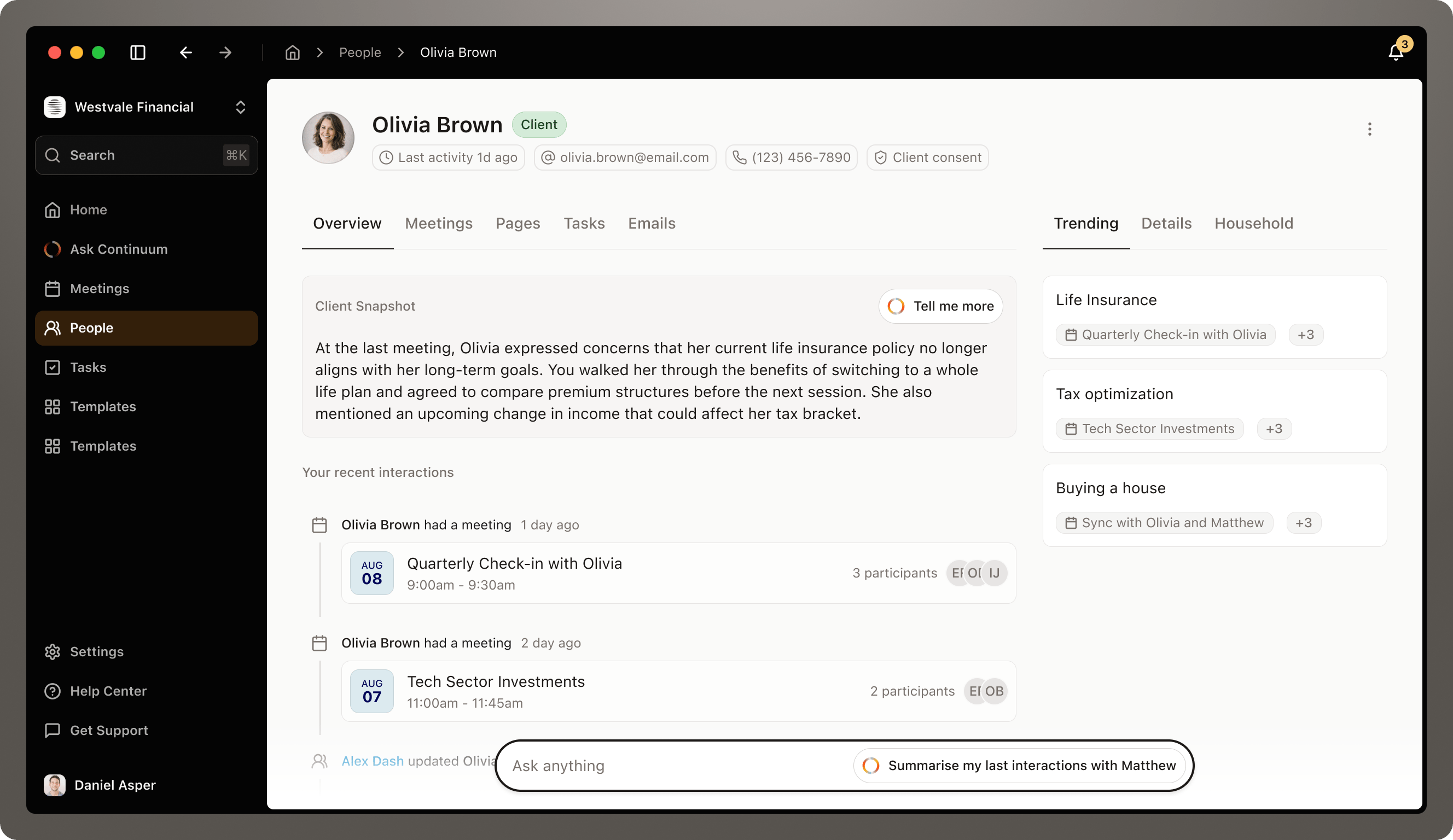
Whether you’re looking at an individual or a household, the profile structure works the same way. Click on any name to open their full profile. Client Profile Img1 Profile header: At the top, you’ll see their basic info—name, email, phone number, which household they’re part of, and their role in that household (Primary, Spouse, etc.). If you’ve connected your CRM, click Push to CRM to sync any updates you’ve made in Continuum back to your CRM.

The Overview tab

This is your relationship dashboard for this person. It has two main sections: Client Snapshot: Continuum’s AI automatically generates a summary of your most recent interactions with this contact. For individuals, it highlights what was discussed and what matters to them. For households, it synthesizes information across all family members to show the collective picture. It’s like having someone brief you before every meeting—highlighting what was discussed, decisions made, and what matters most right now. Click Tell me more to get a deeper analysis. The AI will expand on the snapshot with additional context and insights. Activity feed: Below the snapshot, you’ll see a chronological timeline of everything that’s happened with this contact:
  • Meetings you’ve captured together
  • When they were added to a household
  • Updates made to their information
  • Status changes (prospect to client, for example)
This feed gives you the complete story of your relationship at a glance. On the right side of every contact profile, you’ll see a Trending section. What are trending topics? These are themes that keep coming up in your conversations with this person. Continuum analyzes all your meetings, emails, and interactions to identify what’s most important to them right now. Why this matters: Before your next meeting, glance at the trending topics to instantly remember what’s on this person’s mind. It’s like having conversation context delivered automatically. Syncing meetings with topics: Each trending topic shows how many meetings touched on that subject (e.g., “Sync with Matthew +3”). Click on a topic to see which specific meetings discussed it, making it easy to reference past conversations.

Meeting History

Switch to the Meetings tab to see every captured meeting with this contact. Click any meeting to jump directly to that meeting’s full summary, transcript, and notes. This makes it incredibly easy to reference what you discussed three months ago without digging through files. Before your next meeting: You can open this tab and skim your last few conversations with the person. You’ll walk in remembering exactly where you left off and what you promised to follow up on.

Email History

The Emails tab shows all email correspondence with this contact or from any family member in the household, pulled from your connected email account. This gives you a complete communication timeline alongside your meeting history. Everything in one place, no jumping between apps.

Contact Details

The Details tab on the right side lets you view and edit all the information Continuum has about this person.Click any field to add or update information. Changes save automatically.
Details matter: The more complete a contact’s profile, the better Continuum can assist you. When you ask the AI about this person, it considers all available information to give you more relevant, personalized answers.

Household Members

When viewing a household profile, you’ll see a Members section showing everyone in the family. Managing the household:
  • Click + Add Member to bring someone into the household
  • Remove members if family situations change (adult children, divorce, etc.)
  • Designate primary contacts—usually the main decision-makers
When you click on any member’s name, you jump to their individual profile. When viewing an individual who’s part of a household, click the household name in their header to zoom out to the family view. This flexibility lets you navigate naturally between perspectives.

Using AI Ask with Contacts

When you’re on any profile, the AI has full context about that person or family. The AI knows:
  • Complete meeting history with this person
  • Trending topics from your conversations
  • Email correspondence
  • All details in their profile
  • Recent activity and updates
Questions you can ask:
What are Matthew's main concerns right now?
When's my next meeting with this client?
What did we discuss about life insurance?
Has Matthew mentioned his retirement timeline?
The AI assistant on the People list also works across all contacts. Try asking “Which clients might need follow-up soon?” and Continuum will analyze your entire contact base to identify who you should reach out to.

Syncing with Your CRM

Continuum works in harmony with your existing CRM. Information flows both ways to keep everything in sync. How CRM sync works: When you connect your CRM, contacts automatically populate in Continuum with all their existing information. As you capture meetings and interact with people in Continuum, you can push updates back to your CRM with one click using the Push to CRM button. What gets synced:
  • Contact information and updates
  • Meeting summaries and notes
  • Tasks created from meetings
  • Activity timeline
For households: If your CRM uses household structures, Continuum maintains that organization seamlessly. Household relationships, member updates, and family-level information all sync back and forth. Setting up CRM integration: Head to Settings > Integrations to connect your CRM. Continuum supports the major platforms financial advisors use. Once connected, sync happens automatically, or you can manually push updates whenever you want. Learn more in our CRM Integration documentation.

Best Practices for Contact Management

Let automation do the heavy lifting: Don’t stress about maintaining every contact manually. Continuum captures most information automatically as you work. Just fill in gaps when they matter. Choose the right view: Use Clients view when searching for individuals or managing your full contact list. Use Households view when planning family meetings or thinking about collective financial situations. Review profiles before important meetings: Spend two minutes in a contact’s profile before any meeting. Glance at the Client Snapshot, check trending topics, and skim recent meeting history. You’ll walk in confident and prepared. For families, think household-first: When working with couples or families, start with the household profile to get the complete context, then drill into individual profiles if needed. Keep details current: When you learn important information—a client moves, changes jobs, or hits a major life milestone—take 30 seconds to update their Details tab. Future you will be grateful. Use Group by strategically: Once a quarter, group contacts by “last meeting date” and scan for people you haven’t connected with recently. A quick check-in can strengthen relationships and uncover new opportunities. Trust the AI: Before meetings, try asking “Prepare me for my meeting with [name]” in the AI assistant. The preparation it provides, drawing from the complete contact profile, is often better than what you’d compile manually.