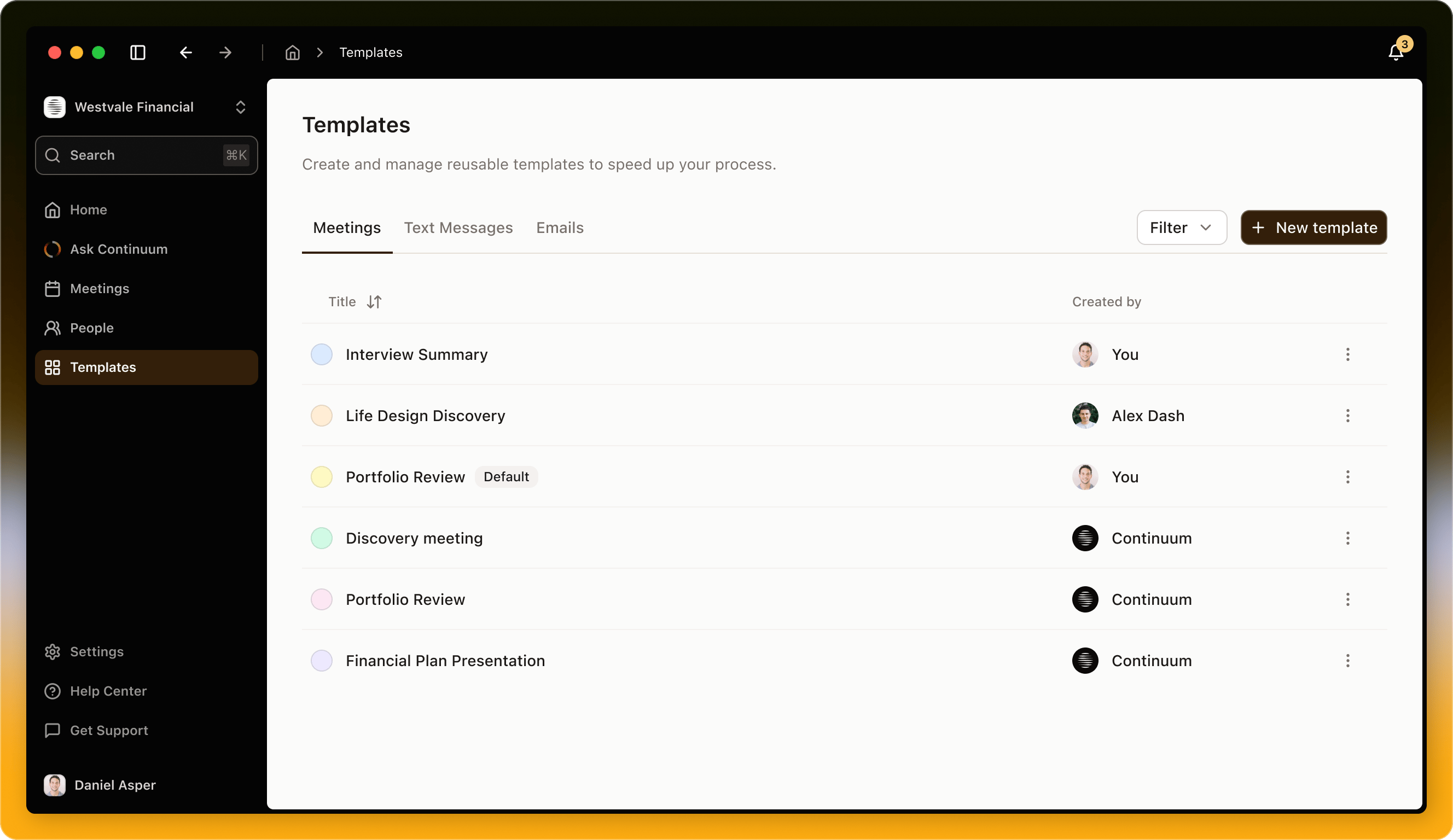
Templates help you standardize how meetings are structured and summarized across your firm. Use them to guide conversations, capture consistent notes, and generate AI-ready summaries for recurring meeting types like reviews, onboarding calls, or estate planning sessions. Templates Img1

What Are Templates?

Think of templates as blueprints for your meeting summaries. Instead of letting the AI decide how to organize your summary each time, a template tells it exactly which sections to include and in what order. Why use templates?
  • Consistency - Every portfolio review follows the same structure
  • Efficiency - No need to reorganize summaries manually
  • Professionalism - Client-facing summaries look polished and uniform
  • Completeness - Never forget to cover important topics
When to use them: Templates shine when you have recurring meeting types with predictable structures. Quarterly reviews, discovery calls, portfolio presentations—these all benefit from a consistent format. For one-off conversations or informal check-ins, the AI’s automatic organization usually works great.

Default AI Organization vs. Templates

While Continuum’s AI already does a great job organizing summaries automatically, templates let you maintain consistency across similar meeting types and match your personal documentation style. Without a template (Auto format): Continuum’s AI analyzes your conversation and organizes the summary in whatever way makes the most sense. It identifies key themes, pulls out action items, highlights decisions, and structures everything intuitively. This works beautifully for most meetings and requires zero setup. With a template: You define the exact sections you want—like “Current Portfolio Performance,” “Client Concerns,” “Recommended Changes,” and “Next Steps.” The AI then fills in those specific sections with relevant information from your conversation. You get the structure you want with the intelligence of AI doing the heavy lifting.

Built-In Templates

Continuum comes with several pre-built templates designed specifically for financial advisors. You can use these as-is or as starting points for your own custom templates. Available templates:
  • Financial Plan Presentation - For comprehensive planning meetings covering goals, analysis, and recommendations
  • Portfolio Review - Structured format for quarterly or annual portfolio check-ins
  • Kick-off Call - Ideal for first meetings with new clients or prospects
  • Life Design Discovery - Focused on understanding client values, goals, and life priorities
To use a built-in template, just click the Auto format dropdown in your summary view and select the template you want. Continuum regenerates your summary instantly with the new structure.

Creating Custom Templates

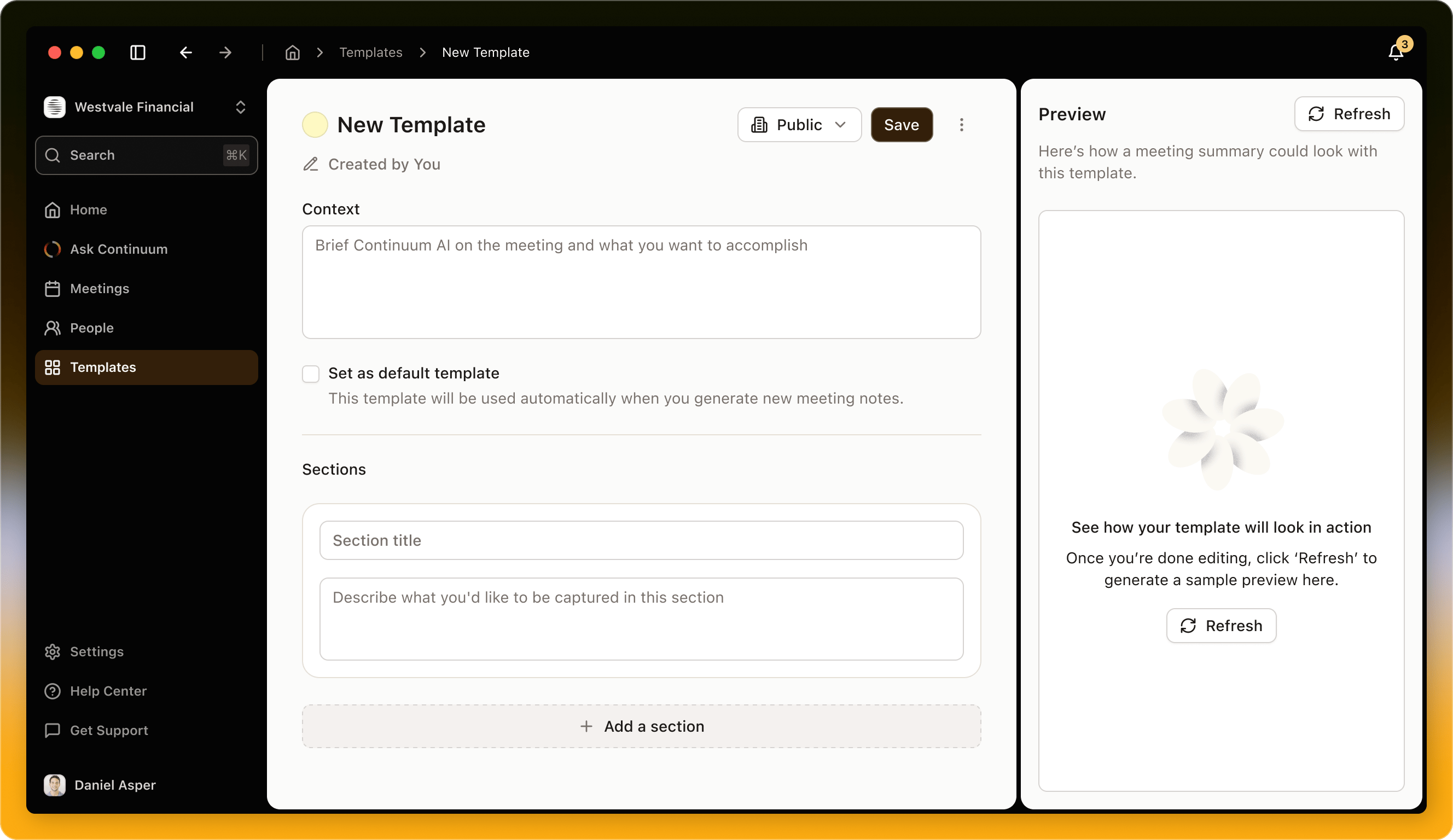
Want to create your own template? Here’s how to build one that perfectly matches your workflow. Edit Template Img1 To create a new template:
  1. Navigate to the Templates page
  2. Click + New Template
  3. Name your template, add a description and set the visibility
  4. Add your sections in the order you want them

Writing a Template Description

Add a Template Description that explains the purpose of the meeting and what the summary should include. This description serves as guidance for anyone using the template — it helps keep summaries clear, compliant, and focused on the client’s goals and outcomes. For example: If it’s an Estate Planning meeting, include context about what to capture — such as client priorities, document updates, and next steps involving trustees or legal coordination.
Tip: Use this field to reinforce your firm’s best practices. The description appears for anyone who uses the template, so it’s a great way to align tone and expectations across your team.

Setting Visibility

Control who can see and use your template. Use the Visibility dropdown at the top to choose whether your template is private or shared with your team or organization.
  • Private: Only you can view and edit the template.
  • Shared with team or organization: Others in your workspace can use it to create or run meetings with the same structure.
Visibility helps maintain consistency across client interactions — especially when multiple advisors or CSAs use the same meeting format.

Defining sections

Each section needs two things:
  • Section title - What this part of the summary covers (e.g., “Tax Optimization Opportunities”)
  • AI instructions - Guidance for what to include (e.g., “Focus on specific tax strategies discussed and potential savings”) The more specific your instructions, the more tailored your summaries become.
Example template structure:
Template: Retirement Planning Check-in

1. Current Retirement Timeline
   Instructions: Note any changes to planned retirement date and reasoning

2. Income & Expense Review
   Instructions: Summarize current savings rate and any spending concerns

3. Portfolio Performance
   Instructions: Highlight returns, risk level, and any rebalancing discussed

4. Social Security Strategy
   Instructions: Include claiming age discussions and benefit estimates

5. Healthcare Planning
   Instructions: Cover Medicare, long-term care, or health savings topics

6. Action Items
   Instructions: List all follow-ups and next steps with deadlines
Tips for great templates:
  • Keep section names clear and specific
  • Use 4-8 sections (too many gets overwhelming)
  • Put action items last so they’re easy to find
  • Include a “Client Concerns” or “Questions Raised” section
  • Consider what your clients will see if you share summaries

Previewing Your Template

The Template Preview on the right side shows what a completed summary might look like. Click “Click to refresh” to update the preview as you edit sections or descriptions. This preview helps you visualize how AI-generated summaries will appear to your team or clients — ensuring that your structure prompts the right tone, flow, and level of detail before it’s shared or used in real meetings.
Tip: Refresh often as you edit sections to make sure the preview reflects your latest updates.

Using Templates in Meetings

Applying a template: You can apply a template at any time—even to meetings that already have summaries generated.
  1. Open your meeting summary
  2. Click the Auto format dropdown
  3. Select your desired template
  4. Continuum regenerates the summary with your chosen structure
The regeneration takes just a few seconds. Your original transcript and notes stay untouched—only the summary organization changes. Switching between templates: Feel free to experiment. Try different templates to see which structure works best for a particular meeting. You can switch back and forth as many times as you want. Each time, the AI reorganizes the same information in a new way. Setting default templates: You can set a default template for specific meeting types. For example, any meeting titled “Portfolio Review” could automatically use your Portfolio Review template. This saves you from manually selecting the same template over and over.

Editing Templates

Your templates aren’t set in stone. You can edit them anytime to refine the structure. Just click on the template you want to modify, add, remove, or reorder sections, update AI instructions as needed and save your changes. What happens to existing summaries? When you edit a template, it doesn’t automatically change summaries you’ve already generated. But the next time you apply that template to any meeting (new or old), it’ll use the updated structure. Deleting templates: Deleting a template removes it permanently. Summaries that used that template stay as-is—they don’t revert to Auto format or disappear. Only the template itself is deleted.

Sharing Templates with Your Team

The templates you create are Private by default, but you can share them with teammates at any time. This is great for ensuring everyone documents meetings consistently. Click Share and choose “Organization” to make it available to all. Shared templates appear in everyone’s template dropdown. Team members can use shared templates but can’t edit them—only the creator can make changes.

Template Best Practices

Start simple: Don’t try to create the perfect template on day one. Use Continuum’s Auto format for a few meetings, notice what sections appear naturally, then build your template around that structure. Get feedback: If you share summaries with clients, ask what they find most valuable. Build your templates around the information that matters to them. Review and refine: After using a template for a few meetings, revisit it. Are there sections that don’t come up the way you want? Are you manually adding the same information every time? Adjust accordingly. Don’t over-template: Not every meeting needs a template. Casual check-ins, quick calls, and one-off conversations often work better with Auto format. Save templates for your recurring, structured meeting types. Use clear language: Section names should make sense to anyone reading the summary—including your clients. “Next Steps” is clearer than “Action Items Requiring Follow-up.” Organizing templates: As you create more templates, keep them organized with clear naming. Instead of “Template 1,” use “Q1 Portfolio Review” or “New Client Discovery Call.” You’ll thank yourself later.

Troubleshooting Templates

Section is empty or off-topic: If a section consistently comes up empty or includes irrelevant information, your AI instructions might need tweaking. Try being more specific about what should go in that section, or consider whether that section is necessary at all. Template doesn’t match the conversation: Templates work best when the meeting actually covers those topics. If you’re forcing a Retirement Planning template onto a tax strategy conversation, the AI will do its best but results might feel awkward. Switch to Auto format or use a more relevant template. Want to customize just one summary: Even with a template applied, you can manually edit any section. The template structures your summary, but you’re always free to adjust the final result. Click into any section and make it yours.