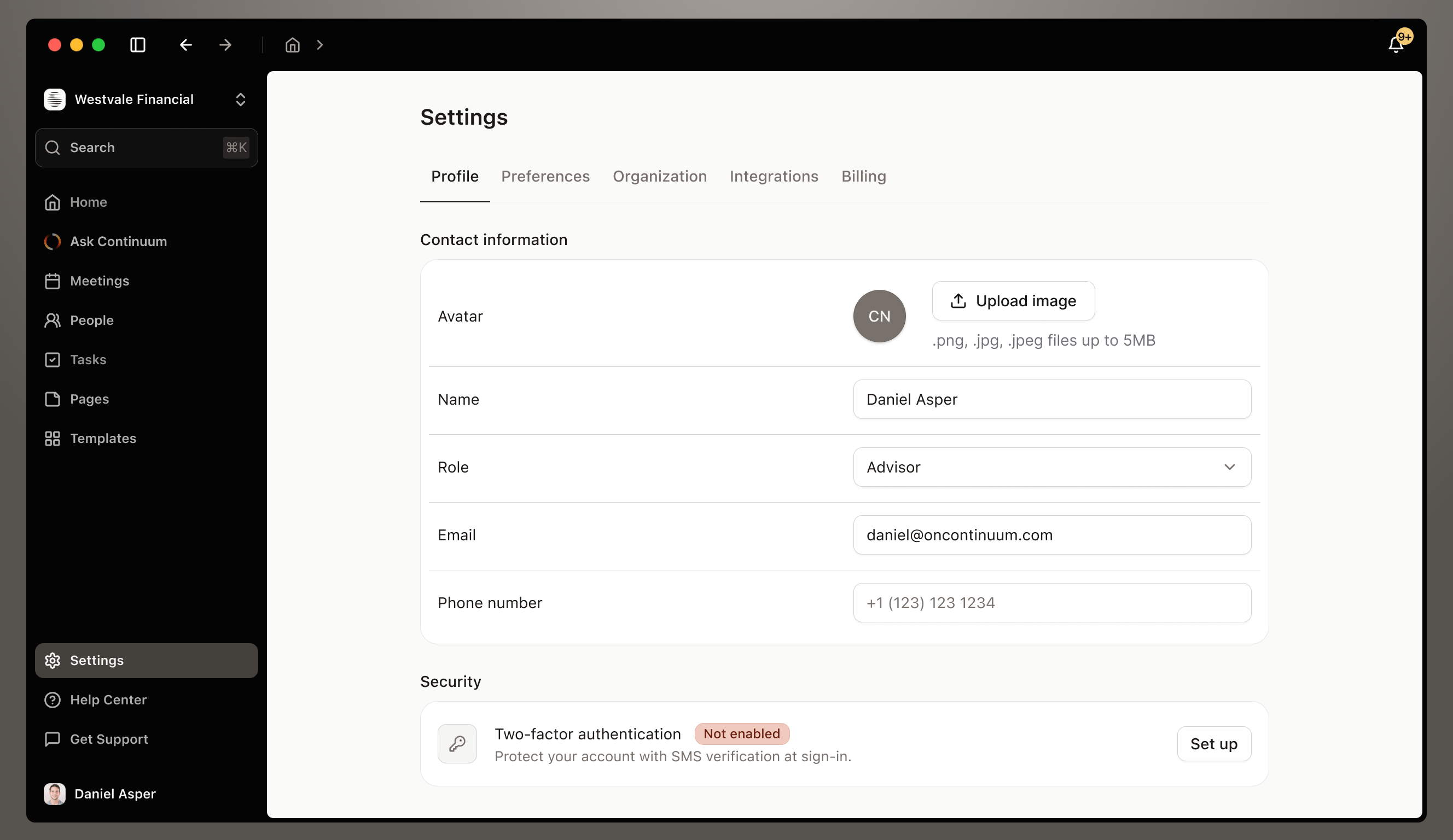
Your Settings page is where you make Continuum yours. Manage your profile, connect your tools, configure your organization, and control your subscription, all in one place.

Accessing Settings

Click the Settings icon in the sidebar to open your Settings page. Everything is organized into four main tabs: Profile, Organization, Integrations, and Billing.
Settings Img2

Profile Tab

Manage your personal information and account preferences. Avatar: Upload a profile photo to personalize your account. Click Upload image and choose a .png, .jpg, or .jpeg file up to 5MB. Your avatar appears throughout Continuum and helps teammates identify you. Contact information:
  • Name - Your full name as it appears in Continuum
  • Email - Your account email address
  • Role - Your role in the organization (Advisor, Admin, etc.)
  • Phone number - Optional contact number
Click into any field to edit it. Changes save automatically. Security: Enable Two-factor authentication to add an extra layer of security to your account. Click Set up and follow the instructions to connect your authenticator app. If you see “Not set up” with a red indicator, it means 2FA isn’t enabled yet—we recommend setting it up to keep your account secure.

Organization Tab

Manage your workspace and team members (visible to all users, editable by admins). Organization information:
  • Avatar - Upload your organization’s logo
  • Organization name - Your firm or company name
This information helps identify your workspace. Team members: See everyone in your organization with their Name, email address, status, role, seat type and join date. The list shows who’s actively using Continuum and who still needs to accept their invitation. Managing members (Admins only): Admins can invite new team members, manage roles, and remove users who no longer need access. Click Invite Member to add someone new to your Continuum workspace. Switching workspaces: If you belong to multiple organizations, you can switch between them using the workspace dropdown at the top of your sidebar.

Plans, seats, and permissions

Your role, seat type, and plan control different parts of your Continuum access:
  • Role determines whether you can manage organization settings and team members.
  • Seat type determines whether you have a Standard or Assistant seat.
  • Plan determines whether a Standard seat includes Core or Pro features.
Core and Pro are available for Standard seats. Assistant is a separate seat type with a fixed set of permissions.
To create, edit, publish, or track Pages, a user needs a Standard seat on Pro.
Assistant seats are always view-only for Pages.
In short: a Standard seat is the full Continuum experience — capture your own meetings and use everything. An Assistant seat is a lower-cost option for people who support advisors: they see what’s shared with them and can help polish meeting summaries and tasks when given edit access, but they can never capture a meeting or build a Page.
A common setup: an advisor on a Standard seat captures the meeting, then shares it with their assistant with edit access. The assistant tidies up the summary, completes the follow-up tasks, and pushes everything to the CRM — all from a $39 Assistant seat.
You can change any member’s seat type at any time — see Managing existing members. Upgrading an Assistant to a Standard seat unlocks capturing and Pages immediately, and billing adjusts automatically with a prorated charge.

Managing members

Inviting team members

As an admin, you can add new people to your Continuum organization directly from Settings.
  1. Scroll down to Team members and click Invite Member.
  2. Enter their name and email address.
  3. Choose their role:
    • Admin — Can manage organization settings and team members.
    • Member — Can use the features included with their seat and plan but cannot manage the organization.
  4. Choose the access that matches their work:
    • Standard on Core — For users who need to capture meetings and use Continuum’s core meeting and client workflows.
    • Standard on Pro — For users who also need to create, edit, publish, or track Pages.
    • Assistant — For support staff who work with shared meetings, clients, and Pages but do not need to capture meetings or manage Pages.
  5. Review the details and click Confirm.
Once confirmed, they’ll receive an email invitation with instructions to sign in and get started. Adding a new seat automatically updates your billing. You’ll see the seat price and any billing adjustment before confirming the invitation.
Tip: Help your new team member get started quickly by pointing them to the Setup Guide. They’ll need to download the desktop or mobile app, sign in with their work account, and connect their calendar to start capturing meetings.

Managing existing members

You can update a team member’s role, seat type, or plan whenever their responsibilities change. For example, if an Assistant user needs to continue creating Pages after a Pro trial, their access must be changed from an Assistant seat to a Standard seat on Pro. To do so, click the three-dot menu (⋮) on the right side of their row, select Edit role or Edit seat type and choose the new option. Changes to access and billing are shown before you confirm them. Any billing adjustments are handled automatically — you’ll see updated charges reflected in your next billing cycle.

Removing a member

If someone leaves your team or no longer needs access:
  1. Click the three-dot menu (⋮) next to their name
  2. Select Remove member
Their access to your organization’s meetings and data will be revoked. Your billing will be adjusted accordingly on your next invoice.
Adding, changing seat types, or removing users automatically updates your billing—there’s nothing extra you need to do. As teammates accept invitations (or are removed), your invoice reflects the current number of seats.

Preferences Tab

Customize how Continuum works for you — from the notifications you receive to how your meeting content is shared. Notifications: Pre-meeting prep email — Get an email 1 hour before upcoming meetings with a quick recap of your last conversations and suggested talking points. Toggle this on or off depending on whether you find the pre-meeting reminders helpful. Enabled by default. Meetings: Show calendar events without attendees — Choose whether to display calendar events where no one else is invited, like prep time, lunch blocks, or personal reminders. Turn this on if you want to see your full calendar in Continuum, or leave it off to keep your meeting list focused on actual client and team interactions. Disabled by default. Who sees your meeting notes — After each meeting, Continuum generates a summary. This setting controls the default visibility of those notes. Choose Share to automatically share summaries with your team, or switch to Private to keep them visible only to you. You can always change the sharing setting on individual meetings later — this just sets your default.

Integrations Tab

Connect Continuum to the tools you already use—your calendar, CRM, email, and more. Calendar and Email: This section handles your meetings, events, and email correspondence. Available integrations: Microsoft Outlook, Gmail and Google Calendar, Apple Calendar. When an integration is connected, you’ll see a green “Connected” badge, your connected email address and a Details dropdown to manage settings. CRM: Connect your customer relationship management platform to sync contacts, tasks, and notes. Available CRM integrations: Salesforce, HubSpot, Wealthbox, and other major platforms. When connected, click Details to see see your connected account information and its status, adjust sync settings, or disconnect it if you no longer need it. Why integrations matter: Integrations eliminate manual work. Your calendar meetings appear in Continuum automatically. Meeting summaries push to your CRM with one click. Contacts sync both ways. Everything stays aligned without you lifting a finger.
To learn more about integrations, see the Integrations page.

Billing & Subscription

Admins can manage the organization’s plans, seats, payment method, and billing cycle from the Billing tab.

Plans and seats

Continuum offers two plans for Standard seats:
  • Core — $79/month per seat
  • Pro — $149/month per seat
Pro includes everything in Core, plus the ability to create, edit, publish, and track Pages. Assistant seats are $39/month per seat and are designed for support staff working with content shared by their teammates. Assistant seats cannot capture meetings or manage Pages.

What happens when a Pro trial ends

Any Pages created during your Pro trial will remain available after the trial ends. To continue creating, editing, publishing, or tracking Pages, a user must have a Standard seat on Pro. Users on Core or Assistant seats can continue viewing Pages they already have access to, but they cannot create new Pages or make changes to existing ones.
If an Assistant user has been creating Pages during the trial, their seat must be changed to a Standard seat on Pro for them to continue that work.

Changing a plan or seat

Admins can change a user’s role, seat type, or plan as their responsibilities change. Before confirming a change, Continuum will show:
  • The user’s new access
  • The new seat price
  • When the change takes effect
  • Any resulting billing adjustment
Changing an Assistant user to Pro means replacing their $39 Assistant seat with a $149 Standard seat on Pro.

Changing your billing cycle

Your plan and billing cycle are separate. Core and Pro determine which features you can access, while monthly and yearly determine how often you’re billed. Changing your billing cycle does not change your plan, seat type, or permissions. What happens when you switch:
  • Switching to yearly billing: The change takes effect immediately. You’ll be charged today, with a prorated credit applied for the unused portion of your current monthly billing cycle.
  • Switching to monthly billing: Your yearly billing remains active until the end of your current term. Monthly billing begins on your next renewal date, so nothing changes until then.

Settings Best Practices

Complete your profile: Take a minute to add your photo, phone number, and verify your email. It makes collaboration smoother and helps teammates identify you quickly. Connect integrations during setup: Link your calendar and CRM right when you start using Continuum. The sooner these connect, the sooner your data flows automatically. Enable 2FA: Two-factor authentication takes 2 minutes to set up and significantly improves your account security. It’s worth it. Check integration status quarterly: Once every few months, open the Integrations tab and verify everything shows “Connected” and “Synced.” Sometimes permissions expire and need to be refreshed. Keep your profile current: When you update your email, or move to a new organization, update your profile. Accurate information helps Continuum work better for you. Keep business address current: If your firm moves or changes contact information, update it in the Organization tab. This keeps your invoices and official communications accurate.ShareContent