

Step 1: Sign up
For Microsoft 365 Users
For Microsoft 365 Users
1
Open your email invitation to join your firm’s Continuum organization
2
Click Sign in with Microsoft
3
Log in using your work email address
4
Download the Desktop App
5
Connect your Outlook Calendar
For Google Workspace Users
For Google Workspace Users
1
Open your email invitation to join your firm’s Continuum organization
2
Click Sign in with Google
3
Log in using your work email address
4
Download the Desktop App
5
Connect your Google Calendar
Step 2: Install Continuum
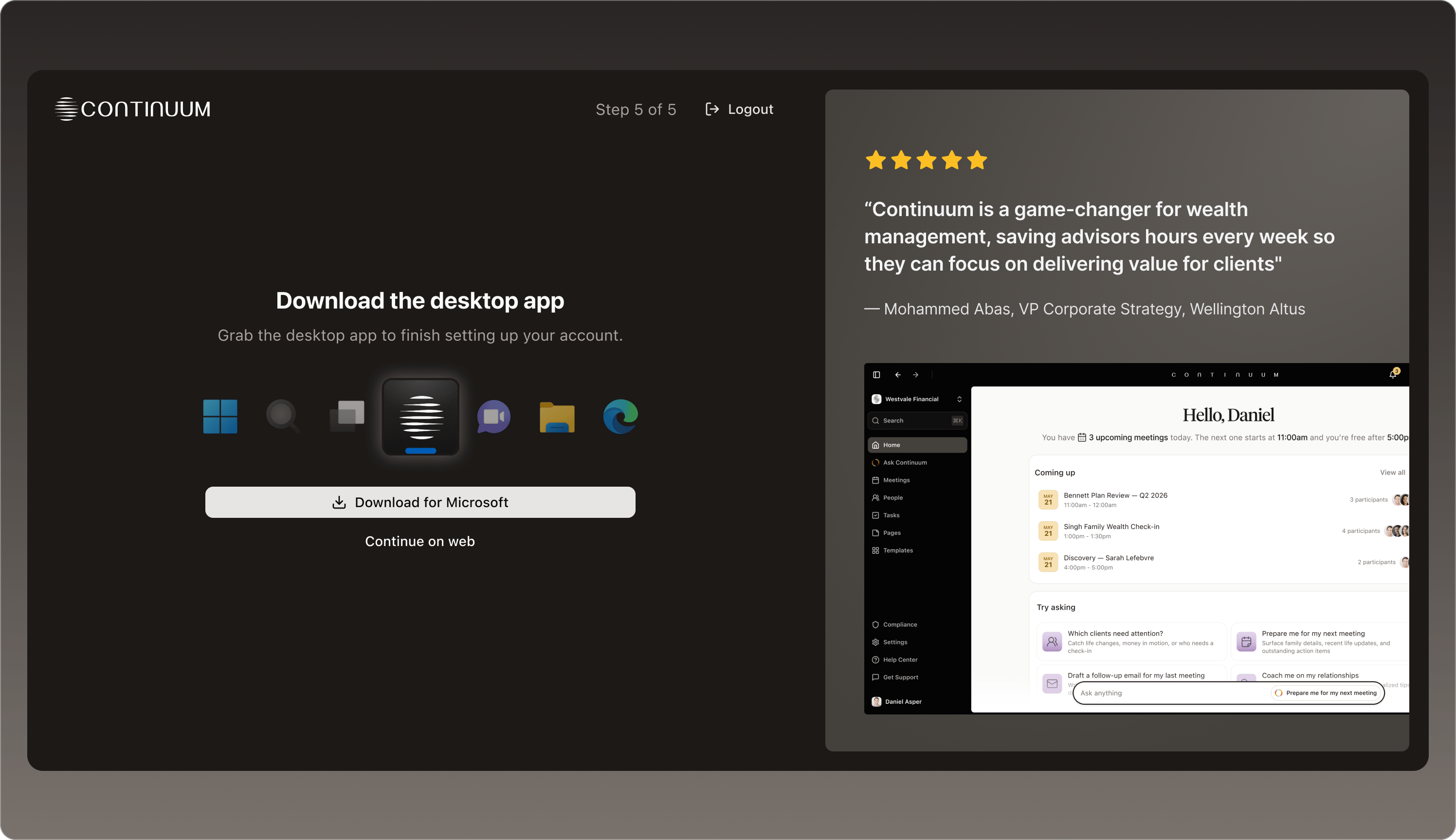
- Download Continuum for your operating system:
- Windows: Download for Windows
- macOS: Download for Mac
- Continuum requires a minimum of Windows 10 or macOS 12 (Monterey) to run, but works best on the latest versions of both.
- Open the installer and follow the prompts.
Windows Download
Windows Download
- Open Continuum.exe from your Downloads folder
- The Continuum installer should run
Mac Download
Mac Download
- Open the Continuum.dmg from your Downloads
- Drag the Continuum icon into your Applications folder
- Open the Continuum app from your Applications folder
Mobile (iOS & Android)
Mobile (iOS & Android)
- Find Continuum in the App Store (iOS) or Google Play (Android)
- Install and open Continuum
- Now log in with Microsoft or Google
Step 3: Calendar and audio permissions
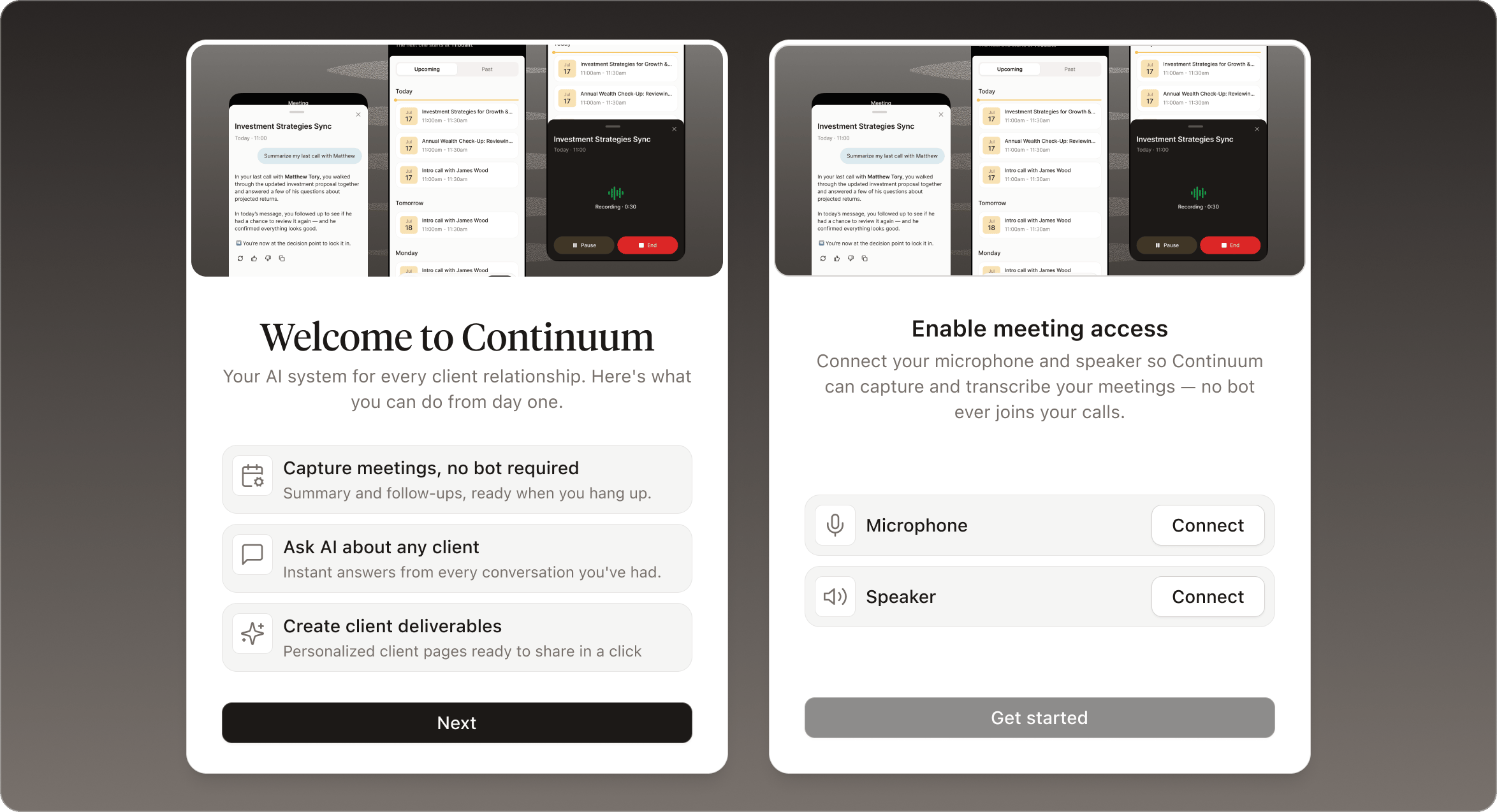
- Access your calendar to detect upcoming meetings.
- Use your microphone and speaker to transcribe audio during meetings.
Step 4: Try a capture and AI notes
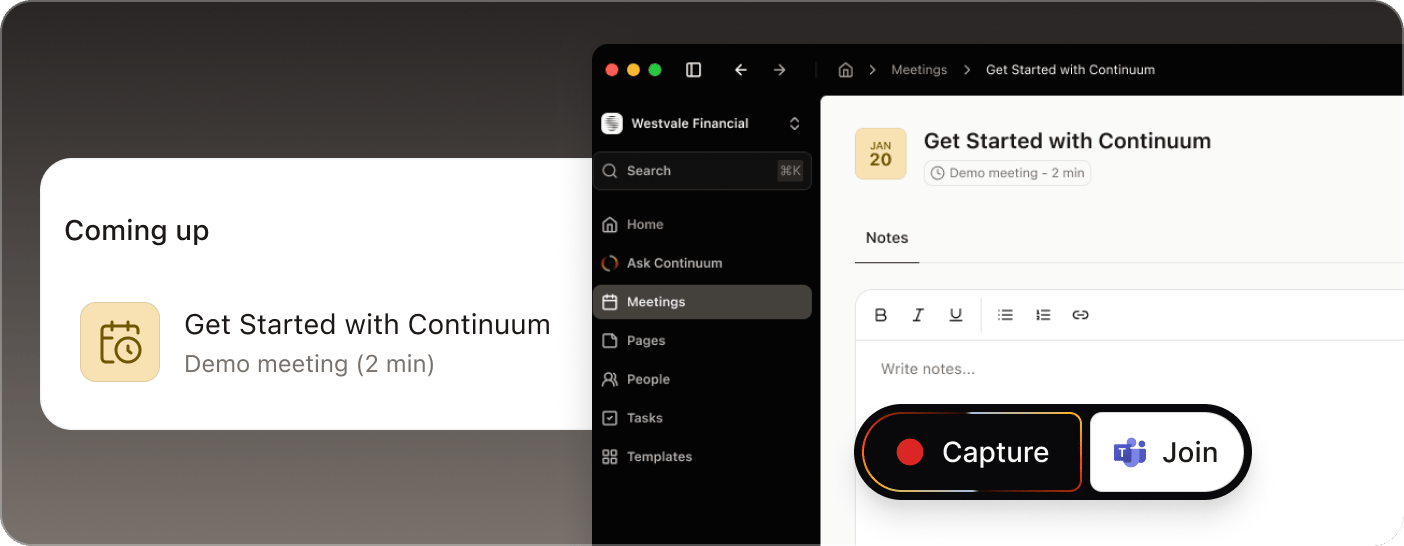
- Click into the Sample Meeting.
- Press Capture to start. Continuum captures audio from your device. Try talking out loud or even playing a video on YouTube.
- Watch the waveform bars move to confirm transcription is active.
- When you’re ready, press Stop, then click Generate.
- Within a few seconds, you’ll see a full AI-generated summary, key discussion points, and action items appear in your notes view.
This is a safe space to experiment. The Sample Meeting is private to you and not shared with your organization.
Now you’re all set!
Your Continuum app should now look something like this, showing your upcoming meetings, and the suggestions about what you can ask the Continuum AI.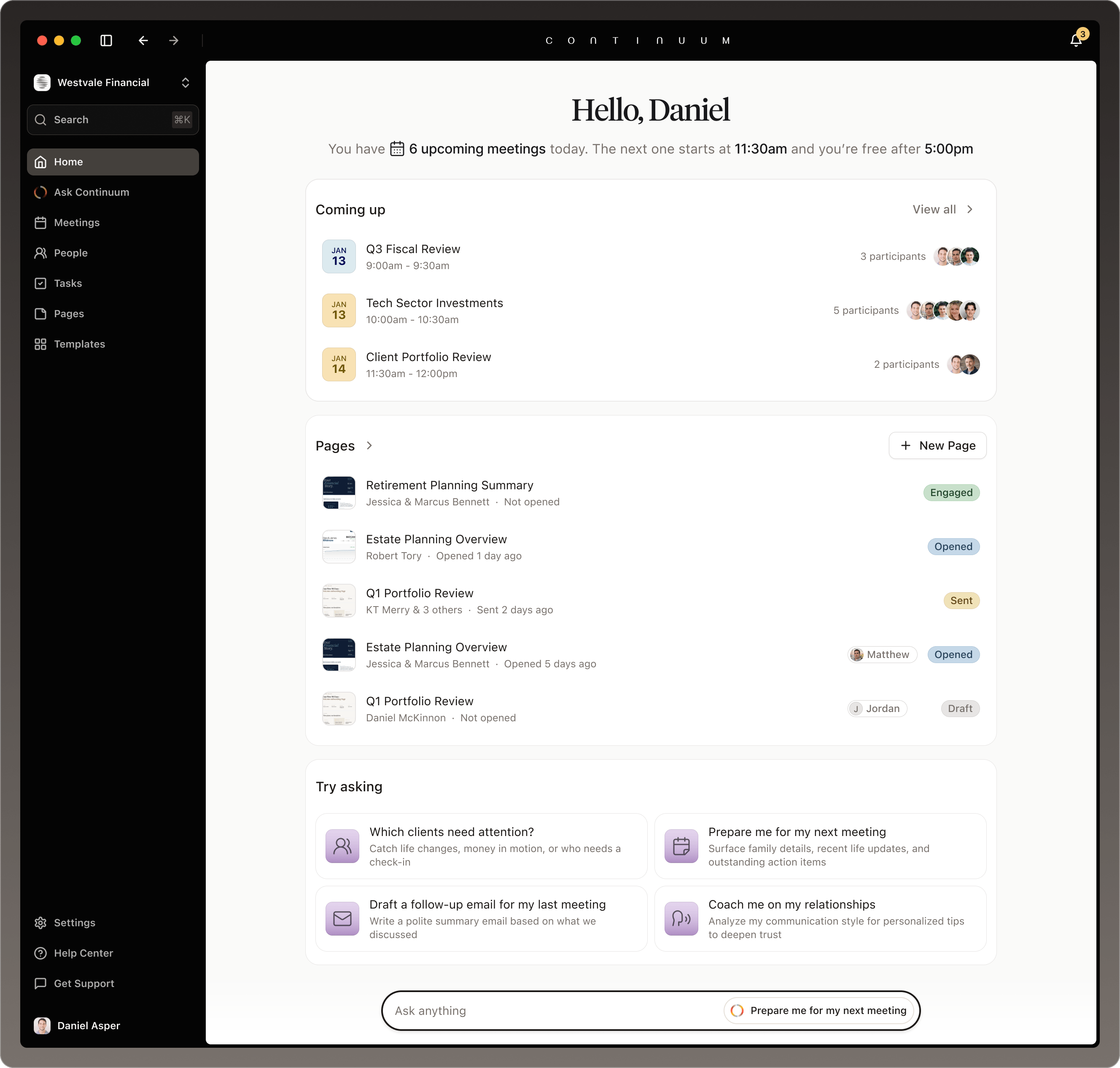
What’s next
Capture your first real meeting
See how Continuum prepares you before, during, and after every conversation.
Connect your CRM and email
Sync contacts and push meeting notes to the tools you already use.
Send your first Page
Rehearse the full client experience by sending a Page to yourself.
Capture a phone call
Have Continuum join your phone calls and transcribe them like any meeting.
Prefer a guided setup?
If you’d rather have someone walk you through setup, or you have questions this guide didn’t answer, our team is happy to help.- Book an onboarding session: a live walkthrough of setup, capturing your first meeting, and connecting your tools.
- Email support@oncontinuum.com: a member of our support team will reply and help you get set up.