Before your first meeting
- Connect your calendar so your meetings appear in Continuum.
- Allow Continuum to use your microphone and system audio when the desktop app asks.
- Check your audio input with Sound settings. See Check your audio input.
- Learn the capture controls. See During a meeting.
How meetings appear
Every timed event on your connected calendars appears on the Meetings page. All-day, cancelled, and declined events are skipped. Events with nobody else invited appear too, unless you turn off Settings > General > Meetings > Show calendar events without attendees.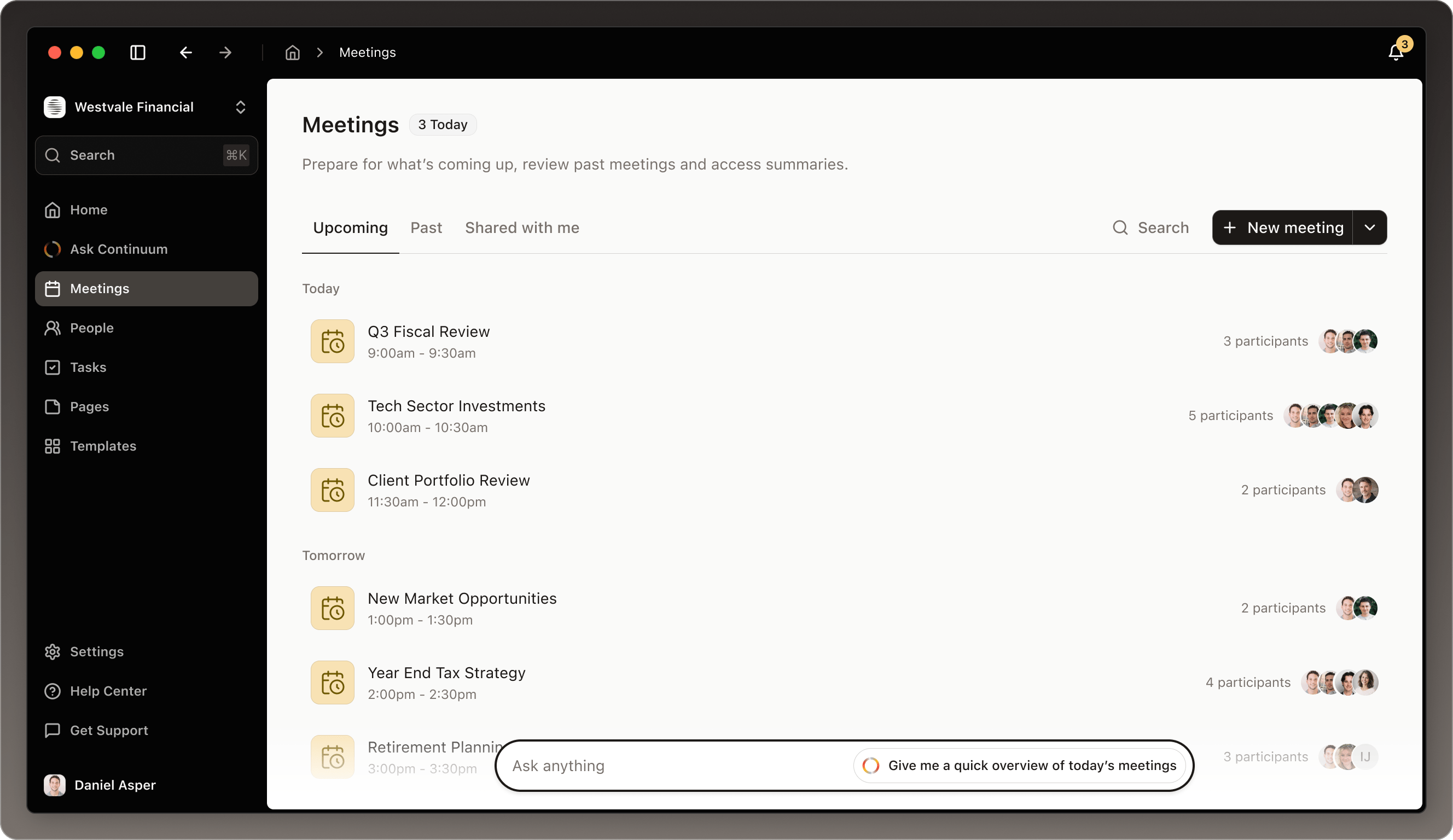
The alert before each meeting
About a minute before a meeting you are invited to, the desktop app shows an alert at the top right of your screen. It stays for three minutes.- Click Join Meeting to open the call link and start capturing in one step.
- Click the alert itself to open the meeting in Continuum, then click Capture when the meeting starts.

Capture a meeting that is not on your calendar
1
Click New meeting
On the Meetings page, click New meeting. Continuum creates the meeting and opens it. Its time is when you click New meeting, and you cannot change it. Click the title to rename it.
2
Add participants
Click Add participants and search your contacts, or choose Create new contact.
3
Click Capture
Continuum starts transcribing.
Check your audio input
Before the meeting starts, click the … menu in the meeting and choose Sound settings. This opens your computer’s sound settings, where you choose the microphone. Check it whenever you switch between headphones, your laptop, and an external microphone. This option is in the desktop app only.Add notes before the meeting
Every meeting has a Notes tab. Use it for an agenda, background on the client, or what you want to cover. Continuum reads your notes along with the transcript when it writes the summary, so they help it focus on what matters to you. Notes are optional, and they stay with the meeting afterwards.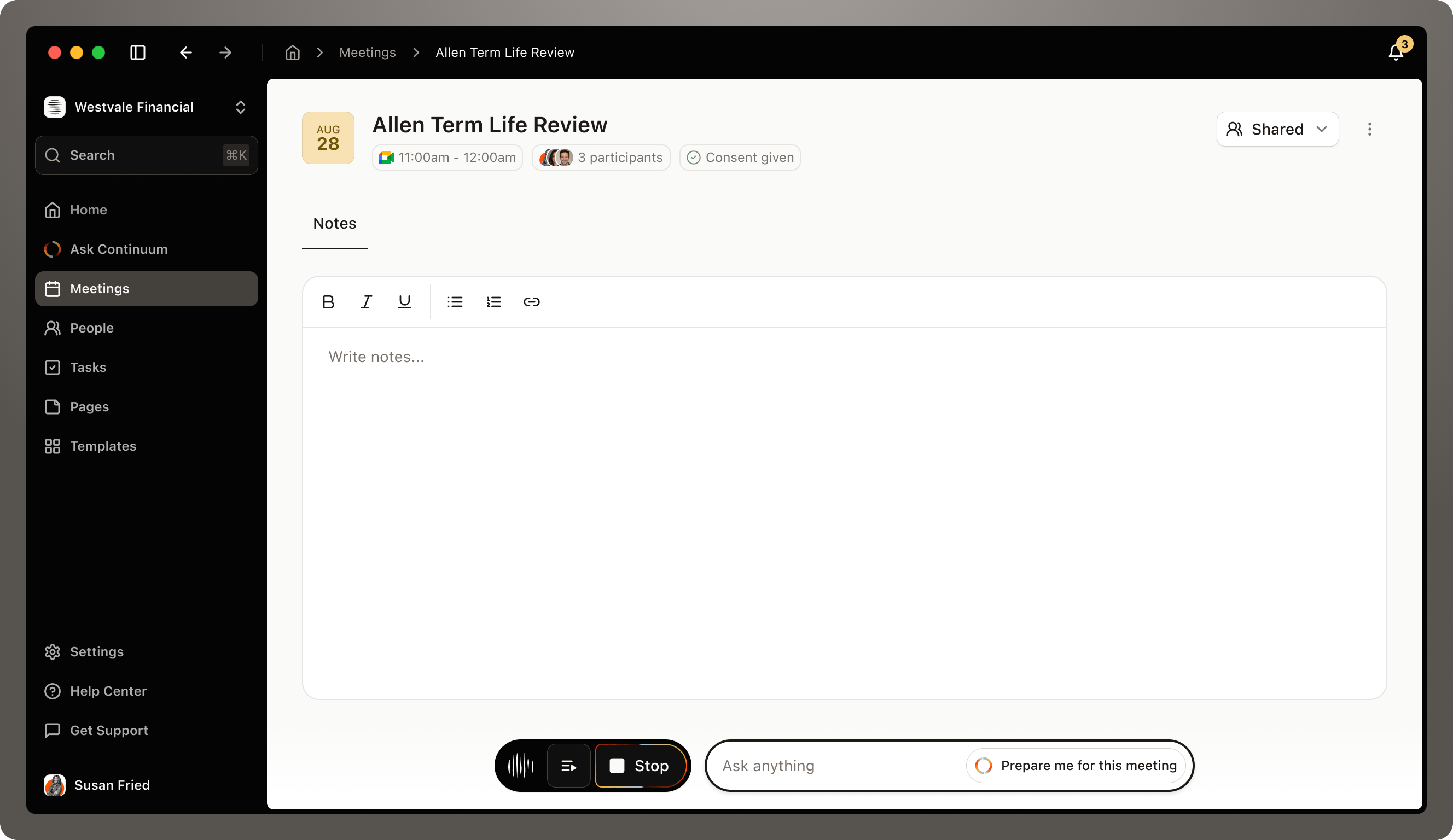
Prepare with the Ask bar
The Ask bar at the bottom of the meeting can draw on your past meetings with the same client. Before the meeting it suggests Prepare me for this meeting, a briefing from past meetings and open items with this client, and Prepare talking points for this meeting. You can also type your own question, for example “What did we discuss last time?” or “Has this client mentioned their children’s education before?” See Prompts to try. To get a briefing by email an hour before each meeting, turn on Pre-meeting prep email in Settings > General > Notifications. It is off by default.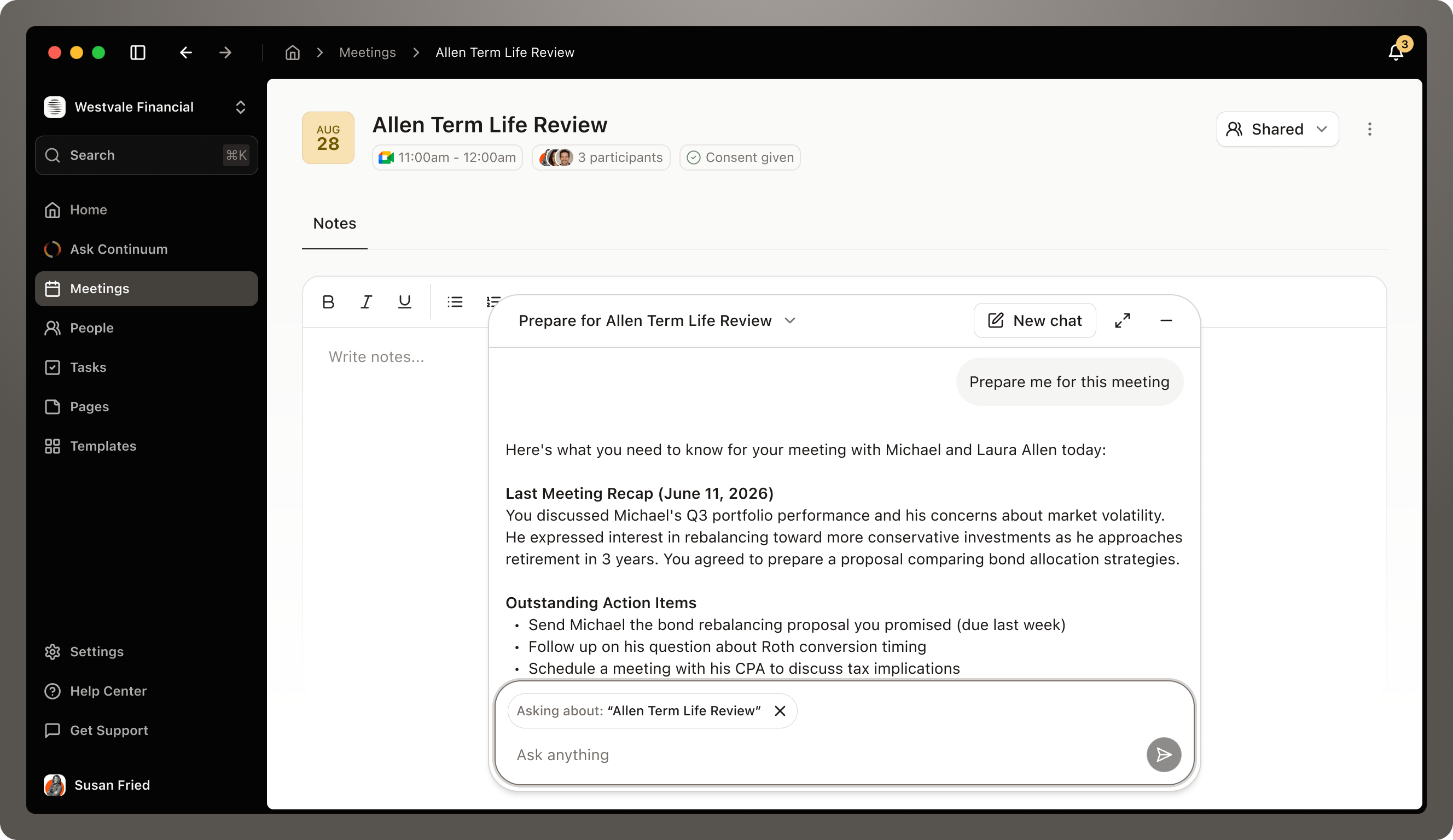
Document client consent
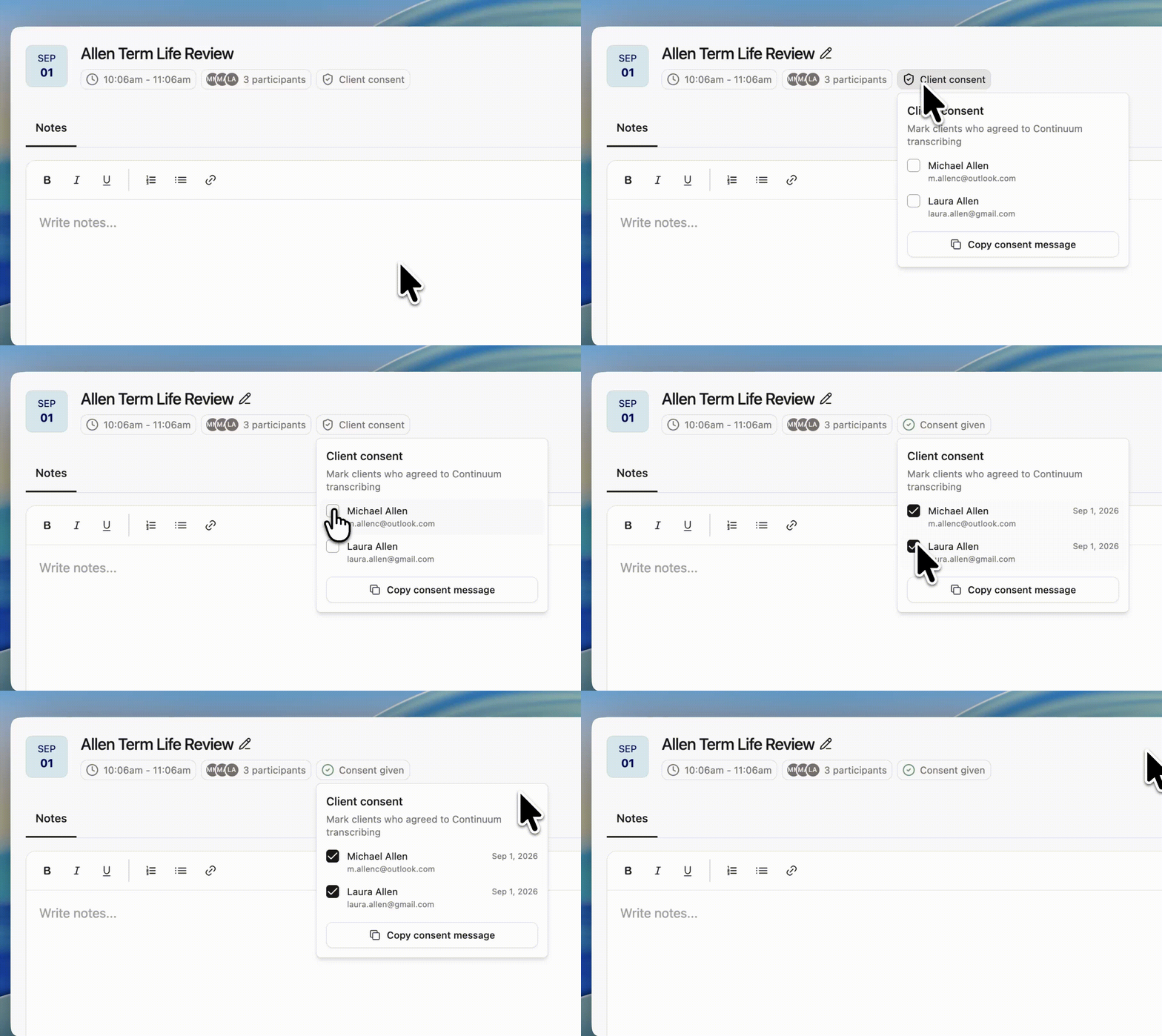
Continuum captures on your device, with no bot in the call, so attendees may not know a transcript is being made. Tell them, and get any consent your firm’s policies or the law require.Save consent
The consent chip in the meeting header shows where things stand:
Open the chip and tick each client who agreed. Continuum saves the consent and its date on the client’s contact, so it carries over to future meetings. The same chip is on the contact’s page, so you can save consent there as soon as the client gives it.