

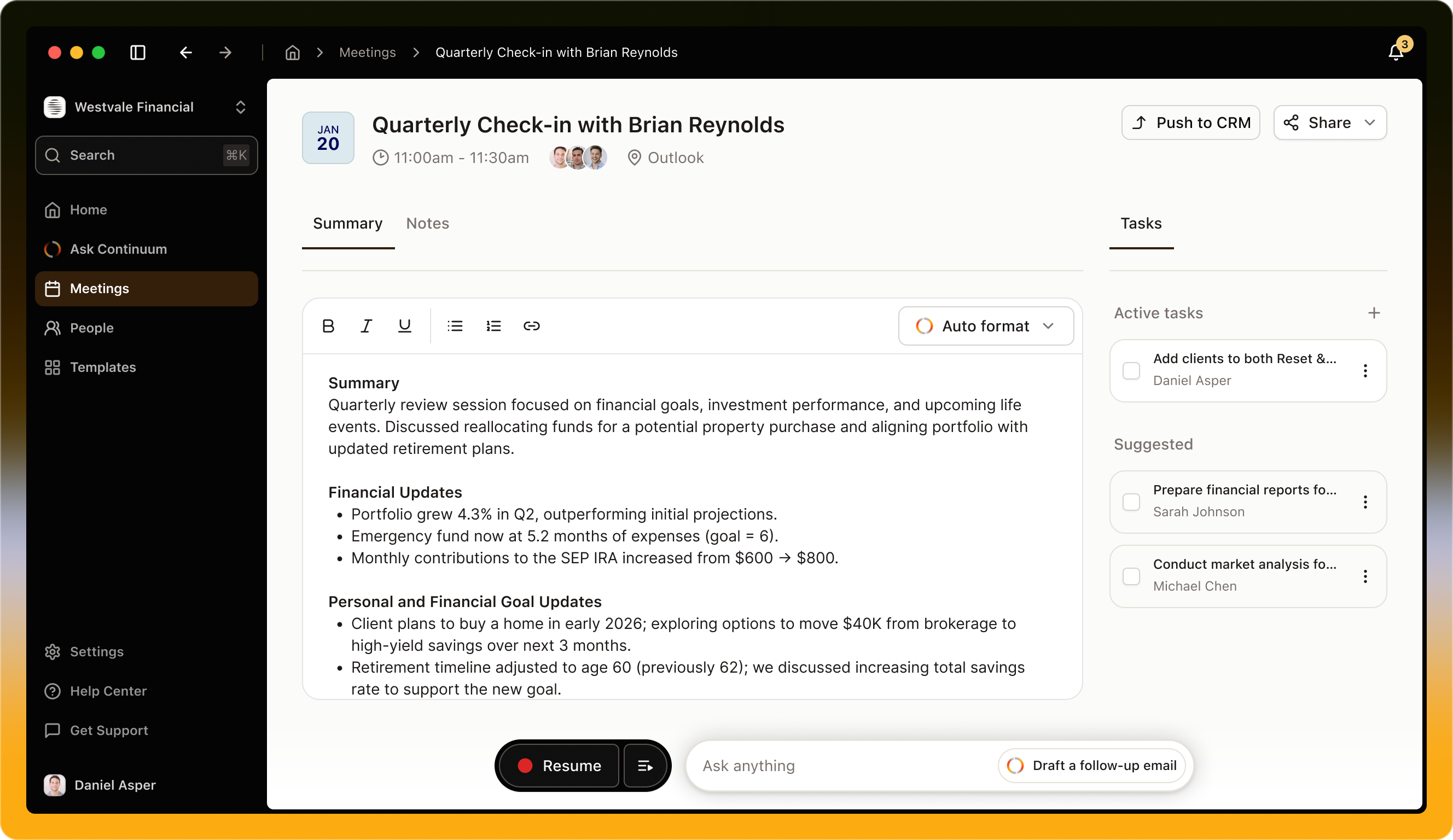
The summary
The meeting has two tabs: Summary, which Continuum writes, and Notes, which you write. Without a template, Continuum organizes the summary into sections based on what was discussed. It reads both the transcript and your notes. To shape how it writes every summary, add rules under Settings > Personalization > Summary guidelines.Use a template
Click Auto format above the summary and choose a template. Continuum rewrites the summary in that template’s sections. Create new template at the bottom of the list starts a new one. See Meeting templates.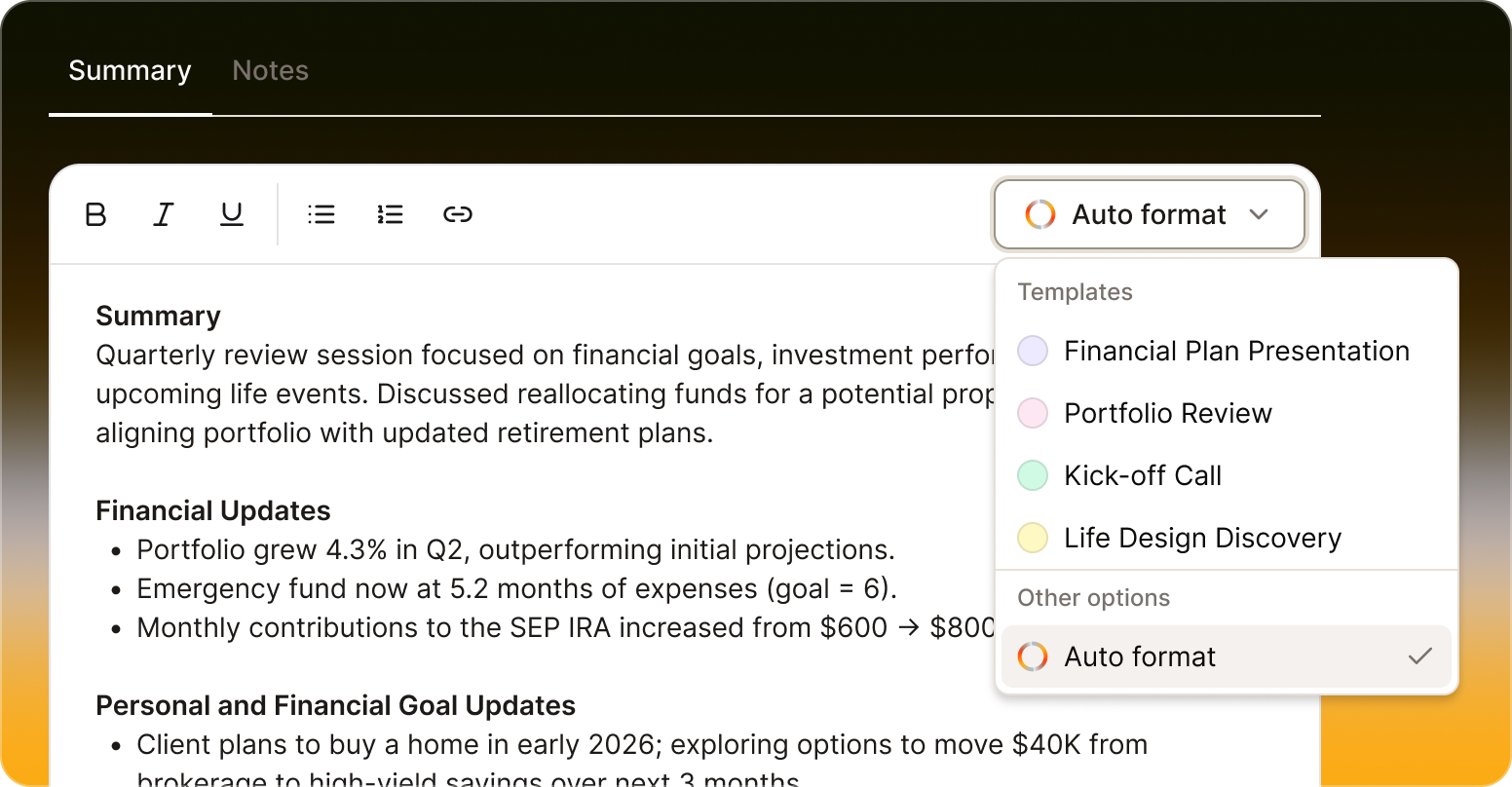
Edit the summary
Click into the summary and edit it like a document, with the toolbar for formatting. Your changes save when you click away. You can also ask the Ask bar at the bottom of the meeting to change it, for example “Shorten the next steps” or “Correct the spelling of Morrison”. Continuum rewrites the summary, and it glows while it updates. The Ask bar changes the summary only, not the transcript.Copy or export a meeting
There is no separate export button. Copy the transcript, summary, or notes to paste them anywhere, or sync the meeting to send the summary and the tasks you choose to your CRM. Syncing does not send your notes.- Transcript: click View transcript in the capture controls, or choose Show transcript in the … menu, then click Copy transcript at the top right.
- Summary and notes: click Copy summary or Copy notes, beside the tabs.
- Your CRM: click Sync to send the summary and the tasks you choose. See Sync to your CRM.
Suggested tasks
Tasks appear in the panel on the right. Continuum suggests them from the conversation, each marked Suggested.- Click Add to keep a suggestion, or the X to dismiss it.
- Click a task to open it and set the due date, assignee, and details.
- Click + at the top of the panel to add your own.
- Mark a task done with the status control beside it.
Keep going with the Ask bar
After a meeting, the Ask bar suggests Draft a follow-up email, What are the main takeaways?, and What are the next steps I can take?. It has the transcript, summary, and your notes, so you can also ask “What questions did the client ask that I did not answer?” or “Compare this with our last meeting.”Sync to your CRM
Click Sync at the top of the meeting. In the drawer that opens:- Under Sync with, choose the contact or contacts, for example both spouses in a household.
- Tick Summary, and the tasks you want to send.
- Click Push.
Share a meeting
Click Share at the top of the meeting.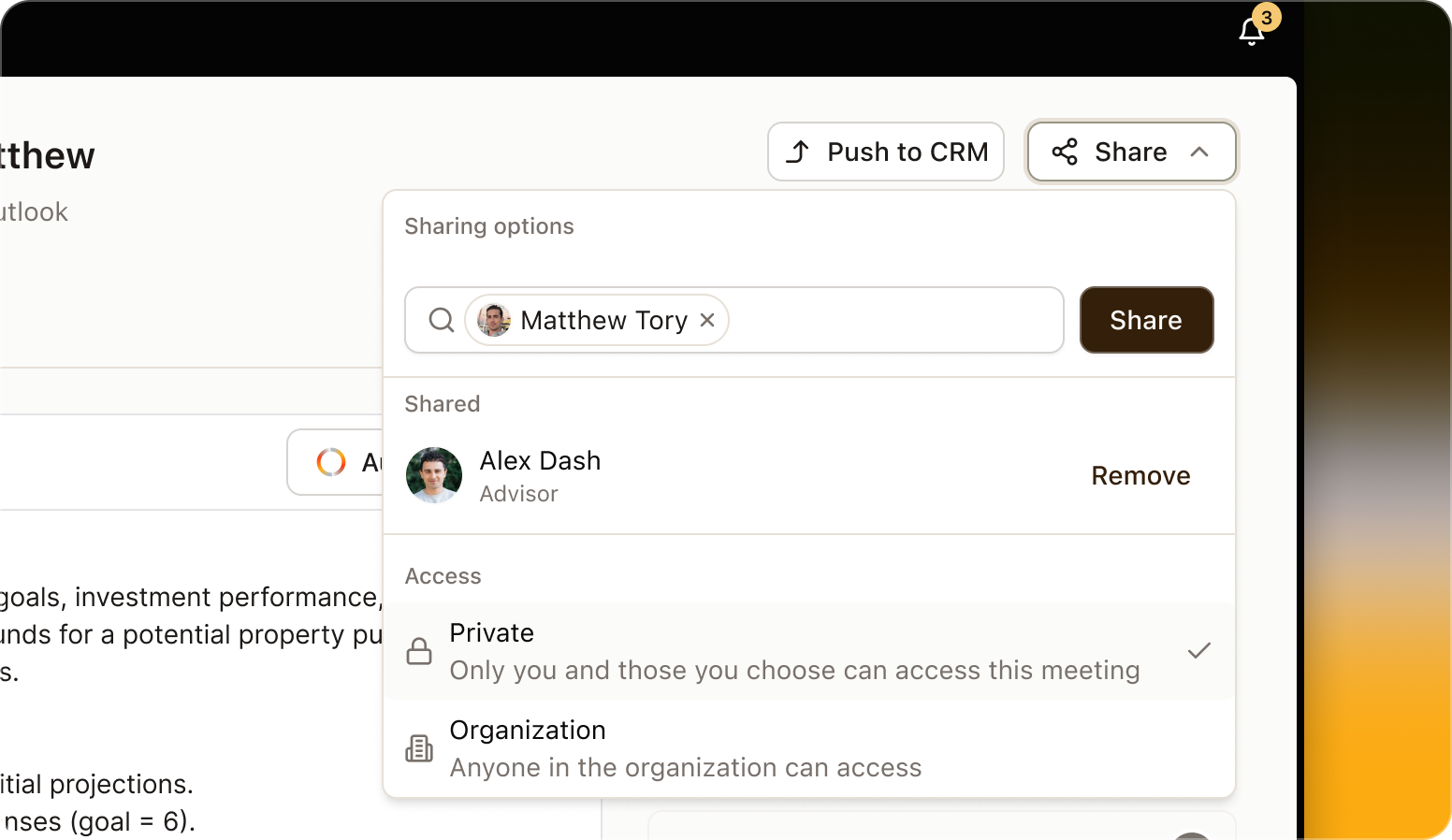
Give each person Can view, to read the summary, transcript, notes, and tasks, or Can edit, to also change the title, participants, summary, notes, template, and tasks. Can edit suits an assistant who handles your follow-ups.
Some actions stay with the meeting’s owner whatever the access: changing who it is shared with, generating the summary, adding a transcript or file, capturing a phone call, and deleting it. To change what new meetings start with, use Settings > General > Sharing > Default sharing.
Find a meeting you captured
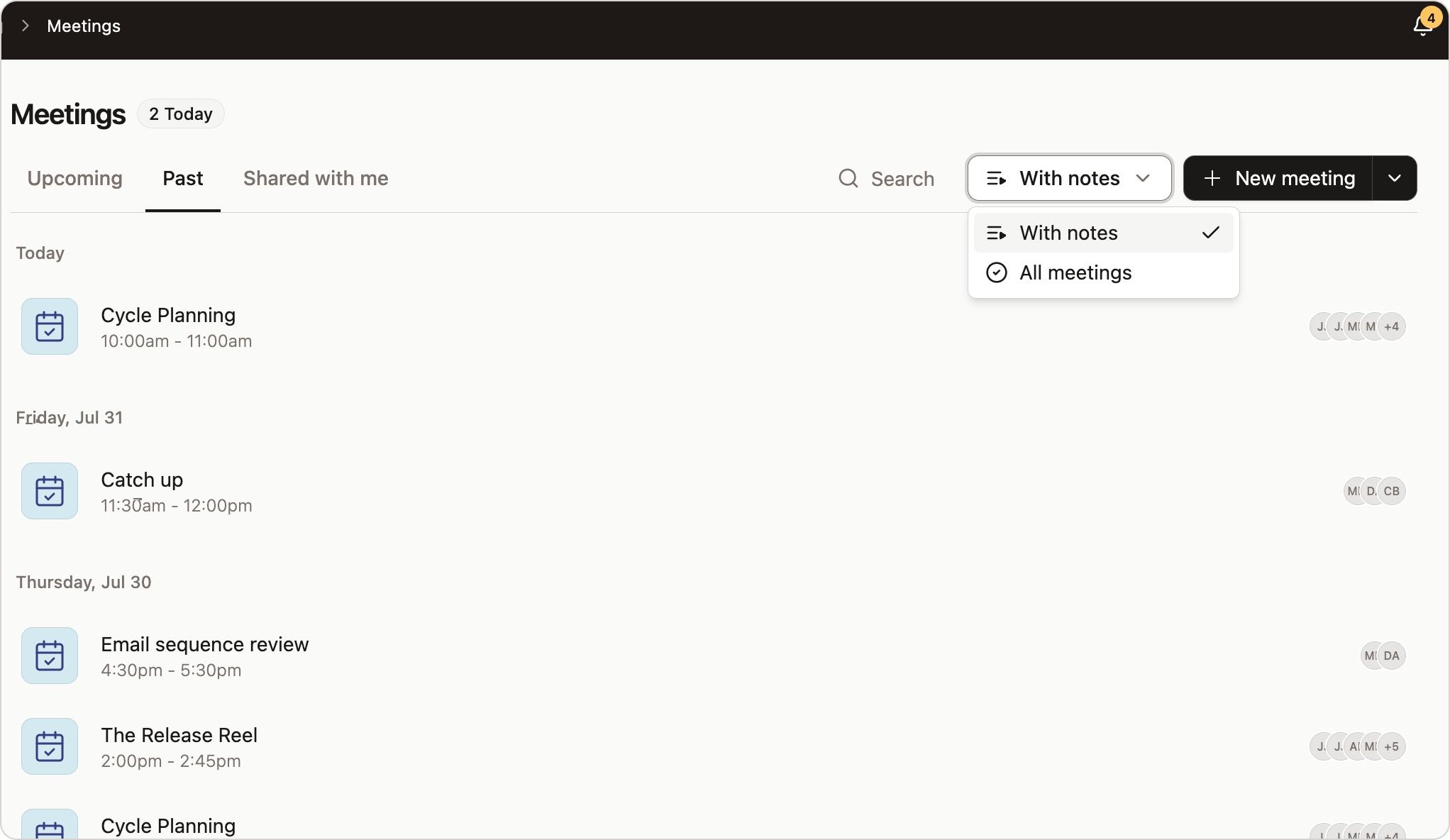
The Meetings page has Upcoming, Past, and Shared with me tabs. Search matches meeting titles and contact names or emails. The Past tab shows meetings with a summary by default. If you stopped a capture without clicking Generate, the meeting is hidden until it has one. Continuum generates it automatically about 30 minutes after the capture stops. To find it sooner:- Change the filter above the list from With notes to All meetings.
- Find the meeting by title, date, or participants. It shows Generate notes.
- Open it and click Generate.
Delete a meeting
Only the meeting’s owner can delete it. Open the meeting, choose Delete meeting in the … menu, and click Yes, delete. This cannot be undone. You cannot delete a meeting during an active phone call. Deleting it in Continuum leaves anything you already synced to your CRM in place.Limitations
- Speakers are not named in the transcript, and you cannot rename them.
- The Ask bar edits the summary, not the transcript.
- Search covers titles and contacts, not what was said.
- Meetings have no tags. Tags are for tasks.
- Continuum keeps the transcript, summary, notes, and tasks, not the audio of a captured meeting. A file uploaded with Upload previous meeting is kept with the meeting.