

What the Ask bar can do for you
The Ask bar is your assistant inside Continuum. It helps you understand your day, prepare for meetings, and get insights from your recent conversations, by asking a question.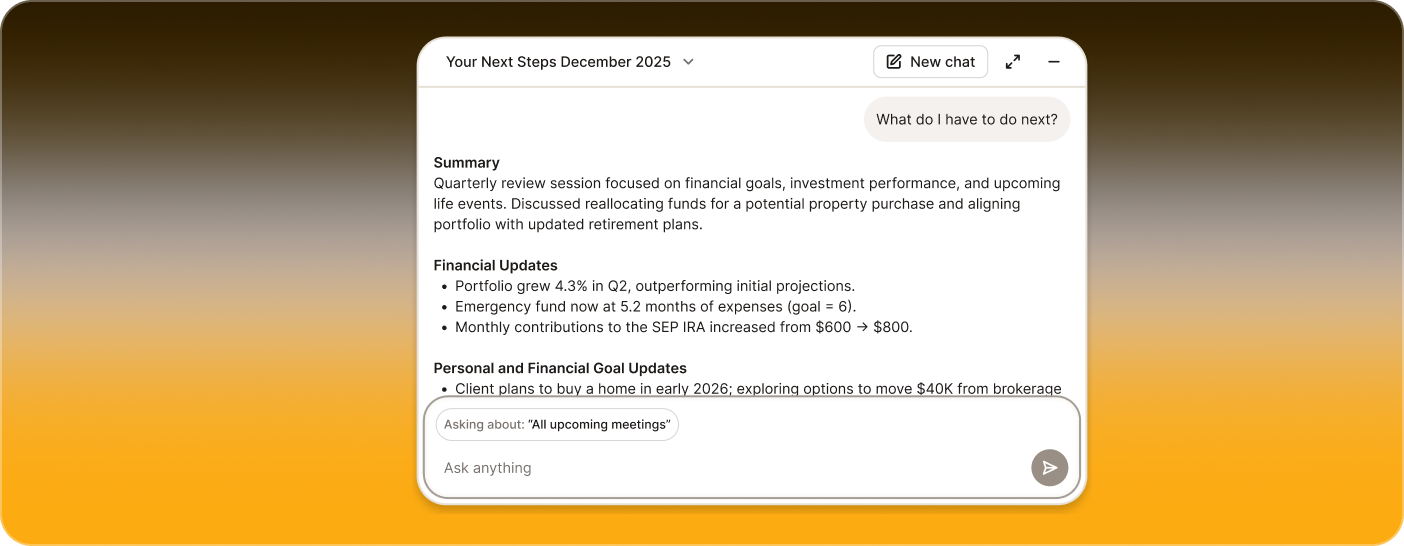
What you can use it for
You can ask the AI to:- Summarize what matters today
- Help you prepare for an upcoming meeting
- Review what happened in your recent calls
- Highlight important themes in your book of business
- Explain a client’s goals or concerns in simple terms
- Turn your recent conversations into something useful (lists, summaries, overviews)
- Edit a meeting’s summary by asking: fix a name’s spelling, correct a detail, or rephrase a section
Where you can use the Ask bar
The bar appears at the bottom of the Home, Meetings, Meeting Details, People, and Client Profiles pages. The AI uses the context of the page you’re currently on to give more accurate and helpful answers. This context is represented by the pills inside the chat.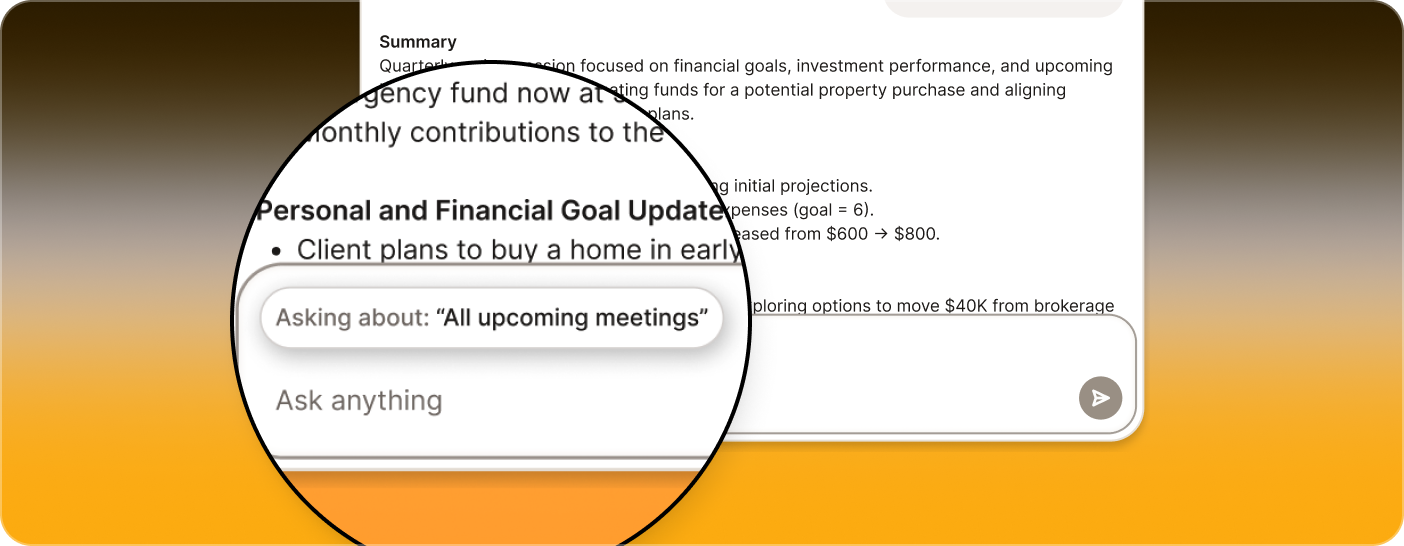
Edit a meeting summary by chatting
On a meeting page, the Ask bar can rewrite the meeting’s summary. Tell it what to change instead of editing each part yourself. Things you can ask it to do:- Fix a misspelled name everywhere it appears in the summary
- Correct a detail, such as a date, an amount, or an account type
- Rephrase, shorten, or restructure a section
Important: This works when you’re on the specific meeting page you want to edit. The context pill at the bottom of the chat (for example, “Asking about: Portfolio Review with Linda Morrison”) confirms which meeting the AI is working with.
How responses work
When you ask something, the AI:- Looks at the context you’re currently viewing
- Analyzes your recent conversations (when relevant)
- Returns a calm, clear summary or list you can act on
Additional controls
Besides asking quick, contextual questions, the Floating AI Bar includes a few helpful controls that make it easy to manage your chats and choose how much space you want while interacting with the AI.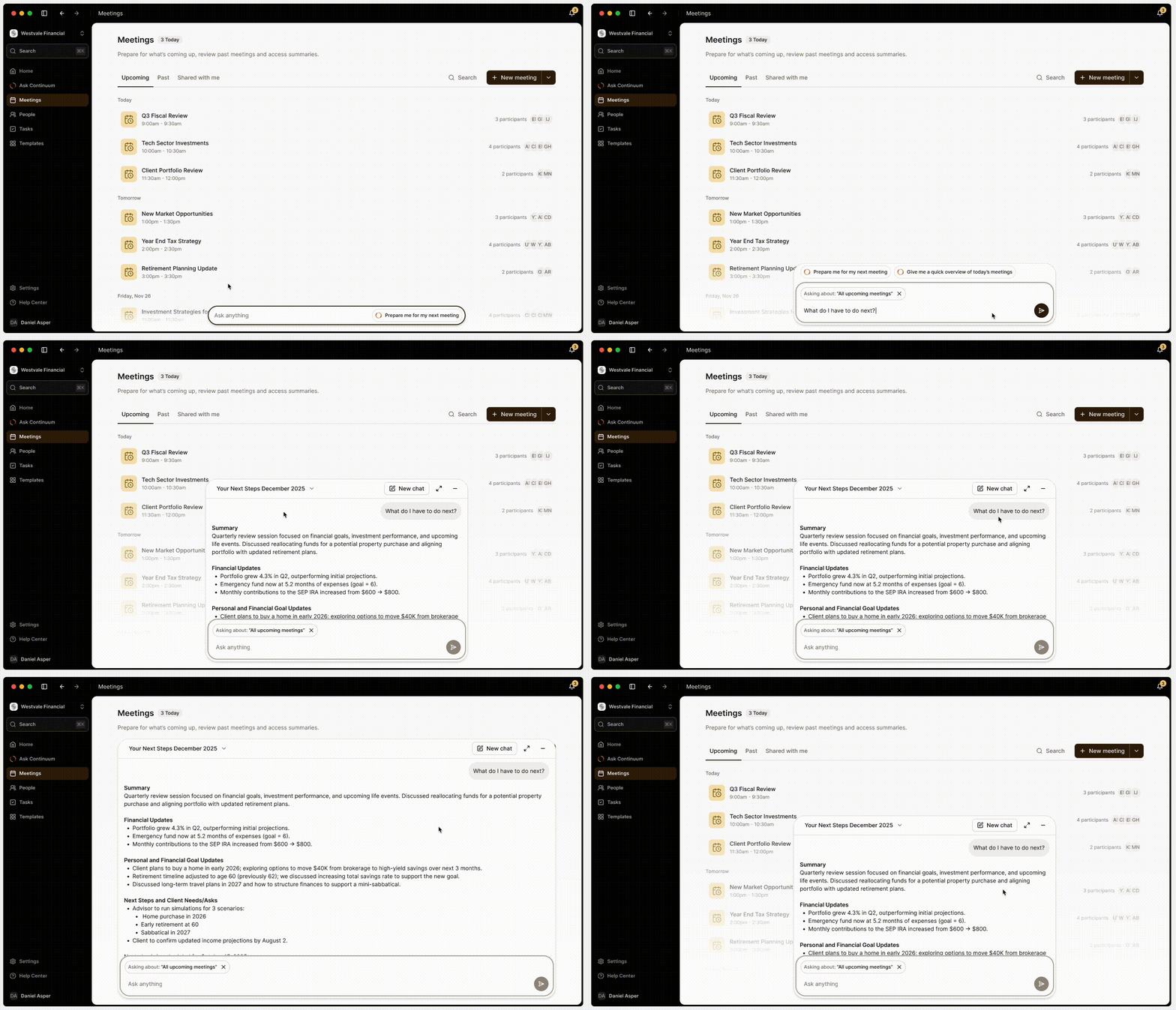
- Attach files: Add documents to your message, such as PDFs, Word, Excel, and PowerPoint files, images, and text files, and ask Continuum to summarize them, analyze them, or turn them into a client-ready Page. You can attach up to 10 files, each under 20 MB.
-
Dictate your prompt: In the Continuum desktop app, click the microphone in the composer and speak instead of typing. Your words appear in the field as you talk. Click it again to stop, review the text, and send. The microphone is unavailable while Continuum is capturing a meeting.
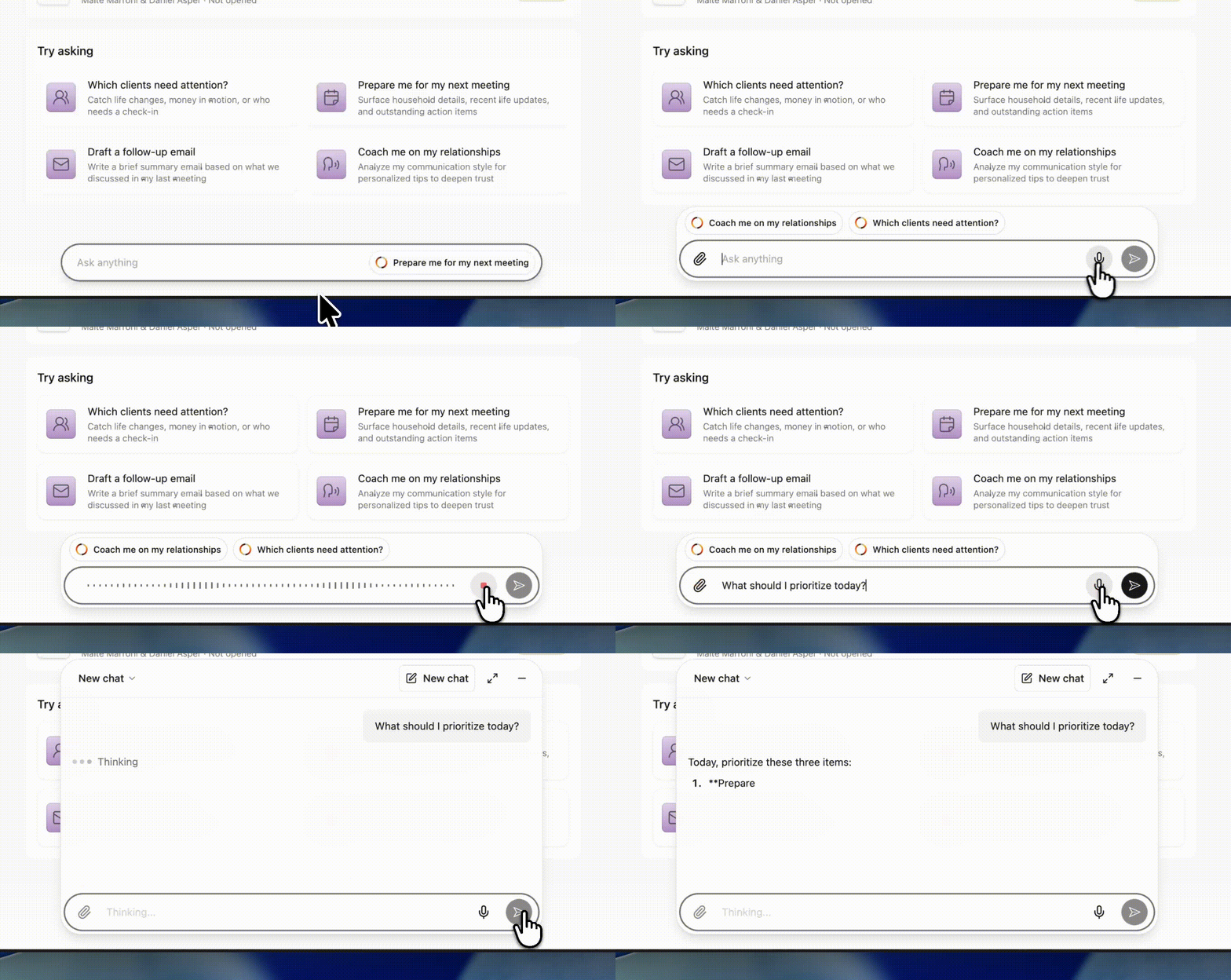
- Chat history dropdown: You can reopen any previous conversation, quickly revisit an answer you received earlier, and jump between recent chats without leaving the page you’re on.
- New Chat button: It lets you instantly clear the current conversation and start fresh. Use it when you want to reset the context or you’re switching to a different topic.
- Expand button: Keeps you on the same page, but gives you a more spacious chat area. This view is helpful when you want more room to read the AI’s responses, making it a more comfortable space to scroll and follow the conversation.
- Minimize button: It collapses the bar back into its compact state, a small input field at the bottom of the screen. You can expand it again at any time with a single click.