

Verifying their email
On a Page set to Only invited clients, your client sees A page was shared with you, enters their email address, and clicks Send verification code. They enter the six-digit code from their email and click Verify. The code expires after 10 minutes, and Resend sends a new one. Forwarding the link does not help anyone else in, because only the email addresses you added can verify. A Page set to Anyone with the link skips this step. The verification screen uses your firm’s Brand.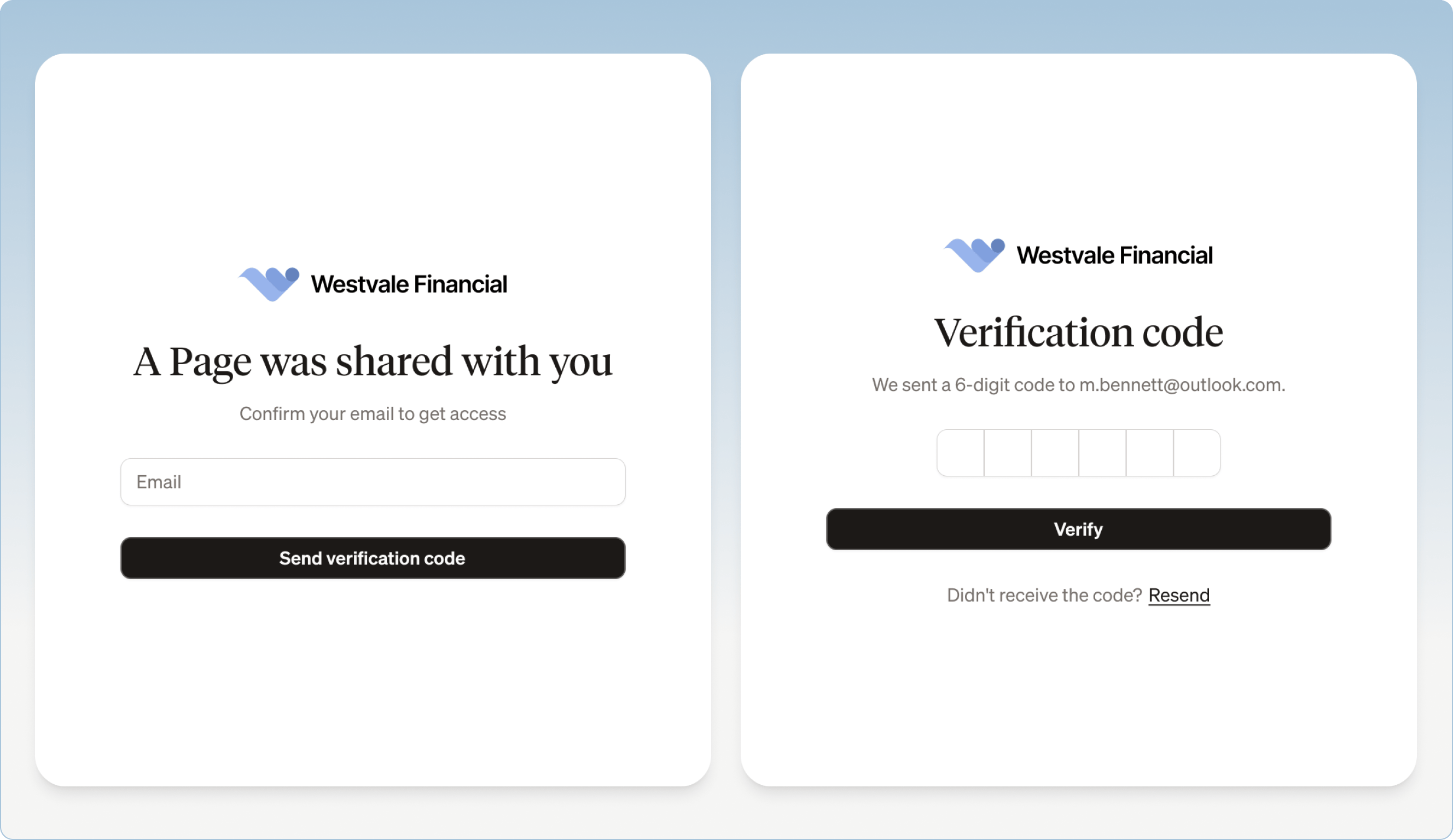
What is on the Page
Depending on what you built, the Page can have:- your firm’s Brand
- a personal message from you
- a meeting summary or an explanation written for the client
- interactive charts, tables, or scenarios
- next steps or checklists
- documents to download
- a button to book a meeting
- a compliance footer
- the embedded assistant
The embedded assistant
Every Page has an assistant your client can chat with, so they can understand what you sent without emailing you each small question. For example:- “What are my next steps?”
- “What rate of return was assumed?”
- “Which document do I need to sign?”
- “What did we decide about RESP contributions?”
- “Can you summarize the conservative scenario?”
What it answers from
- the content of the Page
- the documents attached to the Page
- general definitions an advisor would give, such as the difference between a LIRA and a RRIF
What it will not do
- Look anything up online. It is not connected to the internet.
- See other data. It has no access to your CRM, your other clients, or anything not on the Page.
- Give investment advice. Asked “Which fund should I buy?” or “Where should I put this inheritance?”, it declines and points your client back to you.
The compliance footer
If your organization has compliance turned on, every Page ends with a footer holding your firm’s compliance information and disclosure text. It is managed separately from the Page content. See Compliance controls.Coming back later
Your client can return to the same link. In the same browser, they usually get straight back in. They are asked for a new code after about a day, or on a different device, browser, or private window.The All pages list
From any Page, your client can open a list of every Page your firm has shared with them, without finding the old email or entering a new code.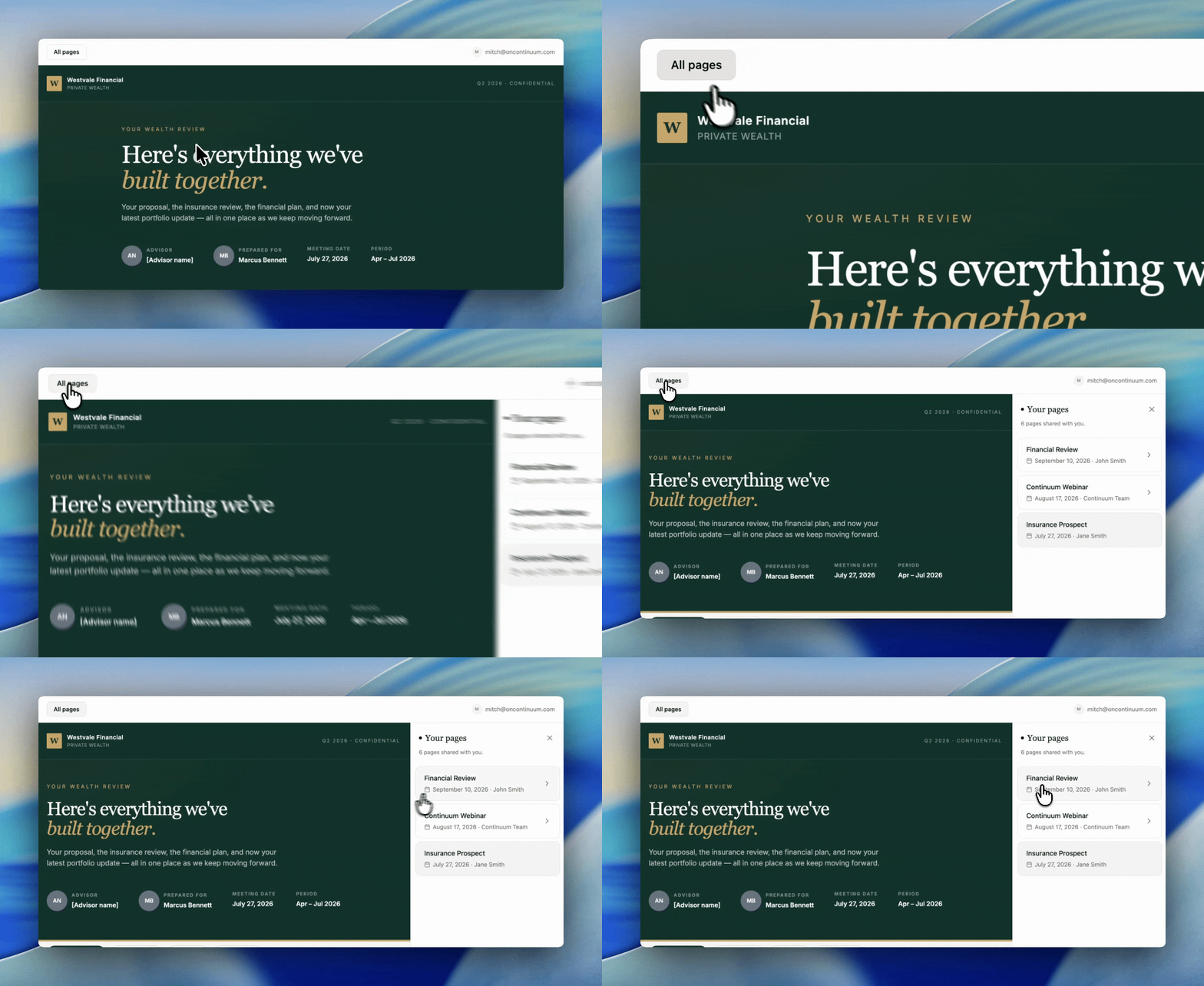
1
Open any shared Page
Your client opens a Page link and verifies their email as usual.
2
Click All pages
All pages is at the top left of the Page. It opens a panel called Your pages.
3
Choose a Page
Pages are listed newest first, with the date each was shared. The chosen Page opens straight away, with no new code.
- every published Page anyone at your firm shared with your client’s email address
- who shared each Page, when more than one advisor at your firm shared with them
Limitations
- All pages does not appear on Pages set to Anyone with the link, because those open without a code.
- All pages does not appear in Preview. To see it, share two Pages with yourself and open the real link.
- The assistant answers only from the Page and its attachments, and never gives investment advice.