

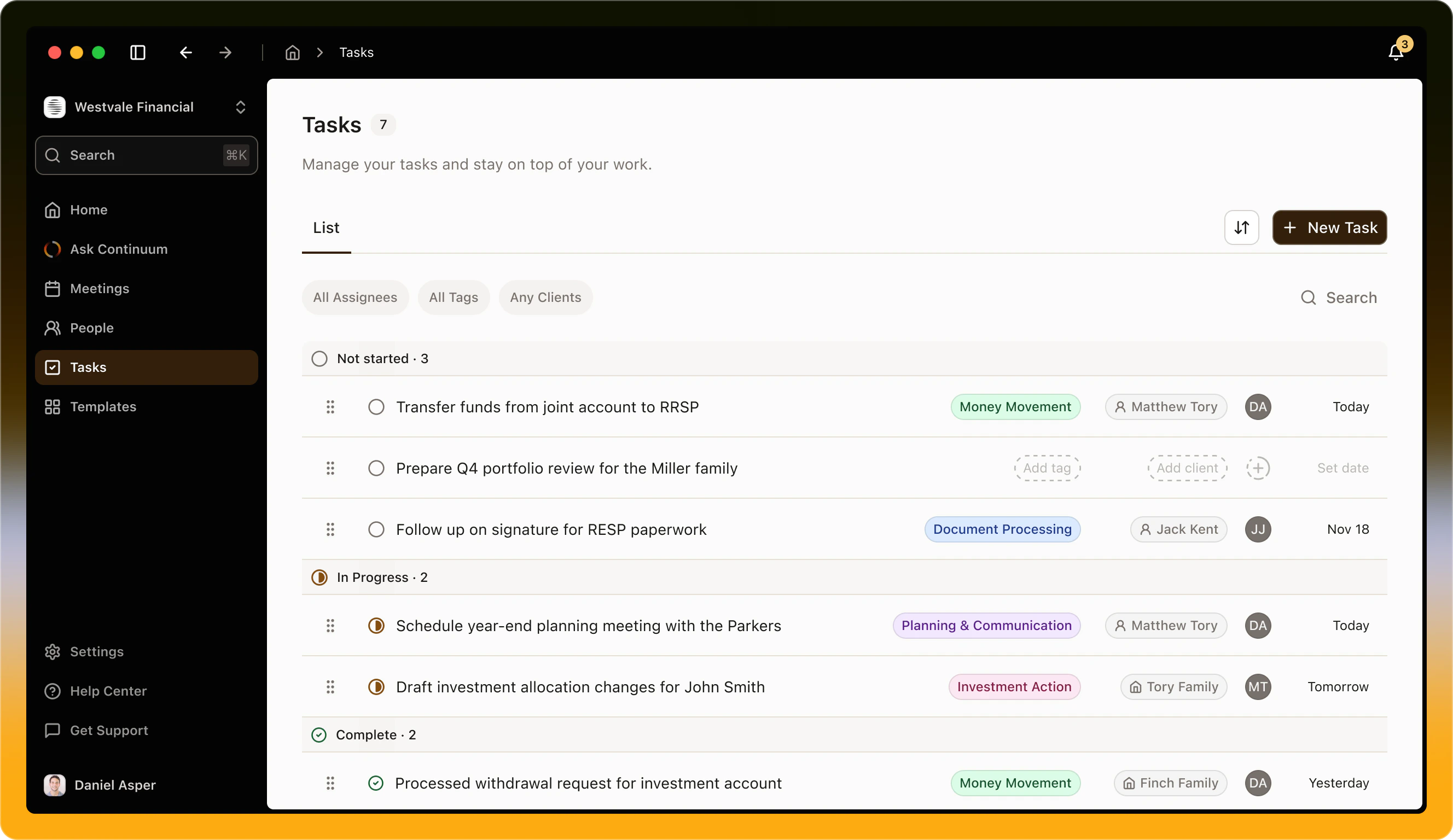
The Tasks page
Tasks are grouped by status, and the page title shows how many are not yet complete.
Each row shows the task’s name, its tag, client, assignee, and due date. Click any of these in the row to change it. Right-click a row for Status, Assignee, Tag, and Delete. A due date that has passed shows in red.
With Sort set to Manual, drag rows to reorder them. Dragging a task into another section changes its status.
Filter and sort
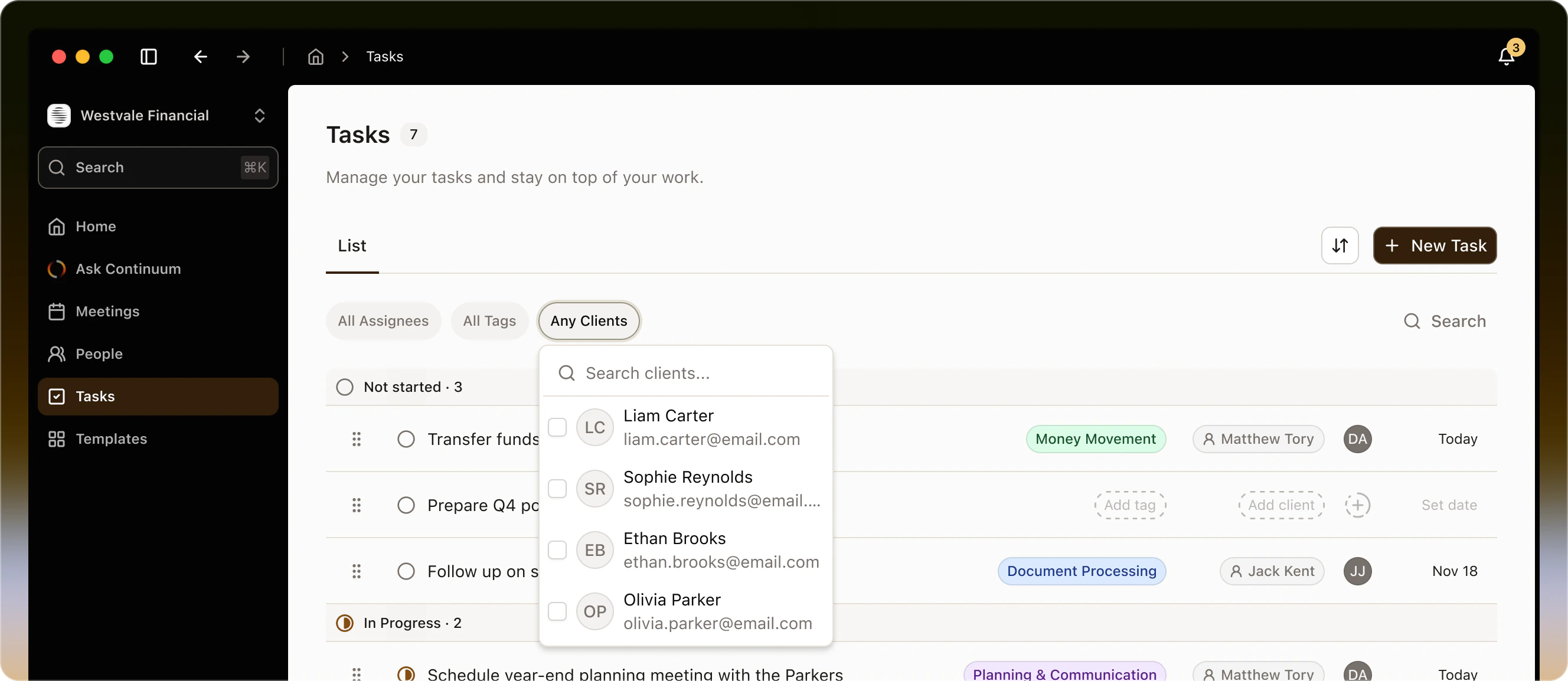
- All Assignees: show one team member’s tasks, including your own.
- All Tags: show one kind of work, such as Money Movement.
- All Clients: show the tasks for one client or household. Use it before a client meeting to see what is outstanding.
- Sort: Manual, Due date, or Created date. Your filters are kept the next time you open the page.
Create a task
1
Click New task
Click New task at the top of the page, or + beside a status to create the task in that status.
2
Fill it in
Enter a Task name, the only required field. Then set the assignee, tag, due date, and client or household, and describe what needs to be done.
3
Click Create task
The task appears in the list.
Edit a task
Click a task to open it on the right. Change the name, assignee, tag, due date, or client, and they save straight away. The description has a formatting toolbar and saves when you click out of it. Source shows whether the task was created by hand or came from a meeting. Change the status with the dropdown at the top right of the panel. Delete is in the menu beside it.Tags
Every organization starts with five tags: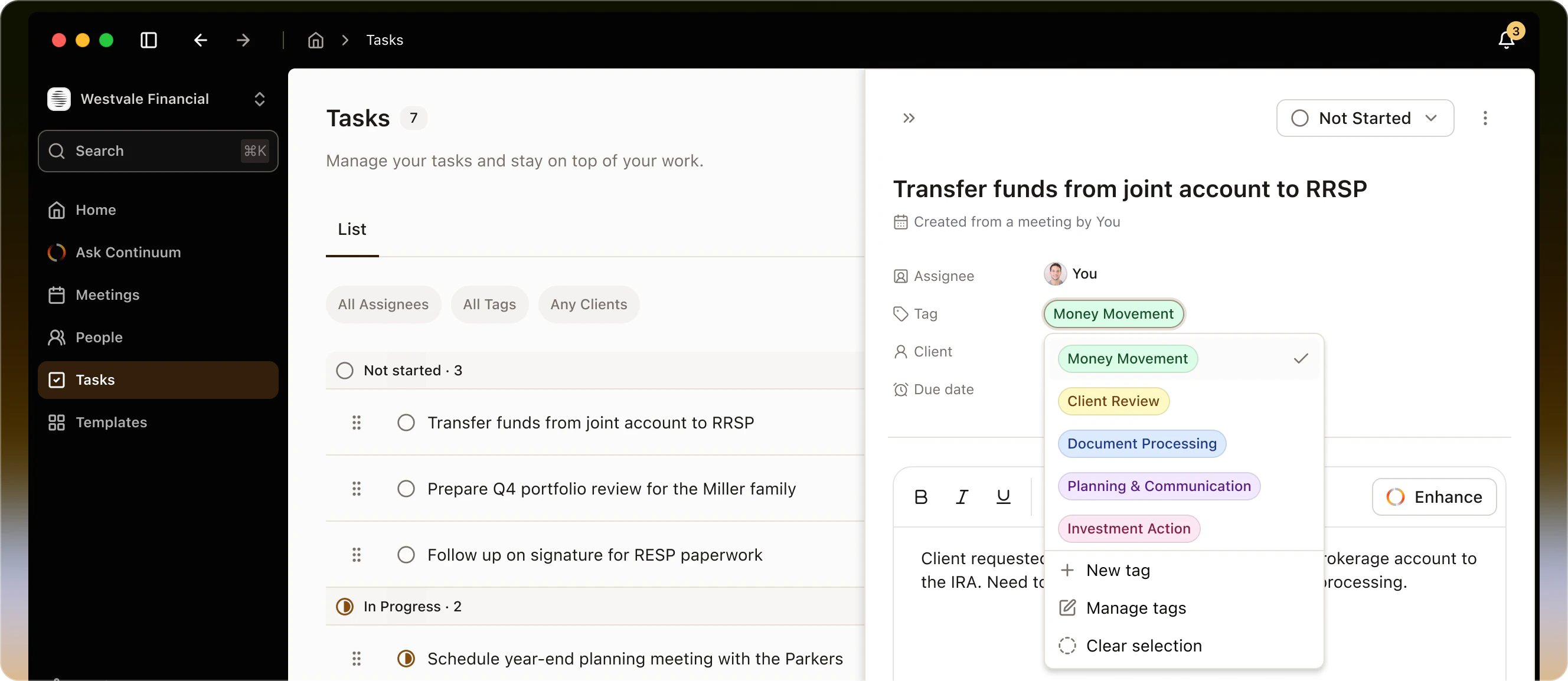
Suggested tasks from meetings
When Continuum writes a meeting’s summary, it also suggests up to five tasks from commitments made in the conversation, such as “I’ll send that over by Friday”. They appear in the Tasks panel on the meeting, each marked Suggested.- Click Add to keep one. Undo reverses it.
- Click the X to dismiss it.
Tasks and your team
Everyone in your organization can see and edit every task, whoever it is assigned to. When you assign a task to someone else, they get a notification in Continuum. No email is sent. If a colleague is away, filter by their name to see what they had in progress.Sync tasks to your CRM
Tasks go to your CRM from the meeting they belong to. Click Sync on the meeting, then under Tasks, tick the ones to send. For each, set a due date and choose the CRM user to assign it to. The Continuum assignee is a member of your organization and the CRM user is a person in your CRM, so they are chosen separately. Click Push. See Sync to your CRM for the rest of the sync steps.Ask about your tasks
The Ask bar and Ask Continuum can read and create tasks. A task created this way is assigned to you unless you name someone. For example:- “What tasks are due this week?”
- “Do I have any outstanding follow-ups for the Miller family?”
- “Which clients have Money Movement tasks in progress?”
Limitations
- There is no search on the Tasks page. Use the filters.
- A task has one tag.
- Continuum does not send due-date reminders or overdue alerts.
- The Tasks section in Sync appears only when your CRM supports tasks: Salesforce, HubSpot, Microsoft Dynamics 365, Wealthbox, Zoho CRM, Act!, Maximizer, Equisoft, Cloven, and Laylah.
- A task you push is then managed in your CRM, and it leaves the Tasks page.
- A suggested task comes with a name and description only.
- The mobile app has no Tasks page. Tasks added to a meeting in the mobile app do not appear on the desktop Tasks page.
- There are no bulk actions. Change tasks one at a time.