

Supported languages
English, Spanish, French, German, Italian, Portuguese, Arabic, Danish, Dutch, Finnish, Hebrew, Hindi, Japanese, Mandarin, Norwegian, Swedish, Turkish, and Vietnamese. Your AI summary is written from the transcript. You can ask the AI to translate it at any time, for example “Translate this summary to French Canadian.” See Continuum AI.Choosing which languages Continuum expects
Continuum offers three choices:- English is the default. Choose it when your meetings are in English.
- French. Choose it when your meetings are in French.
- Multi-language detects the language as people speak and follows the conversation when it switches between any of the supported languages.
This is one setting for your account. Change it from the transcript or from Settings and both places update. It applies to every meeting you capture until you change it again.
From the transcript
1
Open the live transcript
Open your meeting and click Transcript in the capture controls. You can do this before or during a capture.
2
Click the language button
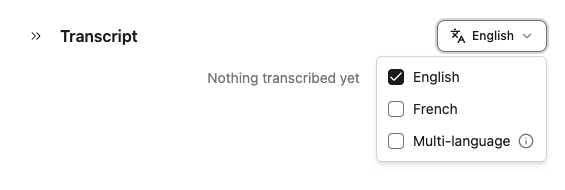
In the top right of the transcript panel, click the button showing your current choice, such as English.
3
Pick the languages you expect
Tick English, French, or both. Choose Multi-language to let Continuum detect the language on its own.
From Settings
1
Open Settings
Click Settings in the sidebar, then open General.
2
Find Transcription language
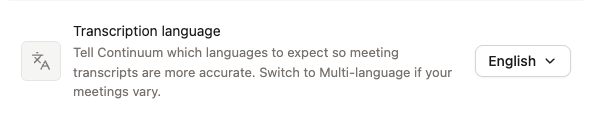
Under Meetings, click the Transcription language button.
3
Pick the languages you expect
Tick English, French, or both, or choose Multi-language.
Changing the language during a meeting
You can open the language picker while a capture is running. The change applies to your next capture, not the one in progress. If you need it to take effect now, click Stop, change the language, then resume. Everything captured so far stays in the transcript.On mobile
The mobile app always detects the language on its own. There is no language setting on your phone, and the choice you make on desktop does not affect mobile captures.Frequently asked questions
Does choosing English stop Continuum from transcribing other languages?
Does choosing English stop Continuum from transcribing other languages?
No. Continuum leans strongly toward the languages you choose but still follows a genuine switch to another supported language. If your meetings often mix languages, choose Multi-language.
My English meeting came out in another language. What should I do?
My English meeting came out in another language. What should I do?
Check that your transcription language is set to English (or English and French), then capture your next meeting. Continuum does not re-run transcripts from earlier meetings.
I speak French and English in the same meeting. Which should I choose?
I speak French and English in the same meeting. Which should I choose?
Tick both English and French. Continuum follows the conversation as it moves between the two.
Can I get my summary in another language?
Can I get my summary in another language?
Yes. Open the meeting and ask the AI, for example “Translate this summary to French.” See Continuum AI.
Does this setting change uploaded audio or phone calls?
Does this setting change uploaded audio or phone calls?
No. Uploaded audio and captured phone calls always detect the language on their own.