

How it works
When you capture a phone call, Continuum calls you on a number you choose. You answer, then merge that call into the conversation you’re already having with your contact. All three lines are bridged together, both sides of the conversation are captured, and a new meeting is created automatically with the transcript and summary once you hang up. You can use this for client calls, prospecting calls, or anything else you’d normally want a notetaker on — no Zoom or video meeting required.Call capture is generally available, and setup doesn’t require verifying a phone number. Just pick the number you want Continuum to call you on and you’re ready to go.
Before your first call
Save Continuum’s phone numbers as a contact before your first call. When Continuum dials you, the call comes from one of our outbound numbers. If your phone doesn’t recognize the number, iOS Silence Unknown Callers, Android call screening, or your carrier’s spam filter may silence, screen, or block it — and the call will look like it failed. Save these numbers to your contacts as “Continuum”, so the call always rings through:
We rotate across these numbers, so saving all four ensures every call reaches you no matter which one we dial from.
Capturing a call from the desktop app
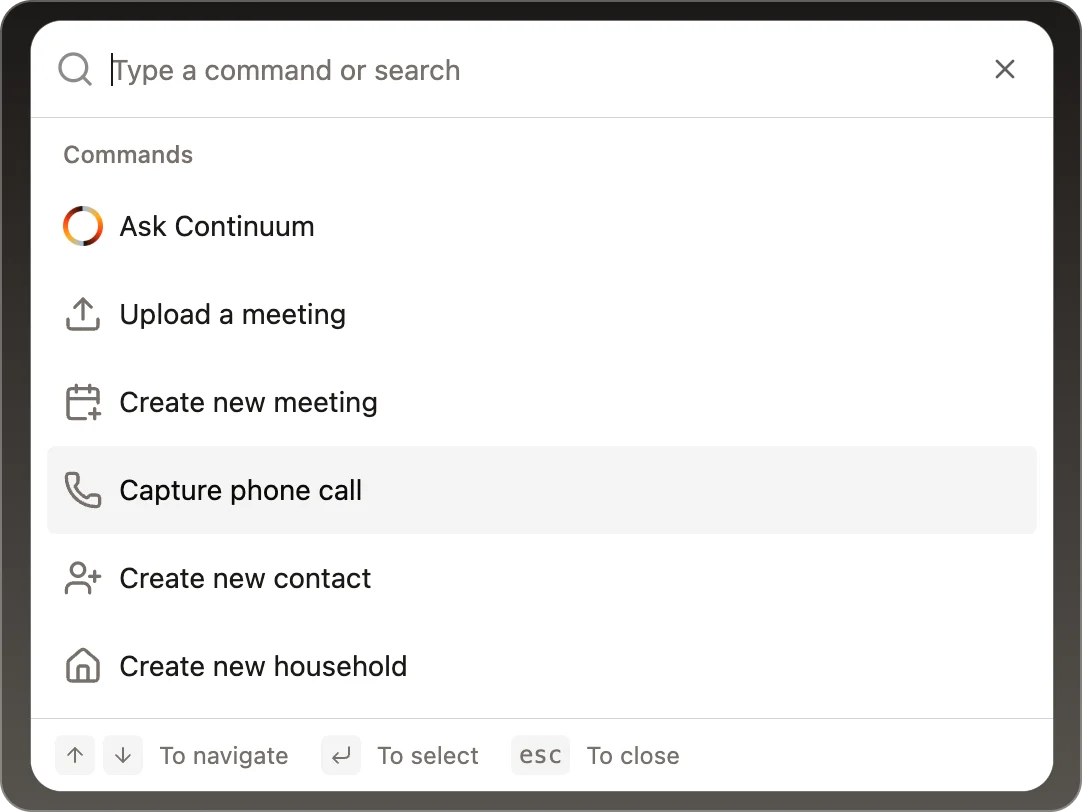
You can start a phone call from anywhere in the desktop app. There are three entry points — use whichever is closest to what you’re already doing.From the command menu
Press⌘K (Mac) or Ctrl+K (Windows) to open the command menu, type Capture phone call, and hit enter. This is the fastest path from anywhere in the app.
From the Meetings page
On the Meetings page, click the New meeting dropdown and choose Capture phone call. Use this when you want the call to show up in your meeting list right away.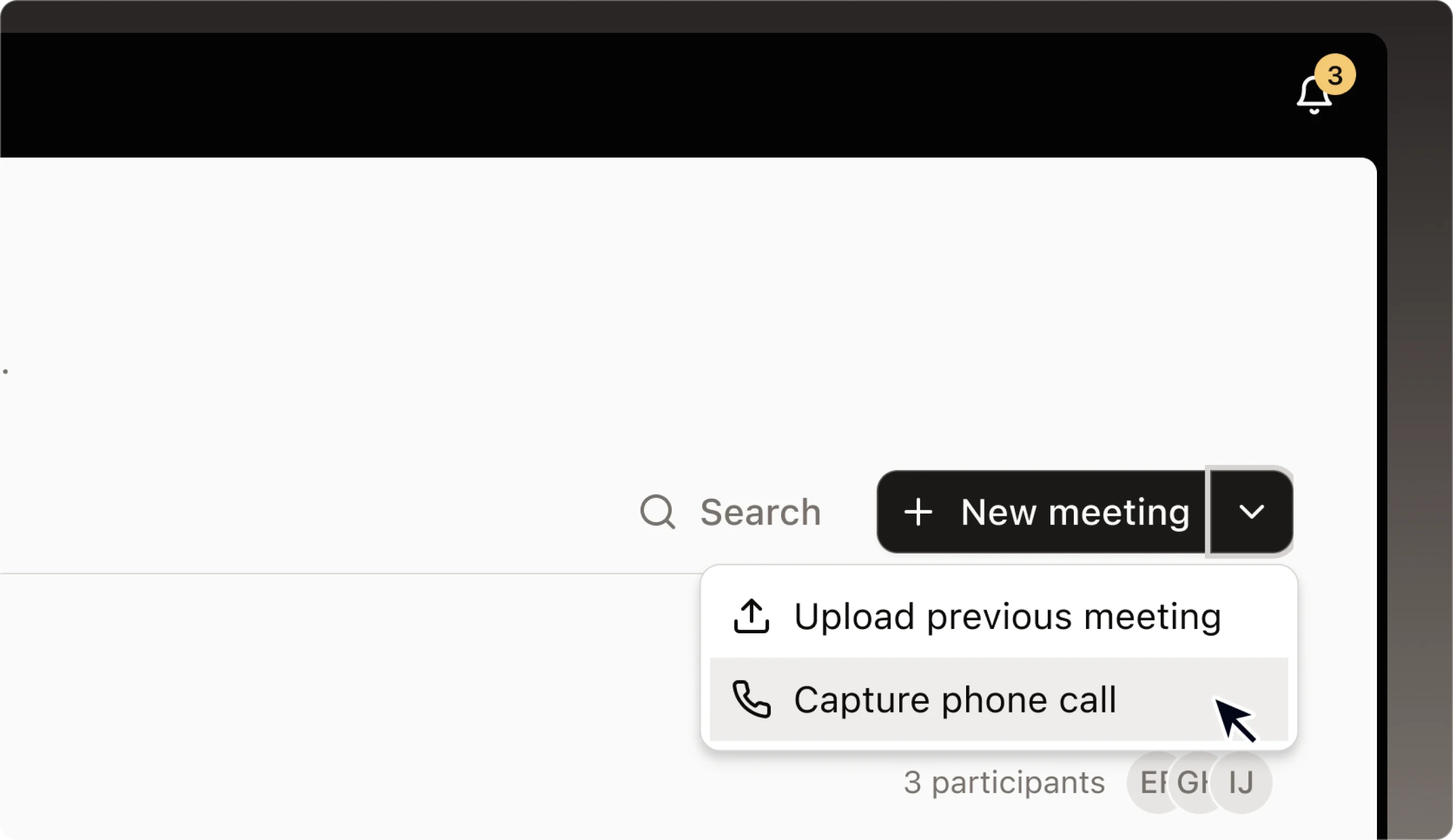
From an existing meeting
Open any meeting, click the ⋯ menu in the top right, and choose Capture phone call. Use this when you want the call attached to a meeting you’ve already created — for example, one auto-created from your calendar.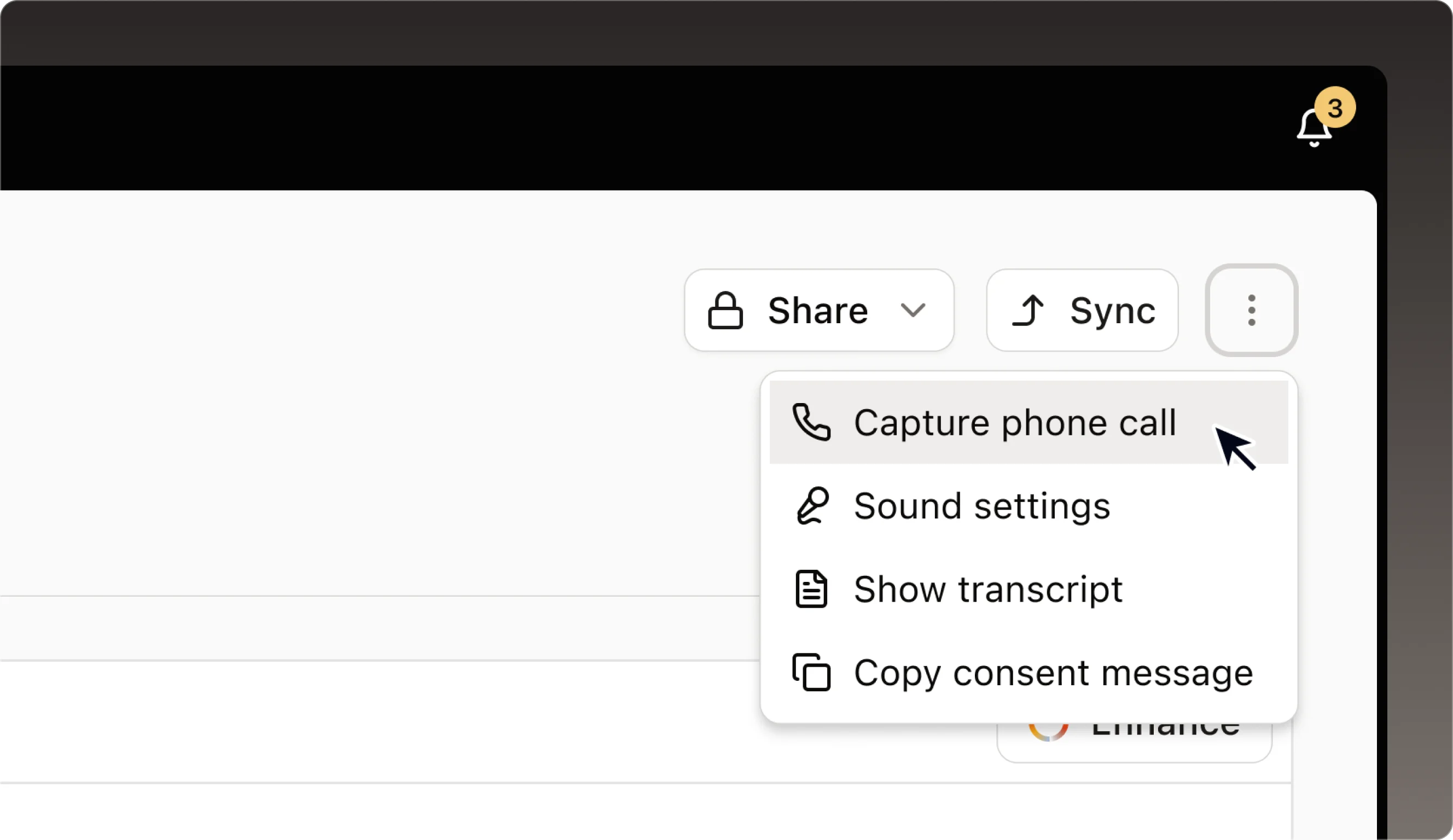
The capture dialog
Whichever entry point you pick, the same short dialog opens:1
Choose the number Continuum should call you on
Pick from your saved phone numbers, or type a new one. New numbers are saved automatically for next time. If your firm’s phone system uses extensions, add yours to the number — either here or under Settings > Profile — so Continuum can reach your line when it calls you.
2
Click "Call me"
Continuum will ring the number you selected within a few seconds.
3
Answer Continuum, then merge in your call
With your contact already on the line (or after you dial them), use your phone’s Merge calls option to bring Continuum into the conversation. From this point on, both sides of the call are captured and transcribed.
4
Hang up when you're done
The call ends and Continuum starts processing the transcript. You’ll see an On call indicator in the app while the call is live.
Capturing a call from the mobile app
1
Open Continuum on your phone
Make sure you’re signed in.
2
Tap "Call Me" in the bottom bar
The capture sheet slides up.
3
Pick a number or enter a new one
Saved numbers appear in the list. Any new number you type is saved automatically for next time.
4
Tap to start the call
You’ll see Calling you… while Continuum dials, then a live timer once you answer.
5
Merge in your contact and talk
Use your phone’s Merge calls option to bring Continuum into your conversation with the contact.
6
Hang up when you're done
Continuum jumps to a Generating summary… screen, then takes you to the past meeting page once the transcript is ready.
Finding your transcripts
Every captured phone call becomes a meeting in Continuum — same as a Zoom or in-person meeting.- Desktop: Open Meetings. Your phone call appears in the list with a Phone call badge in the meeting ribbon. Click in for the full transcript, AI summary, and tasks. If the call is tied to a contact, it also shows up on that contact’s Meetings tab.
- Mobile: When the call ends, you’re taken straight to the past meeting page. You can find it again later under your meetings list.
FAQ & troubleshooting
Continuum never rang me — what happened?
Continuum never rang me — what happened?
The most common cause is that our number was silenced or screened by your phone. Make sure you’ve saved all four Continuum numbers above as a contact, then try again. iOS Silence Unknown Callers, Android call screening, and carrier spam filters will all let the call through once we’re in your contacts.
How long can a captured call be?
How long can a captured call be?
Calls can run up to four hours. Plenty of room for long client conversations.
Do I need to tell the other person the call is being captured?
Do I need to tell the other person the call is being captured?
Yes — you remain responsible for confirming consent with the other party per your local laws, the same way you would with any other notetaker. See Privacy and consent below.
Can Continuum dial my contact for me?
Can Continuum dial my contact for me?
No. You place the call to your contact yourself, then merge Continuum in. This keeps your caller ID on the line with the contact, not ours.
What if I miss Continuum's call?
What if I miss Continuum's call?
Just trigger the capture again from the app and we’ll dial you back.
Where did my transcript go?
Where did my transcript go?
Captured calls land in Meetings on desktop (look for the Phone call badge) and on the contact’s Meetings tab if you tied the call to a contact. On mobile, you’re taken straight to the past meeting page when the call ends.