

Get ready to use the Dock
Open the Continuum app on your Windows or Mac computer and sign in. Make sure you have the latest version of Continuum. If you’re using an older version, update the app first. The Dock appears automatically for users who can capture meetings—there’s nothing extra to install or turn on. Assistant seats don’t include meeting capture, so the Dock won’t appear for those users. You can then minimize the Continuum window and carry on with your meeting. Just keep the app running so the Dock stays available.Find your Dock
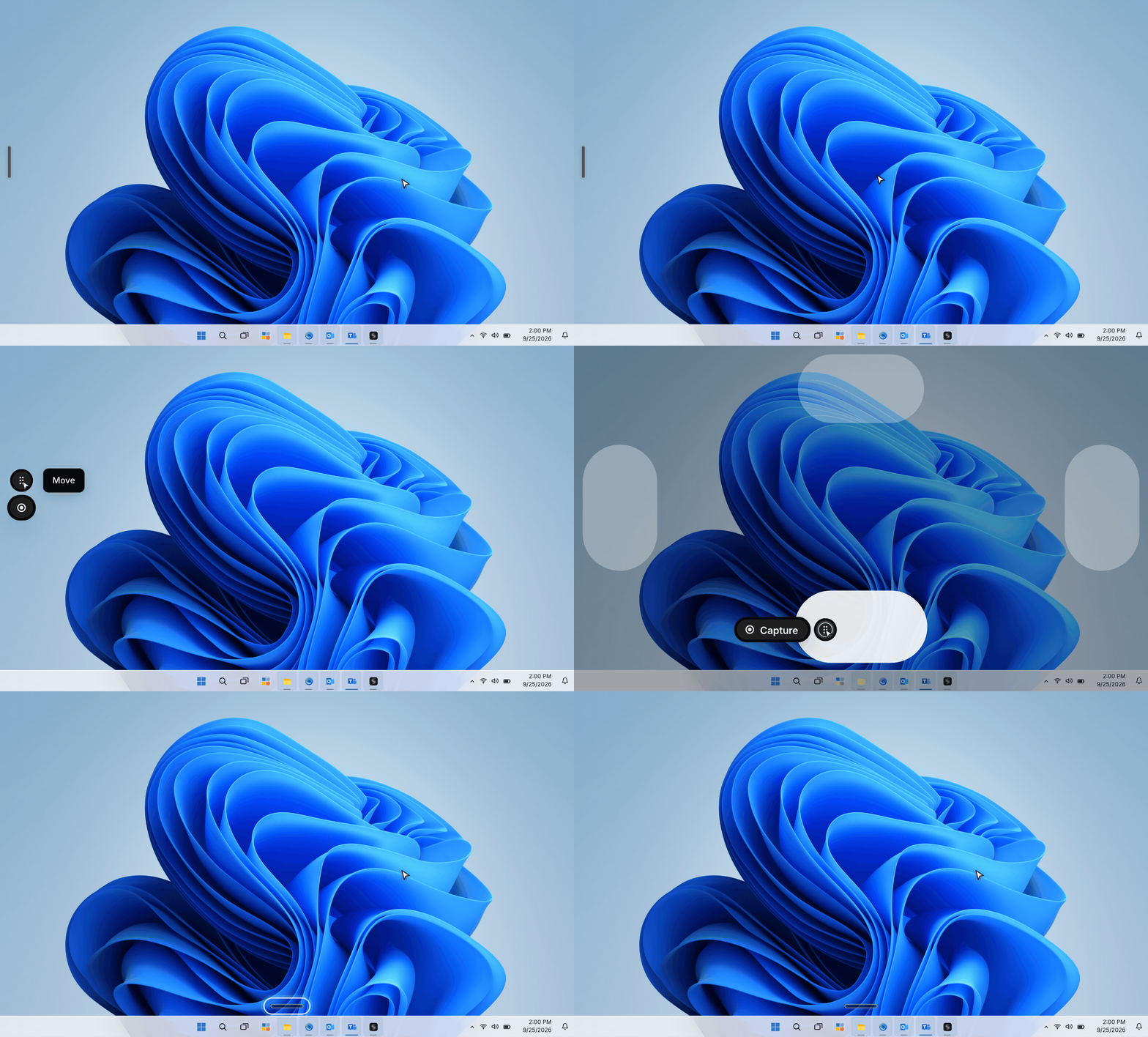
Look for a thin bar along the left edge of your screen. If you have moved it before, it will be where you last placed it. Move your mouse pointer over the bar to reveal the controls. When the Dock is on the left or right edge, it shows icons only. Rest your pointer over an icon to see its name. Seeing the Dock does not mean Continuum is capturing. Capture begins when you start it using the Dock or the meeting controls in Continuum.Move your Dock
You can move the Dock to any edge of your screen, or to another monitor, to keep it within reach and out of the way.1
Move your pointer over the Dock
A small Move handle appears beside the controls.
2
Drag it to your preferred edge
Click and hold the Move handle, drag the Dock to the top, bottom, left, or right edge of your screen, then release.
Start capturing a meeting from the Dock
You can start capturing a meeting from a reminder or directly from the Dock.Start from a meeting reminder
About a minute before a meeting on your connected calendar, a reminder appears beside the Dock.- Join opens the call link and starts capturing. This button appears when the meeting has a call link.
- Capture starts capturing without opening the call link. Use this if you have already joined, or are meeting in person.
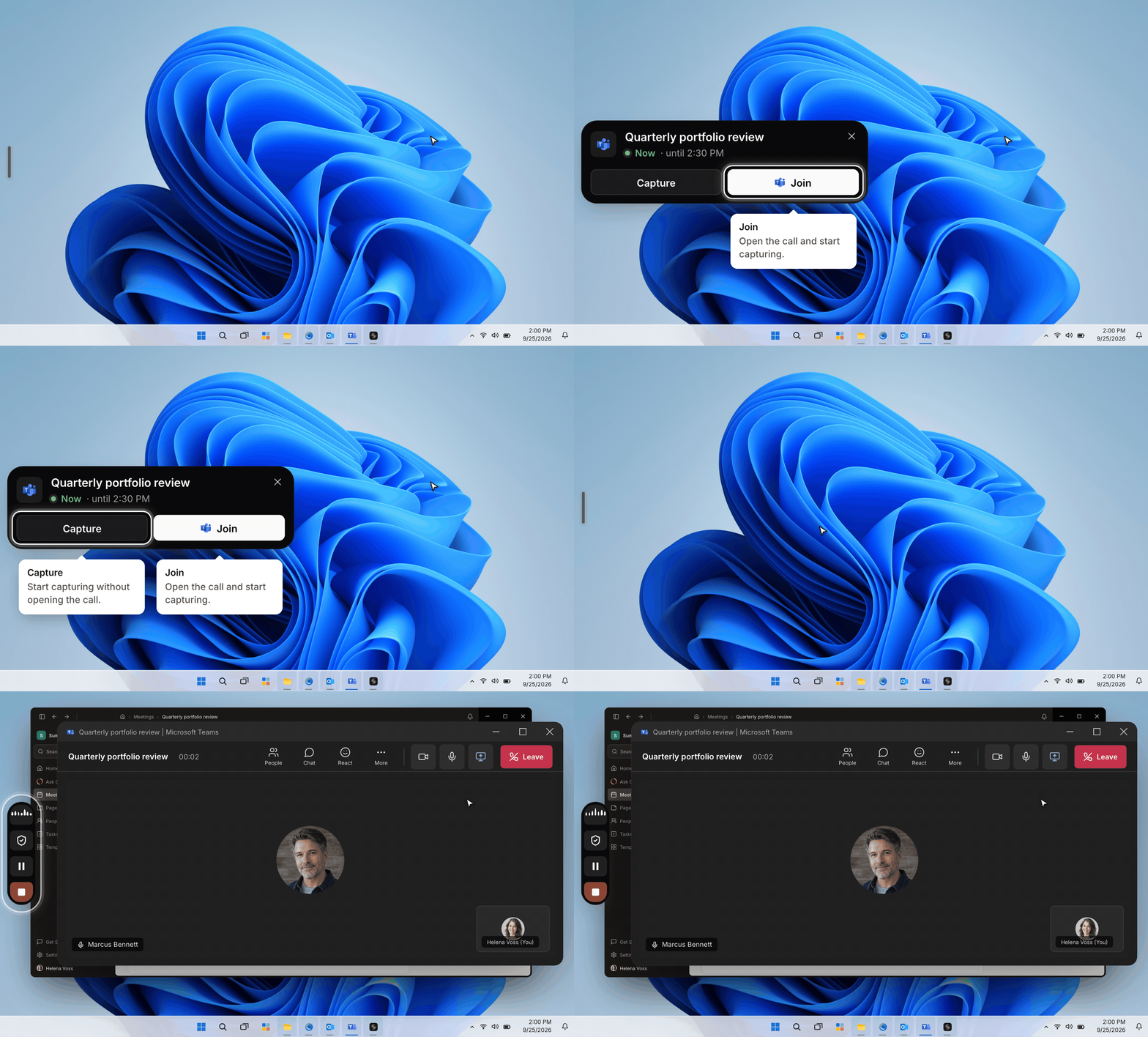
Start directly from the Dock
1
Open the Dock
Move your pointer over the Dock.
2
Click Capture
Click Capture, the circle button.
3
Choose the meeting
If a meeting is offered, click Capture beside it, or choose Start new for a different conversation.
Pause or finish a capture
During capture, the Dock shows these controls:
Use Pause capture for a break or a conversation you do not want transcribed. Click Resume capture when you are ready to continue.
When the meeting ends, click Stop & generate notes. Until capture stops, Continuum can still transcribe nearby conversation and audio from your computer.
Pausing or stopping capture does not mute you or end your Zoom or Teams call. Other participants can still hear you.
Started a capture by mistake?
If you click the red square Stop & generate notes moments after starting a new meeting that is not on your calendar, the Dock may ask “Started by mistake?”- Discard removes the meeting. Click Undo while the confirmation is visible to cancel the discard.
- Generate notes keeps the meeting and writes its summary.
- Closing the question with X dismisses it without discarding the meeting. If capture is running, it continues.
Record client consent
Recording your clients’ agreement helps you document consent and follow your firm’s compliance procedures. When you start from the Dock and a client’s agreement has not been recorded, the Client consent card opens automatically. Click the shield to open it again later. Before you start transcribing, remember to ask everyone for their consent. You can simply say: “I’d like to use Continuum to transcribe our conversation. Is that okay with you?” Check the box next to each client’s name only after they have agreed, or click Mark all agreed once everyone has said yes.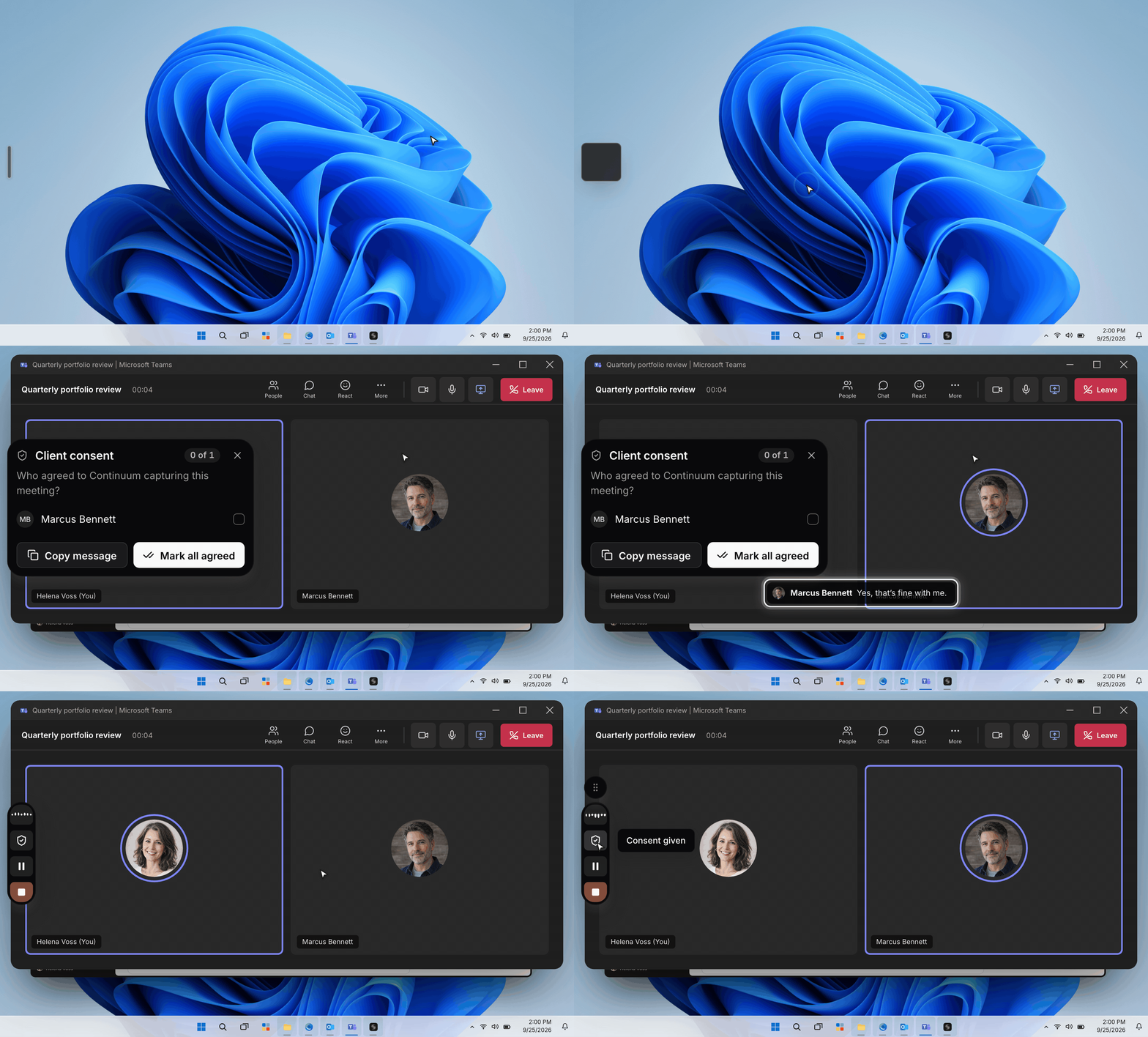
Check your audio
Click the moving audio bars during capture to open the audio panel.- Microphone is your voice and sound in the room.
- System audio is sound from your computer, including other people on an online call.
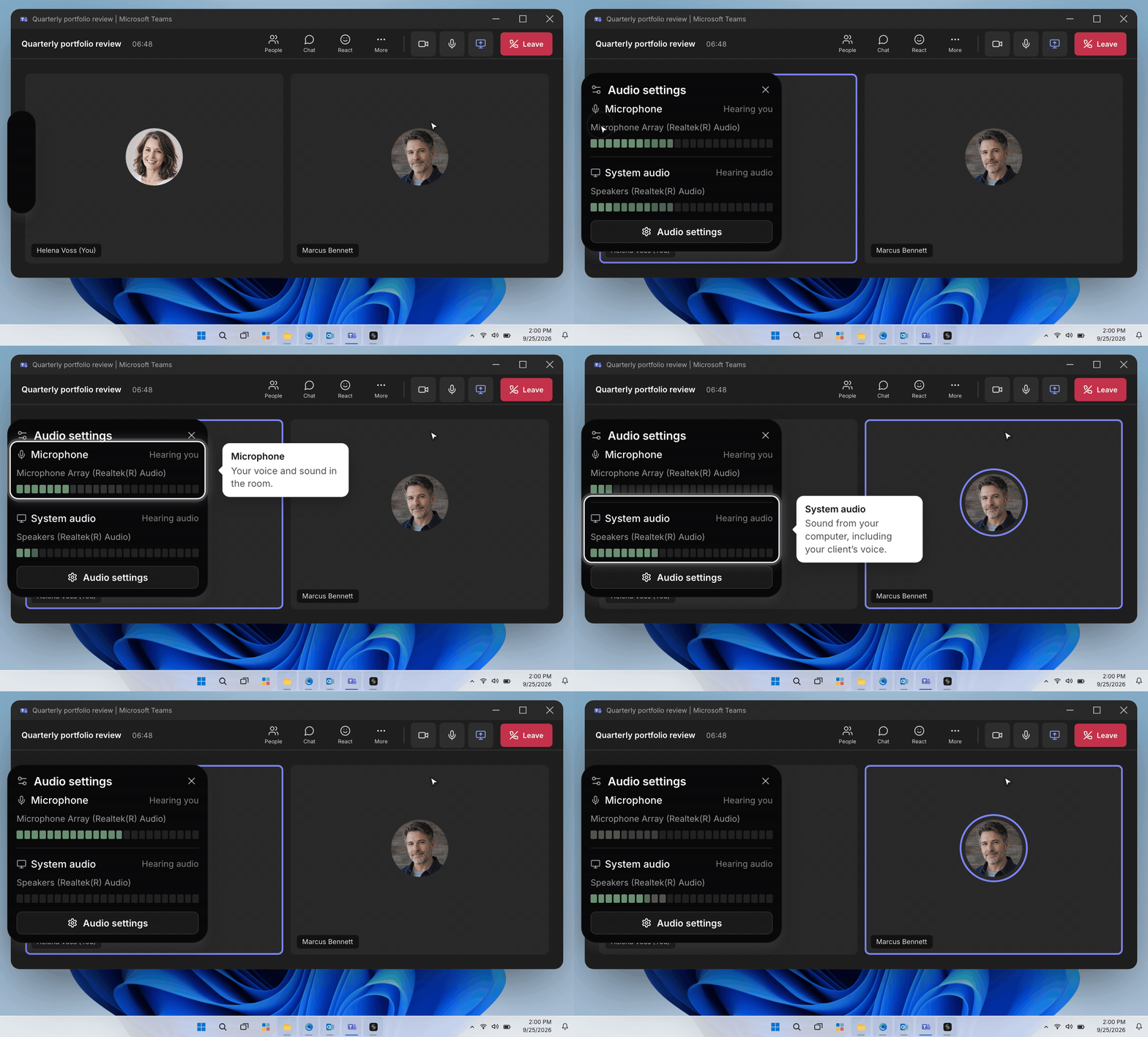
If Restart is offered, use it to restart audio capture in the same meeting. Audio settings opens your computer’s sound settings, where you can check your microphone and other audio devices.
Find your meeting notes
Clicking Stop & generate notes opens the meeting in Continuum. Once processing finishes, you can review the Summary and suggested tasks. To return later, open Meetings → Past and select the meeting. If it is missing while notes are being prepared, change the list filter to All meetings. See After a meeting for reviewing, sharing, and syncing your notes.Limitations
- The dock is in the desktop app for Mac and Windows only. The mobile and web apps do not have it.
- The dock does not show the transcript or take notes. Open the meeting in Continuum for those. See During a meeting.
- The dock setting is saved on each computer, not on your account. Turn it off on every computer where you want it hidden.
- If the dock shows Capture not started, Continuum could not finish the meeting you were capturing, so the new capture did not start. Click End capture to end the current capture without a summary, then start the new capture again.
Frequently asked questions
Can I hide it between meetings?
Can I hide it between meetings?
Open Settings → General → Dock and turn Continuum Dock off. It will still appear during captures and meeting reminders. To start a capture while it is hidden, open the meeting in Continuum.This setting is saved separately on each computer.
Why can’t I see the Dock?
Why can’t I see the Dock?
Check that the Continuum desktop app is running, you are signed in, and Continuum Dock is on in Settings. Look along the edges of your other displays, too.The Dock is available in the Windows and Mac apps for users who can capture meetings. It does not appear in the browser or mobile app, or for Assistant seats.
Why does it ask “Still in your meeting?”
Why does it ask “Still in your meeting?”
After 10 minutes without detected speech, Continuum checks whether you are still there.Click Keep capturing to continue, or Stop capture to pause. When you are finished, use the red square to generate notes.If speech does not resume and you do not respond within another five minutes, Continuum stops capture and generates the summary automatically.
Does closing a message stop capture?
Does closing a message stop capture?
Closing a consent or audio panel only closes that panel. Use Pause capture or Stop & generate notes to control capture.
Can I read the transcript or type notes in the Dock?
Can I read the transcript or type notes in the Dock?
Open the meeting in Continuum to read the transcript or add your own notes. See During a meeting.
What if something does not work?
What if something does not work?
If the Dock says “Something needs your attention,” read the message to see which action did not complete, then try it again.If it still does not work, email support@oncontinuum.com. We’re happy to help.