> ## Documentation Index
> Fetch the complete documentation index at: https://help.oncontinuum.com/llms.txt
> Use this file to discover all available pages before exploring further.
# What your client sees
> How your client opens a Page, what is on it, what the embedded assistant can and cannot answer, and how they find every Page you have shared.
Your client opens a Page from the link you send. They do not need a Continuum account. This article walks through what they see, so you know what you are putting in front of them.
## Verifying their email
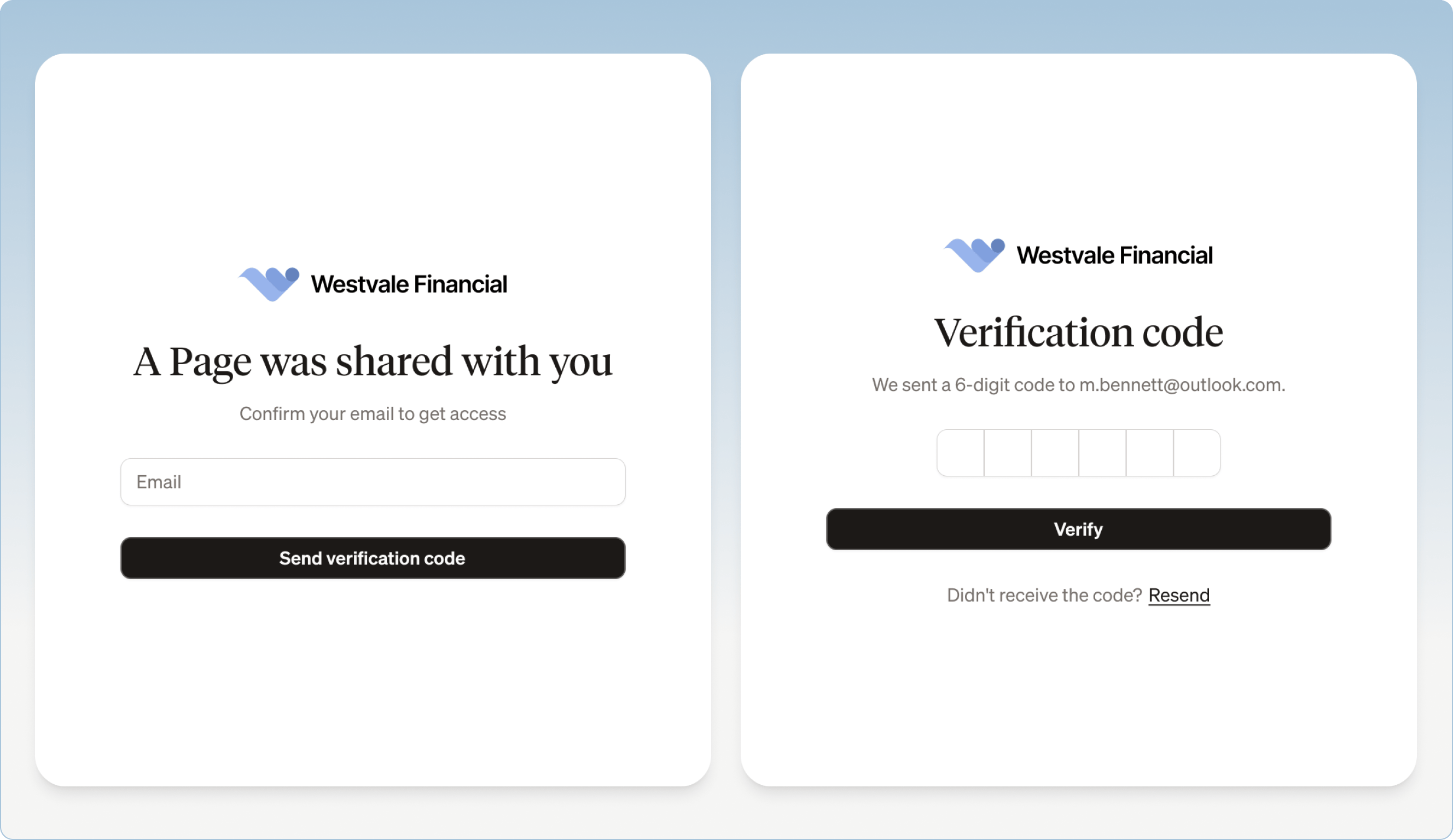
On a Page set to **Only invited clients**, your client sees **A page was shared with you**, enters their email address, and clicks **Send verification code**. They enter the six-digit code from their email and click **Verify**. The code expires after 10 minutes, and **Resend** sends a new one. Forwarding the link does not help anyone else in, because only the email addresses you added can verify. A Page set to **Anyone with the link** skips this step.
The verification screen uses your firm's Brand.
 To see this the way your client will, send a Page to yourself and open the link on your phone.
## What is on the Page
Depending on what you built, the Page can have:
* your firm's Brand
* a personal message from you
* a meeting summary or an explanation written for the client
* interactive charts, tables, or scenarios
* next steps or checklists
* documents to download
* a button to book a meeting
* a compliance footer
* the embedded assistant
The Page works on a computer, a tablet, or a phone.
## The embedded assistant
Every Page has an assistant your client can chat with, so they can understand what you sent without emailing you each small question. For example:
* "What are my next steps?"
* "What rate of return was assumed?"
* "Which document do I need to sign?"
* "What did we decide about RESP contributions?"
* "Can you summarize the conservative scenario?"
Their questions show up for you in **Topics & Insights**. See [Track engagement](/pages/track-engagement#topics-and-insights).
### What it answers from
* the content of the Page
* the documents attached to the Page
* general definitions an advisor would give, such as the difference between a LIRA and a RRIF
### What it will not do
* **Look anything up online.** It is not connected to the internet.
* **See other data.** It has no access to your CRM, your other clients, or anything not on the Page.
* **Give investment advice.** Asked "Which fund should I buy?" or "Where should I put this inheritance?", it declines and points your client back to you.
You decide what the assistant can say by deciding what goes on the Page. If it declines a question you want it to answer, add that information to the Page.
## The compliance footer
If your organization has compliance turned on, every Page ends with a footer holding your firm's compliance information and disclosure text. It is managed separately from the Page content. See [Compliance controls](/pages/pages-compliance).
## Coming back later
Your client can return to the same link. In the same browser, they usually get straight back in. They are asked for a new code after about a day, or on a different device, browser, or private window.
## The **All pages** list
From any Page, your client can open a list of every Page your firm has shared with them, without finding the old email or entering a new code.
To see this the way your client will, send a Page to yourself and open the link on your phone.
## What is on the Page
Depending on what you built, the Page can have:
* your firm's Brand
* a personal message from you
* a meeting summary or an explanation written for the client
* interactive charts, tables, or scenarios
* next steps or checklists
* documents to download
* a button to book a meeting
* a compliance footer
* the embedded assistant
The Page works on a computer, a tablet, or a phone.
## The embedded assistant
Every Page has an assistant your client can chat with, so they can understand what you sent without emailing you each small question. For example:
* "What are my next steps?"
* "What rate of return was assumed?"
* "Which document do I need to sign?"
* "What did we decide about RESP contributions?"
* "Can you summarize the conservative scenario?"
Their questions show up for you in **Topics & Insights**. See [Track engagement](/pages/track-engagement#topics-and-insights).
### What it answers from
* the content of the Page
* the documents attached to the Page
* general definitions an advisor would give, such as the difference between a LIRA and a RRIF
### What it will not do
* **Look anything up online.** It is not connected to the internet.
* **See other data.** It has no access to your CRM, your other clients, or anything not on the Page.
* **Give investment advice.** Asked "Which fund should I buy?" or "Where should I put this inheritance?", it declines and points your client back to you.
You decide what the assistant can say by deciding what goes on the Page. If it declines a question you want it to answer, add that information to the Page.
## The compliance footer
If your organization has compliance turned on, every Page ends with a footer holding your firm's compliance information and disclosure text. It is managed separately from the Page content. See [Compliance controls](/pages/pages-compliance).
## Coming back later
Your client can return to the same link. In the same browser, they usually get straight back in. They are asked for a new code after about a day, or on a different device, browser, or private window.
## The **All pages** list
From any Page, your client can open a list of every Page your firm has shared with them, without finding the old email or entering a new code.
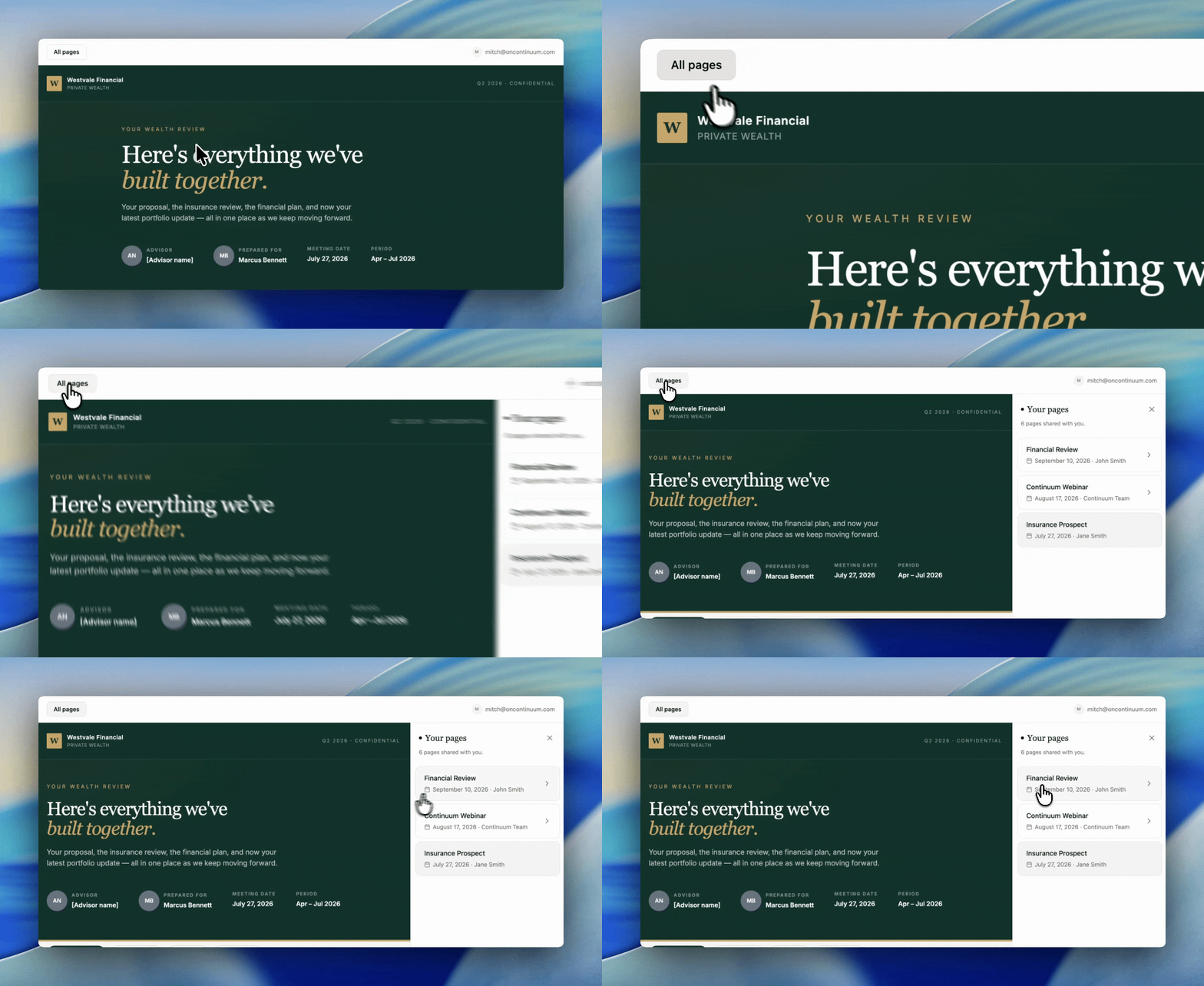 Your client opens a Page link and verifies their email as usual.
**All pages** is at the top left of the Page. It opens a panel called **Your pages**.
Pages are listed newest first, with the date each was shared. The chosen Page opens straight away, with no new code.
The list shows:
* every published Page anyone at your firm shared with your client's email address
* who shared each Page, when more than one advisor at your firm shared with them
Drafts never appear. Removing a client from a Page under **Access** takes it off their list. On a phone, **All pages** opens the list full screen.
## Limitations
* **All pages** does not appear on Pages set to **Anyone with the link**, because those open without a code.
* **All pages** does not appear in **Preview**. To see it, share two Pages with yourself and open the real link.
* The assistant answers only from the Page and its attachments, and never gives investment advice.
Your client opens a Page link and verifies their email as usual.
**All pages** is at the top left of the Page. It opens a panel called **Your pages**.
Pages are listed newest first, with the date each was shared. The chosen Page opens straight away, with no new code.
The list shows:
* every published Page anyone at your firm shared with your client's email address
* who shared each Page, when more than one advisor at your firm shared with them
Drafts never appear. Removing a client from a Page under **Access** takes it off their list. On a phone, **All pages** opens the list full screen.
## Limitations
* **All pages** does not appear on Pages set to **Anyone with the link**, because those open without a code.
* **All pages** does not appear in **Preview**. To see it, share two Pages with yourself and open the real link.
* The assistant answers only from the Page and its attachments, and never gives investment advice.