> ## Documentation Index
> Fetch the complete documentation index at: https://help.oncontinuum.com/llms.txt
> Use this file to discover all available pages before exploring further.
# Track engagement
> See who opened a Page, what they downloaded, and what they asked its assistant, and use it to decide when and how to follow up.
After you send a Page, Continuum shows you whether your client opened it, what they downloaded, and what they asked its assistant. Use it to follow up at the right time and with the right context.
## The Pages overview
At the top of **Pages**, three tiles cover all your Pages:
| Tile | What it shows |
| - | - |
| **Open rate** | The share of Pages published in the period that have been opened, with the count beneath it |
| **Views** | Total Page views |
| **Chat interactions** | How often clients used the embedded assistant |
Switch the period between **Last 7 days**, **Last 30 days**, and **Last 90 days**.
## The Pages list
**My Pages** holds the Pages you created. **Shared with me** holds Pages a teammate gave you access to, with a **Created by** column. Both lists show **Title**, **Status**, **Recipients**, and **Views**. For what each status means, see [Page statuses](/pages/page-statuses).
Each row's **three-dot menu** has **Edit** (or **View**). Once the Page is published it also has **Copy link** and **Preview**. It also has **Duplicate**, when the Page supports it, and **Delete** on Pages you own.
## Page details
Click a Page in the list to open its details. You see its recipients, who created it, the meeting it came from, and a suggested next step, followed by these sections:
| Section | What it shows |
| - | - |
| **Engagement** | Views, plus chat interactions, downloads, or unique viewers, whichever the Page has |
| **Documents** | The attached documents and their downloads |
| **Topics & Insights** | What your client asked the assistant |
| **Activity** | A timeline of everything that happened on the Page |
If a **Published** Page has no views yet, **Engagement** shows **Send a reminder**, which opens **Send your Page by email**.
### Activity
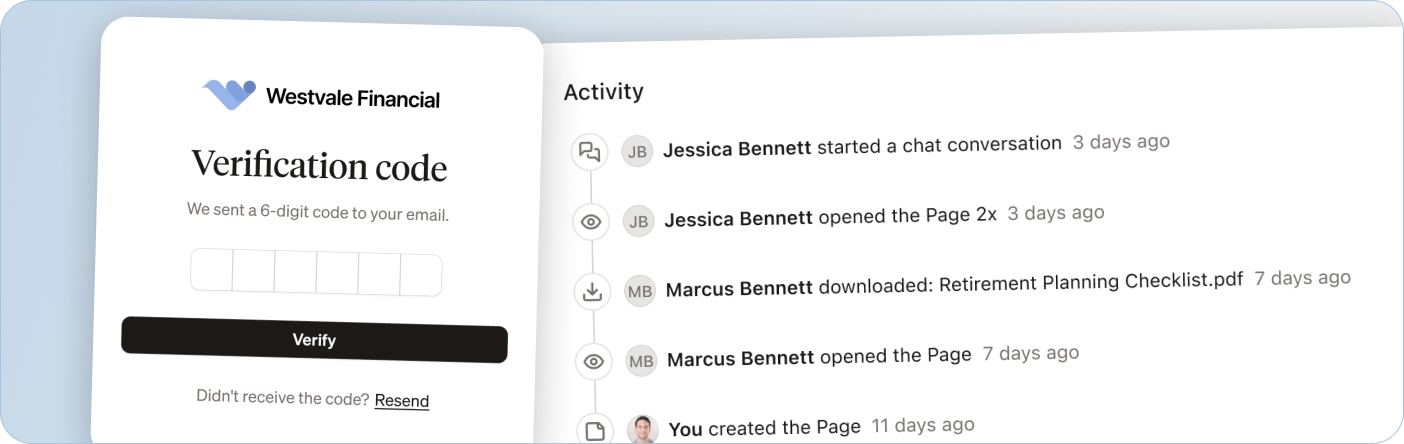
**Activity** lists who opened the Page and how often, which documents they downloaded, and when they started a chat with the assistant. Repeated downloads of the same document close together are grouped into one entry.
 ### Topics and insights
**Topics & Insights** sums up what your client asked the assistant:
* a written takeaway about what they seem to care about most
* the topics they asked about, most-asked first, with a question count for each
* each question, with the date and time they asked it
Read it before a follow-up meeting. If a client asked several questions about fees or a planning assumption, you can answer that directly.
You can also ask about a client's Pages from their contact page in **People**, for example "Has Linda opened the Page I sent last week?" See [Prompts to try](/ask-ai/ai-tips).
## What to do next
| What you see | What it may mean | What to do |
| - | - | - |
| Opened once | Your client has seen the Page | Give them time to read it before you follow up, unless it is urgent. |
| Viewed several times | They are coming back to it, or showing a spouse or another decision-maker | A good moment to check in. |
| Documents downloaded | They are reading the source material | Follow up with context or next steps if the document needs action. |
| Questions asked | Something needs explaining | Read **Topics & Insights** before you reach out. |
| Not opened after a few days | They have not seen it | Use **Send a reminder**, especially if the next steps are time-sensitive. |
## Limitations
* Your own visits count. If you send a Page to yourself to rehearse, your views appear in the numbers and in **Activity** like a client's would. Use your own contact when you test, and expect your activity in the numbers.
### Topics and insights
**Topics & Insights** sums up what your client asked the assistant:
* a written takeaway about what they seem to care about most
* the topics they asked about, most-asked first, with a question count for each
* each question, with the date and time they asked it
Read it before a follow-up meeting. If a client asked several questions about fees or a planning assumption, you can answer that directly.
You can also ask about a client's Pages from their contact page in **People**, for example "Has Linda opened the Page I sent last week?" See [Prompts to try](/ask-ai/ai-tips).
## What to do next
| What you see | What it may mean | What to do |
| - | - | - |
| Opened once | Your client has seen the Page | Give them time to read it before you follow up, unless it is urgent. |
| Viewed several times | They are coming back to it, or showing a spouse or another decision-maker | A good moment to check in. |
| Documents downloaded | They are reading the source material | Follow up with context or next steps if the document needs action. |
| Questions asked | Something needs explaining | Read **Topics & Insights** before you reach out. |
| Not opened after a few days | They have not seen it | Use **Send a reminder**, especially if the next steps are time-sensitive. |
## Limitations
* Your own visits count. If you send a Page to yourself to rehearse, your views appear in the numbers and in **Activity** like a client's would. Use your own contact when you test, and expect your activity in the numbers.