> ## Documentation Index
> Fetch the complete documentation index at: https://help.oncontinuum.com/llms.txt
> Use this file to discover all available pages before exploring further.
# Brand setup
> Set your firm's logo, colours, font, and corner style once, and Continuum applies them to every new Page your organization creates.
Your Brand is how your firm's logo, colours, and font appear on every Page. You set it once, and Continuum applies it to every new Page anyone in your organization creates.
A Brand has a logo, a primary and an accent colour, a typeface style, and a corner style. The company name comes from your organization settings.
## Set up your Brand
Go to **Pages** and click **Brand**. You can also go to **Settings > General** and click **Customize** beside **Brand**.
Enter your firm's website, or upload a brand document. Continuum pulls your logo, colours, and style from it. If your organization has no Brand yet, Brand opens on this step, and you can skip it to set everything by hand.
Check the logo, colours, typography, and corners, and change anything that does not match your firm.
Click **Save branding**. Every new Page in your organization uses this Brand.
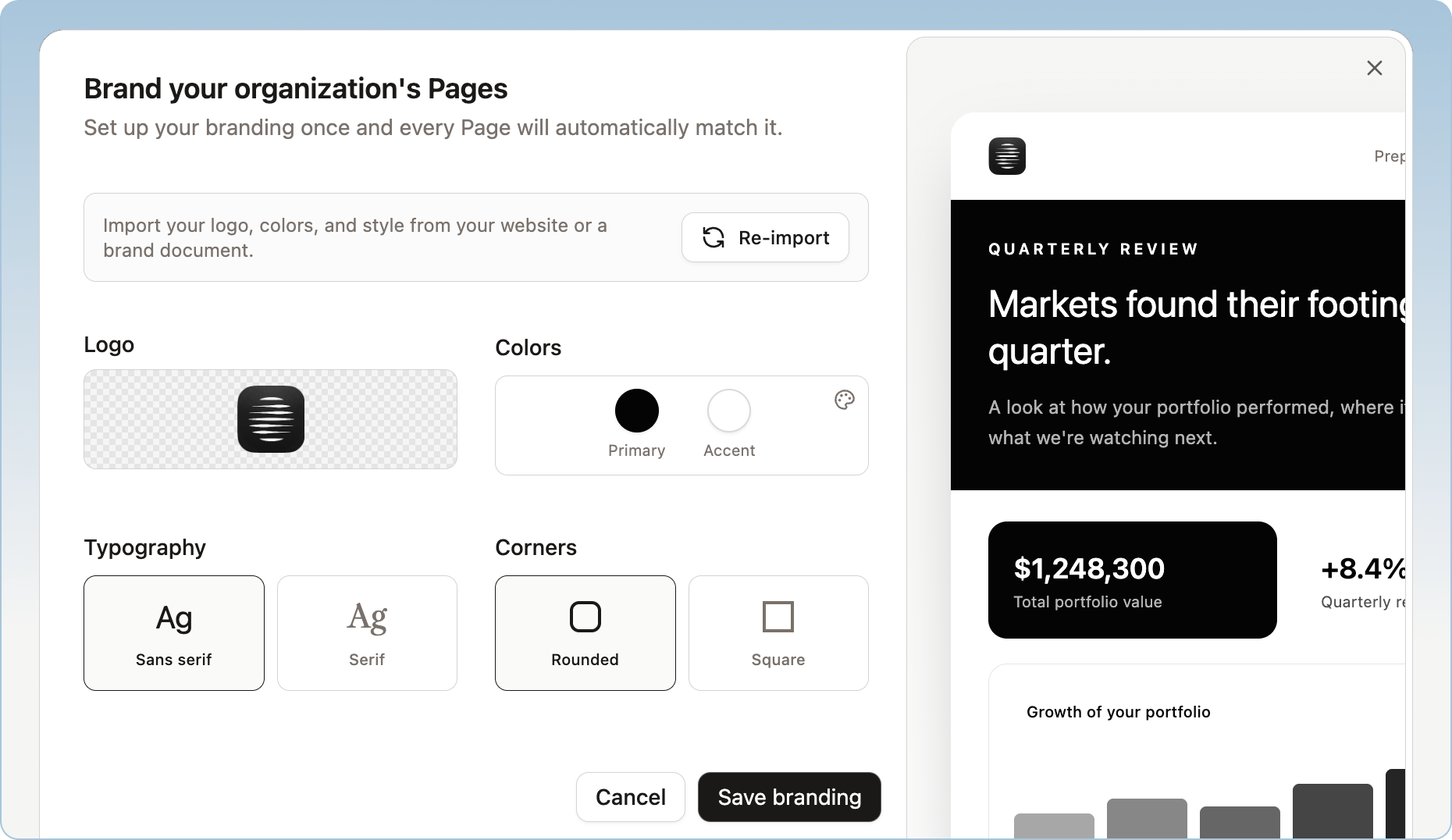 ## What you can change
| Setting | Options |
| - | - |
| **Logo** | Choose one Continuum found, upload your own, or remove it. |
| **Colors** | A primary colour for the Page and an accent colour for highlights and secondary elements. |
| **Typography** | **Sans serif** or **Serif**. |
| **Corners** | **Rounded** or **Square**. |
The company name on Pages comes from **Settings > Organization**, and only admins can change it.
Your name and profile photo appear in the footer of every Page you create, so your client can see who it is from. Add a photo in **Settings > Account**.
## Change your Brand after you publish
A Brand change can also reach Pages you already published. When it does, the published Page keeps its old look until you update it:
1. Open the Page. It shows unpublished changes if the new Brand affects it.
2. Check how the Page looks with the new Brand.
3. Click **Update page** to publish it.
Your client sees the new Brand only after you click **Update page**.
## Limitations
* **One Brand per organization.** Every Page anyone in your organization creates uses the same Brand. There is no separate Brand per advisor.
* **Typography** is a choice between sans serif and serif. You cannot upload your own font.
## What you can change
| Setting | Options |
| - | - |
| **Logo** | Choose one Continuum found, upload your own, or remove it. |
| **Colors** | A primary colour for the Page and an accent colour for highlights and secondary elements. |
| **Typography** | **Sans serif** or **Serif**. |
| **Corners** | **Rounded** or **Square**. |
The company name on Pages comes from **Settings > Organization**, and only admins can change it.
Your name and profile photo appear in the footer of every Page you create, so your client can see who it is from. Add a photo in **Settings > Account**.
## Change your Brand after you publish
A Brand change can also reach Pages you already published. When it does, the published Page keeps its old look until you update it:
1. Open the Page. It shows unpublished changes if the new Brand affects it.
2. Check how the Page looks with the new Brand.
3. Click **Update page** to publish it.
Your client sees the new Brand only after you click **Update page**.
## Limitations
* **One Brand per organization.** Every Page anyone in your organization creates uses the same Brand. There is no separate Brand per advisor.
* **Typography** is a choice between sans serif and serif. You cannot upload your own font.