> ## Documentation Index
> Fetch the complete documentation index at: https://help.oncontinuum.com/llms.txt
> Use this file to discover all available pages before exploring further.
# Capturing phone calls
> Have Continuum join your phone call and transcribe it like any other meeting — from desktop or mobile.
Continuum can sit in on your phone calls the same way it does for Zoom or in-person meetings. You start the call from your phone like you normally would, pull Continuum in, and you get back a transcript, AI summary, and tasks the moment you hang up.
## How it works
When you capture a phone call, Continuum calls **you** on a number you choose. You answer, then merge that call into the conversation you're already having with your contact. All three lines are bridged together, both sides of the conversation are captured, and a new meeting is created automatically with the transcript and summary once you hang up.
You can use this for client calls, prospecting calls, or anything else you'd normally want a notetaker on — no Zoom or video meeting required.
Call capture is generally available, and setup doesn't require verifying a phone number. Just pick the number you want Continuum to call you on and you're ready to go.
## Before your first call
**Save Continuum's phone numbers as a contact before your first call.**
When Continuum dials you, the call comes from one of our outbound numbers. If your phone doesn't recognize the number, iOS Silence Unknown Callers, Android call screening, or your carrier's spam filter may silence, screen, or block it — and the call will look like it failed.
Save these numbers to your contacts as "Continuum", so the call always rings through:
| **Canada** | **United States** |
| --------------- | ----------------- |
| +1 647 584 0205 | +1 717 702 6507 |
| +1 204 813 9124 | +1 218 505 1068 |
We rotate across these numbers, so saving all four ensures every call reaches you no matter which one we dial from.
Create a single contact called "Continuum" with all four numbers attached. That way, if we add more numbers in the future, you can append them in one place.
## Capturing a call from the desktop app
You can start a phone call from anywhere in the desktop app. There are three entry points — use whichever is closest to what you're already doing.
### From the command menu
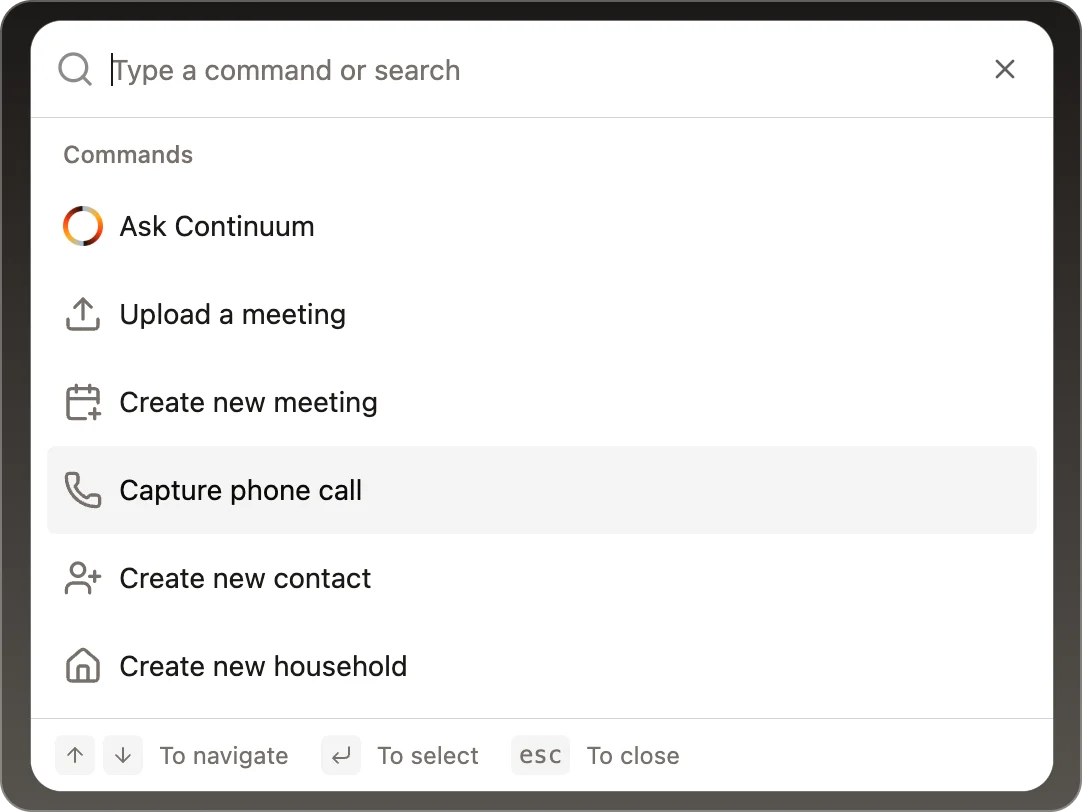
Press `⌘K` (Mac) or `Ctrl+K` (Windows) to open the command menu, type **Capture phone call**, and hit enter. This is the fastest path from anywhere in the app.
 ### From the Meetings page
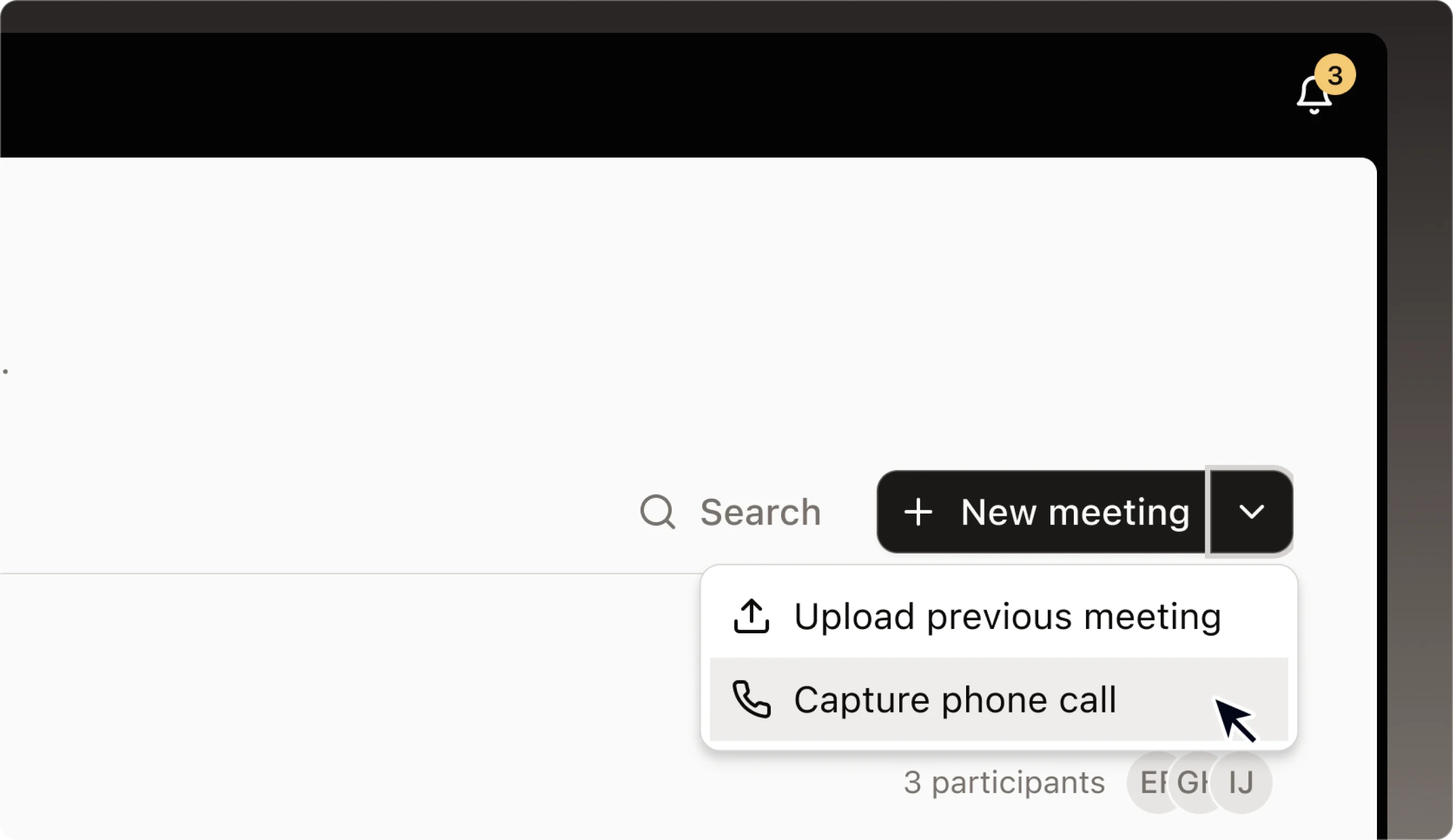
On the **Meetings** page, click the **New meeting** dropdown and choose **Capture phone call**. Use this when you want the call to show up in your meeting list right away.
### From the Meetings page
On the **Meetings** page, click the **New meeting** dropdown and choose **Capture phone call**. Use this when you want the call to show up in your meeting list right away.
 ### From an existing meeting
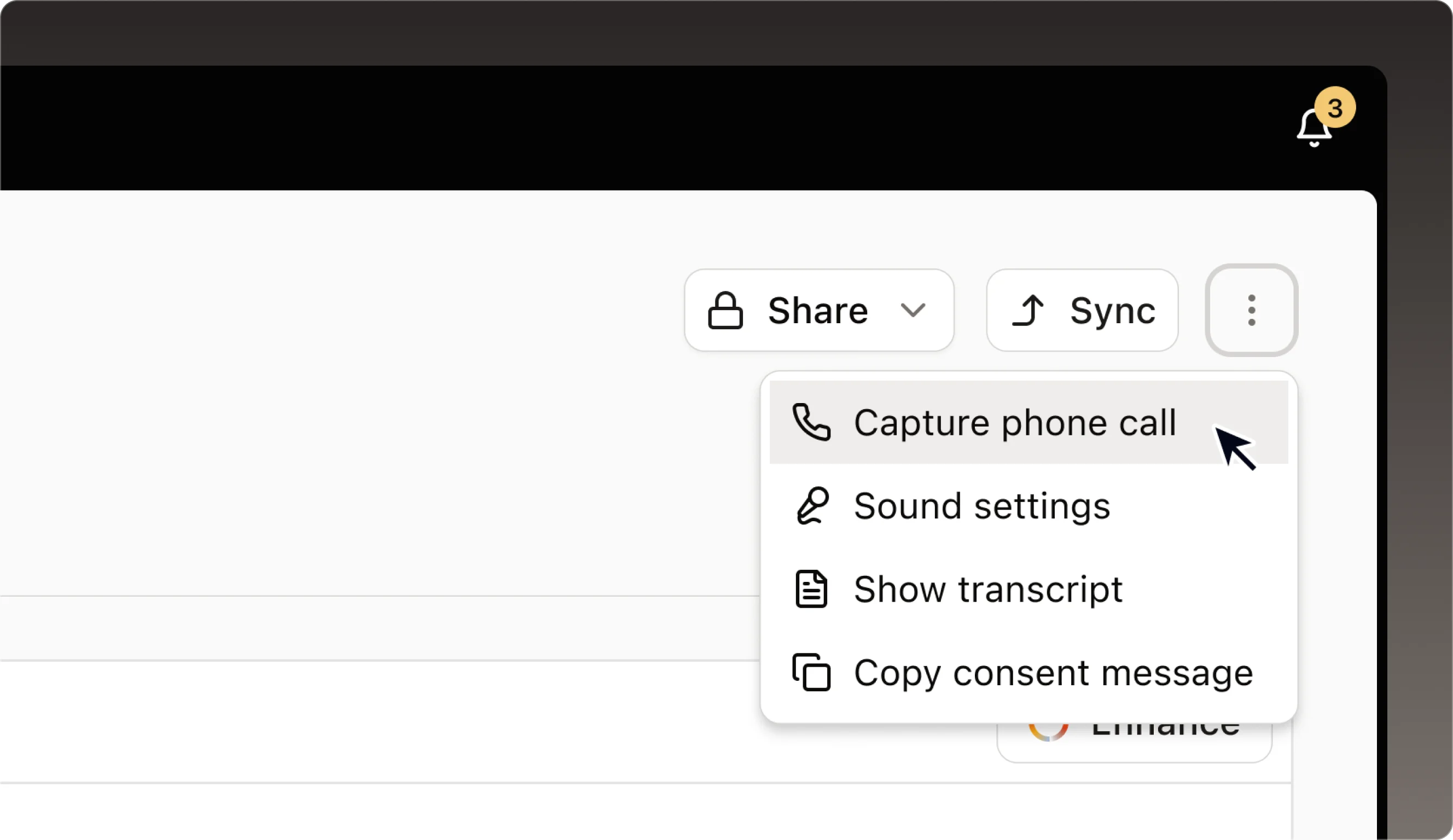
Open any meeting, click the **⋯** menu in the top right, and choose **Capture phone call**. Use this when you want the call attached to a meeting you've already created — for example, one auto-created from your calendar.
### From an existing meeting
Open any meeting, click the **⋯** menu in the top right, and choose **Capture phone call**. Use this when you want the call attached to a meeting you've already created — for example, one auto-created from your calendar.
 ### The capture dialog
Whichever entry point you pick, the same short dialog opens:
Pick from your saved phone numbers, or type a new one. New numbers are saved automatically for next time.
Continuum will ring the number you selected within a few seconds.
With your contact already on the line (or after you dial them), use your phone's **Merge calls** option to bring Continuum into the conversation. From this point on, both sides of the call are captured and transcribed.
The call ends and Continuum starts processing the transcript. You'll see an **On call** indicator in the app while the call is live.
## Capturing a call from the mobile app
Make sure you're signed in.
The capture sheet slides up.
Saved numbers appear in the list. Any new number you type is saved automatically for next time.
You'll see **Calling you…** while Continuum dials, then a live timer once you answer.
Use your phone's **Merge calls** option to bring Continuum into your conversation with the contact.
Continuum jumps to a **Generating summary…** screen, then takes you to the past meeting page once the transcript is ready.
## Finding your transcripts
Every captured phone call becomes a meeting in Continuum — same as a Zoom or in-person meeting.
* **Desktop:** Open **Meetings**. Your phone call appears in the list with a **Phone call** badge in the meeting ribbon. Click in for the full transcript, AI summary, and tasks. If the call is tied to a contact, it also shows up on that contact's **Meetings** tab.
* **Mobile:** When the call ends, you're taken straight to the past meeting page. You can find it again later under your meetings list.
## FAQ & troubleshooting
The most common cause is that our number was silenced or screened by your phone. Make sure you've saved all four Continuum numbers above as a contact, then try again. iOS Silence Unknown Callers, Android call screening, and carrier spam filters will all let the call through once we're in your contacts.
Calls can run up to four hours. Plenty of room for long client conversations.
Yes — you remain responsible for confirming consent with the other party per your local laws, the same way you would with any other notetaker. See **Privacy and consent** below.
No. You place the call to your contact yourself, then merge Continuum in. This keeps your caller ID on the line with the contact, not ours.
Just trigger the capture again from the app and we'll dial you back.
Captured calls land in **Meetings** on desktop (look for the **Phone call** badge) and on the contact's **Meetings** tab if you tied the call to a contact. On mobile, you're taken straight to the past meeting page when the call ends.
## Privacy and consent
When you merge Continuum into your call, you remain responsible for confirming consent with the other party per your local laws — the same way you would with any other notetaker. Transcripts are encrypted at rest and only visible to you and people in your organization who have access to that meeting.
### The capture dialog
Whichever entry point you pick, the same short dialog opens:
Pick from your saved phone numbers, or type a new one. New numbers are saved automatically for next time.
Continuum will ring the number you selected within a few seconds.
With your contact already on the line (or after you dial them), use your phone's **Merge calls** option to bring Continuum into the conversation. From this point on, both sides of the call are captured and transcribed.
The call ends and Continuum starts processing the transcript. You'll see an **On call** indicator in the app while the call is live.
## Capturing a call from the mobile app
Make sure you're signed in.
The capture sheet slides up.
Saved numbers appear in the list. Any new number you type is saved automatically for next time.
You'll see **Calling you…** while Continuum dials, then a live timer once you answer.
Use your phone's **Merge calls** option to bring Continuum into your conversation with the contact.
Continuum jumps to a **Generating summary…** screen, then takes you to the past meeting page once the transcript is ready.
## Finding your transcripts
Every captured phone call becomes a meeting in Continuum — same as a Zoom or in-person meeting.
* **Desktop:** Open **Meetings**. Your phone call appears in the list with a **Phone call** badge in the meeting ribbon. Click in for the full transcript, AI summary, and tasks. If the call is tied to a contact, it also shows up on that contact's **Meetings** tab.
* **Mobile:** When the call ends, you're taken straight to the past meeting page. You can find it again later under your meetings list.
## FAQ & troubleshooting
The most common cause is that our number was silenced or screened by your phone. Make sure you've saved all four Continuum numbers above as a contact, then try again. iOS Silence Unknown Callers, Android call screening, and carrier spam filters will all let the call through once we're in your contacts.
Calls can run up to four hours. Plenty of room for long client conversations.
Yes — you remain responsible for confirming consent with the other party per your local laws, the same way you would with any other notetaker. See **Privacy and consent** below.
No. You place the call to your contact yourself, then merge Continuum in. This keeps your caller ID on the line with the contact, not ours.
Just trigger the capture again from the app and we'll dial you back.
Captured calls land in **Meetings** on desktop (look for the **Phone call** badge) and on the contact's **Meetings** tab if you tied the call to a contact. On mobile, you're taken straight to the past meeting page when the call ends.
## Privacy and consent
When you merge Continuum into your call, you remain responsible for confirming consent with the other party per your local laws — the same way you would with any other notetaker. Transcripts are encrypted at rest and only visible to you and people in your organization who have access to that meeting.