> ## Documentation Index
> Fetch the complete documentation index at: https://help.oncontinuum.com/llms.txt
> Use this file to discover all available pages before exploring further.
# Homepage
> Your daily starting point for meetings, prep, and AI assistance
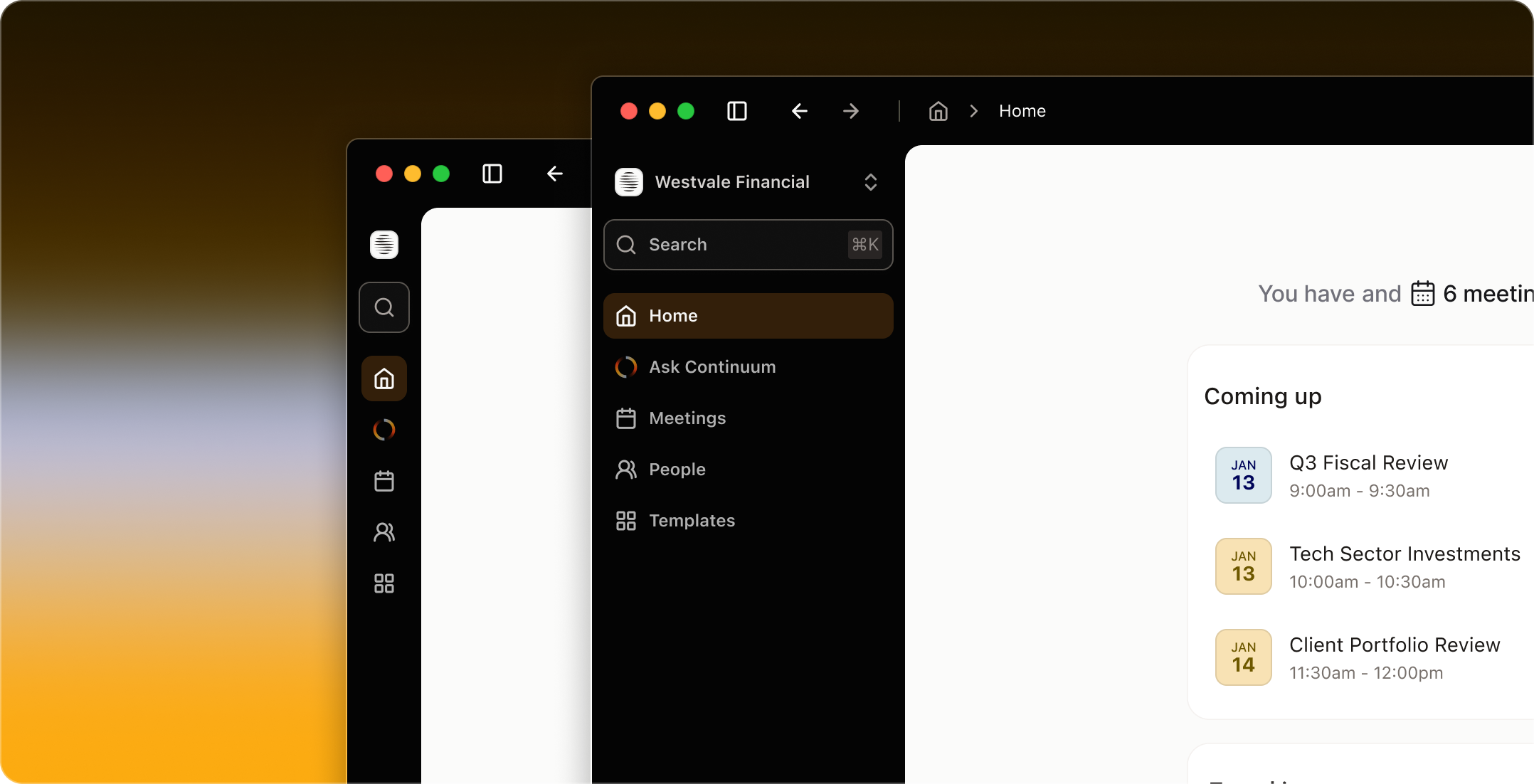
Your Home page is the first screen you see when you open the app, giving you a quick summary of your day. It shows you what's coming up, helps you prepare for meetings, and it gives you a glimpse of how Continuum can support you in your day-to-day work.
 ## Your Daily Overview
Home greets you with a personalized summary of your day. At the top, you'll see how many meetings you have today, when your next meeting starts, and when you'll be free after your last meeting. This quick snapshot helps you understand your day at a glance—whether it's packed back-to-back or has breathing room between conversations.
### View your upcoming meetings for the day
## Your Daily Overview
Home greets you with a personalized summary of your day. At the top, you'll see how many meetings you have today, when your next meeting starts, and when you'll be free after your last meeting. This quick snapshot helps you understand your day at a glance—whether it's packed back-to-back or has breathing room between conversations.
### View your upcoming meetings for the day
 Your next 3 meetings appear here automatically. For each meeting, you’ll see the meeting name, the time range and the participants.
**Quick Access to Meetings**: Click on any meeting card to open that meeting's full page where you can:
* Add notes before the meeting starts
* Use AI Ask to prepare (click "Prepare me for this meeting")
* Start capturing when it's time
* Review meeting details and participants
This makes it easy to go from your daily overview directly into preparation mode with just one click. [**See Before a meeting: prepare in 2 minutes with Continuum**](/meetings/before-meet).
You can also click **View all** on the top-right of this card to browse your full calendar or filter by client.
### **Use the “Try asking” suggestions**
Your next 3 meetings appear here automatically. For each meeting, you’ll see the meeting name, the time range and the participants.
**Quick Access to Meetings**: Click on any meeting card to open that meeting's full page where you can:
* Add notes before the meeting starts
* Use AI Ask to prepare (click "Prepare me for this meeting")
* Start capturing when it's time
* Review meeting details and participants
This makes it easy to go from your daily overview directly into preparation mode with just one click. [**See Before a meeting: prepare in 2 minutes with Continuum**](/meetings/before-meet).
You can also click **View all** on the top-right of this card to browse your full calendar or filter by client.
### **Use the “Try asking” suggestions**
 Further down the page, you’ll see the **Try asking** card. It gives you examples of questions you can ask Continuum’s AI to help you today. They're designed to match what advisors typically need at the start of their day or between meetings.
Click any suggested prompt and the AI instantly responds with helpful information.
Think of these as quick shortcuts to the most useful AI-powered tasks.
If you’re feeling unsure what to do first, simply choose one of these suggestion and act on it right away. This helps you get moving without having to think too much about prioritization. The AI will look at your recent and schedule meetings and suggest where to focus.
### **Ask a custom question in the AI bar**
Further down the page, you’ll see the **Try asking** card. It gives you examples of questions you can ask Continuum’s AI to help you today. They're designed to match what advisors typically need at the start of their day or between meetings.
Click any suggested prompt and the AI instantly responds with helpful information.
Think of these as quick shortcuts to the most useful AI-powered tasks.
If you’re feeling unsure what to do first, simply choose one of these suggestion and act on it right away. This helps you get moving without having to think too much about prioritization. The AI will look at your recent and schedule meetings and suggest where to focus.
### **Ask a custom question in the AI bar**
 At the bottom of Home (and everywhere in Continuum), you'll find the AI Ask bar where you can type your own questions.
To use it:
1. Click in the **Ask anything** box.
2. Type a question about your day or your clients.
3. Press Enter to send your question.
You can also use the button on the right (for example, to list recent follow-ups or action items) when you want a quick, structured view.
**Questions you can ask from Home:**
* Which clients need follow-up soon?
* Summarize yesterday's meetings
* What are the trending topics across my practice this month?
* Draft an agenda for my 2pm meeting
The AI has visibility across your entire practice from Home, making it powerful for high-level questions that span multiple clients, meetings, or time periods.
***
## Sidebar Navigation
the sidebar to jump to other sections:
* **Ask Continuum** — Full AI chat interface
* **Meetings** — Complete calendar and meeting history
* **People** — All clients and households
* **Templates** — Meeting summary templates
* **Tasks** — All action items and follow-ups across your practice
The search bar at the top (⌘K or Ctrl+K) works to quickly find any client, meeting, or task across Continuum.
**Minimizing the sidebar:** Want more screen space? Click the icon at the top of the sidebar to collapse it into a compact icon-only view. You'll still see all your navigation options, just as icons instead of full labels. Click the icon again to expand it back to full width.
At the bottom of Home (and everywhere in Continuum), you'll find the AI Ask bar where you can type your own questions.
To use it:
1. Click in the **Ask anything** box.
2. Type a question about your day or your clients.
3. Press Enter to send your question.
You can also use the button on the right (for example, to list recent follow-ups or action items) when you want a quick, structured view.
**Questions you can ask from Home:**
* Which clients need follow-up soon?
* Summarize yesterday's meetings
* What are the trending topics across my practice this month?
* Draft an agenda for my 2pm meeting
The AI has visibility across your entire practice from Home, making it powerful for high-level questions that span multiple clients, meetings, or time periods.
***
## Sidebar Navigation
the sidebar to jump to other sections:
* **Ask Continuum** — Full AI chat interface
* **Meetings** — Complete calendar and meeting history
* **People** — All clients and households
* **Templates** — Meeting summary templates
* **Tasks** — All action items and follow-ups across your practice
The search bar at the top (⌘K or Ctrl+K) works to quickly find any client, meeting, or task across Continuum.
**Minimizing the sidebar:** Want more screen space? Click the icon at the top of the sidebar to collapse it into a compact icon-only view. You'll still see all your navigation options, just as icons instead of full labels. Click the icon again to expand it back to full width.