> ## Documentation Index
> Fetch the complete documentation index at: https://help.oncontinuum.com/llms.txt
> Use this file to discover all available pages before exploring further.
# Ask Continuum AI
> Get instant answers, insights, and help wherever you need it
Continuum’s built-in AI chat helps you find insights, summarize interactions, and take action across your firm’s data. Whether you’re preparing for a meeting, reviewing a client relationship, or following up afterward, you can simply **ask Continuum**—no need to dig through notes or emails.
### You can access this intelligence in 3 different ways:
**1. The Ask Continuum page**: Your dedicated space for deeper thinking, planning, and exploration with AI. It’s ideal for more comprehensive insights across your clients and recent activity.
**2. The AI Floating Bar**: Designed for quick, contextual questions. It gives you fast, on-the-spot assistance based on the page you’re viewing.
**3. Ask AI buttons throughout the app**: These buttons appear in strategic locations whenever the app detects an insight worth expanding, so you can learn more about the topic you're seeing.
***
## When to better use the Floating bar vs. the Ask Page
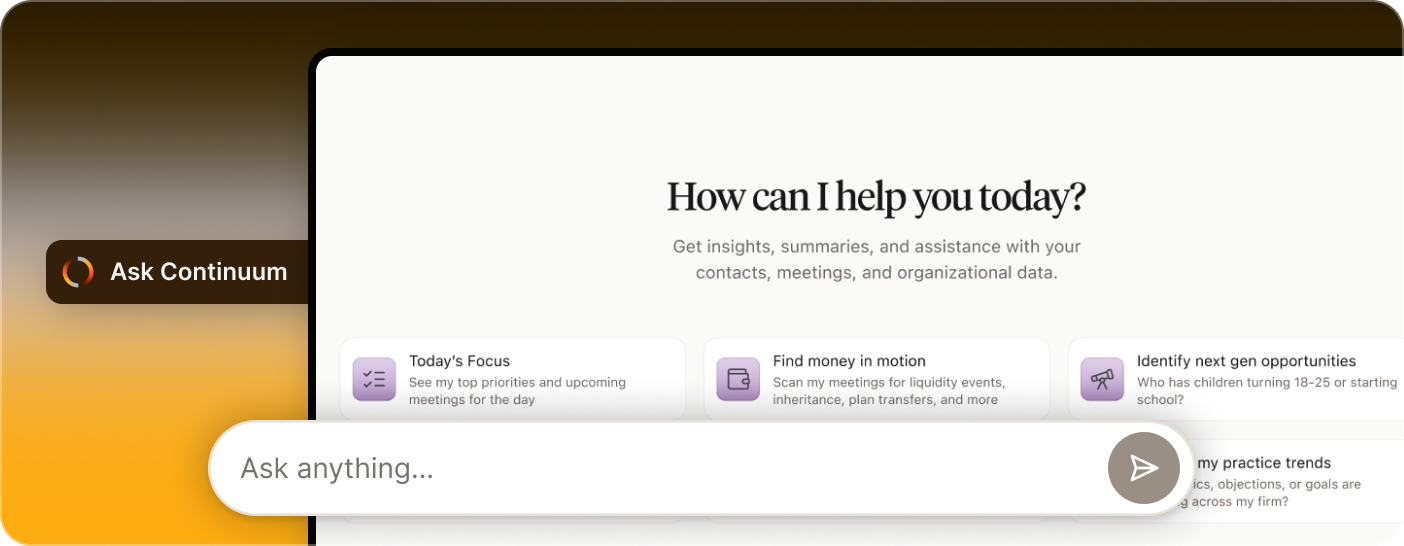 ### Use Ask Continuum when you want:
* A *bigger-picture* view of your day or your clients
* Reviewing conversations across several clients at once
* To explore planning opportunities
* Planning outreach or review cycles
* Analyzing trends across multiple meetings
* Drafting longer or more polished outputs (emails, summaries, agendas)
Here, the AI is not limited by a single page context — it looks across your overall activity.
***
### Use Ask Continuum when you want:
* A *bigger-picture* view of your day or your clients
* Reviewing conversations across several clients at once
* To explore planning opportunities
* Planning outreach or review cycles
* Analyzing trends across multiple meetings
* Drafting longer or more polished outputs (emails, summaries, agendas)
Here, the AI is not limited by a single page context — it looks across your overall activity.
***
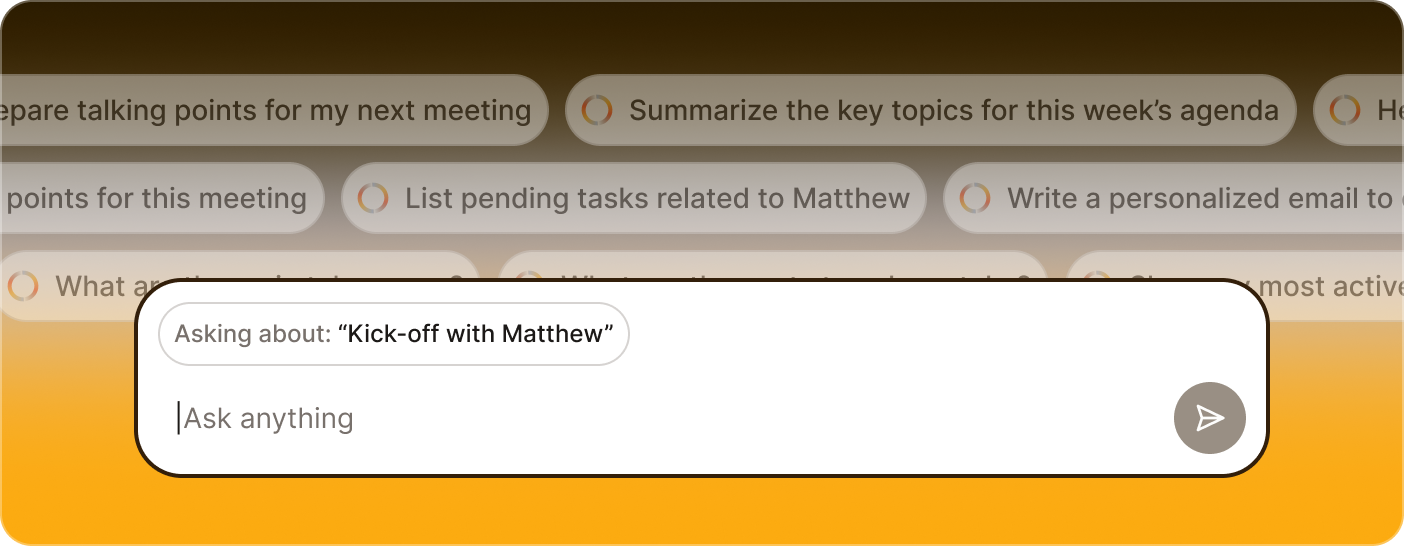 ### Use the Floating AI Bar when you want:
* Quick, on-the-spot help
* Something contextual tied to the page you're viewing
* A short briefing before joining a meeting
* To clarify something during a meeting
* A super fast reminder or summary
* A quick checklist or “just-in-time” insight
The floating bar is built for **speed**.\
Ask Continuum is built for **depth**.
Learn more about how each of these two options works here:
Deeper thinking and broader insights.
Quick, contextual, just-in-time help
### Use the Floating AI Bar when you want:
* Quick, on-the-spot help
* Something contextual tied to the page you're viewing
* A short briefing before joining a meeting
* To clarify something during a meeting
* A super fast reminder or summary
* A quick checklist or “just-in-time” insight
The floating bar is built for **speed**.\
Ask Continuum is built for **depth**.
Learn more about how each of these two options works here:
Deeper thinking and broader insights.
Quick, contextual, just-in-time help