> ## Documentation Index
> Fetch the complete documentation index at: https://help.oncontinuum.com/llms.txt
> Use this file to discover all available pages before exploring further.
# After a Meeting
> Transform your recording into actionable insights and share them with your team.
Once your meeting ends, Continuum transforms your conversation into actionable insights, organized summaries, and synced tasks. Here's how to make the most of everything you just captured.
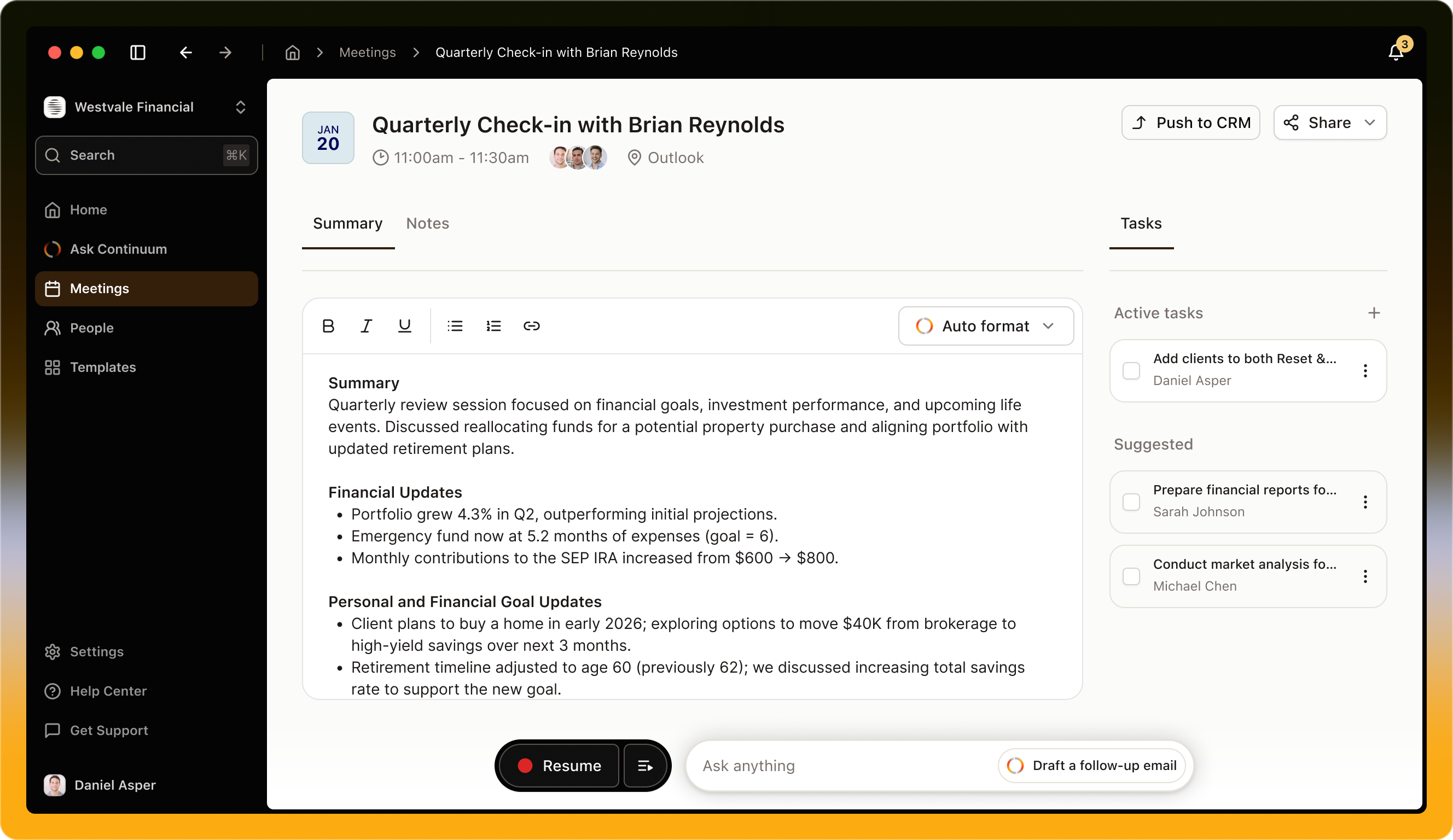 A meeting's location, participants, and time are interactive — select any of them to open a popover with more detail.
## Generating Your AI Summary
After you click **Generate** to create your AI-powered summary, you'll see the meeting page transform and two new tabs appear: Summary and Tasks.
**What's included in your summary:** By default, Continuum's AI organizes your summary in the way it determines will be most useful based on your conversation. This automatic organization is already highly effective and loved by our users. The AI intelligently identifies and structures:
* Key discussion points and main topics covered
* Action items and follow-ups
* Decisions made during the conversation
* Client concerns or questions raised
* Next steps and recommended actions
The AI analyzes both your audio recording and any notes you added before or during the meeting to create a comprehensive, context-aware summary.
## Using Summary Templates
While Continuum's default AI organization works great for most meetings, you may have a specific way you prefer to structure your summaries. That's where templates come in handy.
Click the **Auto format** dropdown in your summary view to select a template. When you choose one, Continuum regenerates your summary organized according to that structure.
A meeting's location, participants, and time are interactive — select any of them to open a popover with more detail.
## Generating Your AI Summary
After you click **Generate** to create your AI-powered summary, you'll see the meeting page transform and two new tabs appear: Summary and Tasks.
**What's included in your summary:** By default, Continuum's AI organizes your summary in the way it determines will be most useful based on your conversation. This automatic organization is already highly effective and loved by our users. The AI intelligently identifies and structures:
* Key discussion points and main topics covered
* Action items and follow-ups
* Decisions made during the conversation
* Client concerns or questions raised
* Next steps and recommended actions
The AI analyzes both your audio recording and any notes you added before or during the meeting to create a comprehensive, context-aware summary.
## Using Summary Templates
While Continuum's default AI organization works great for most meetings, you may have a specific way you prefer to structure your summaries. That's where templates come in handy.
Click the **Auto format** dropdown in your summary view to select a template. When you choose one, Continuum regenerates your summary organized according to that structure.
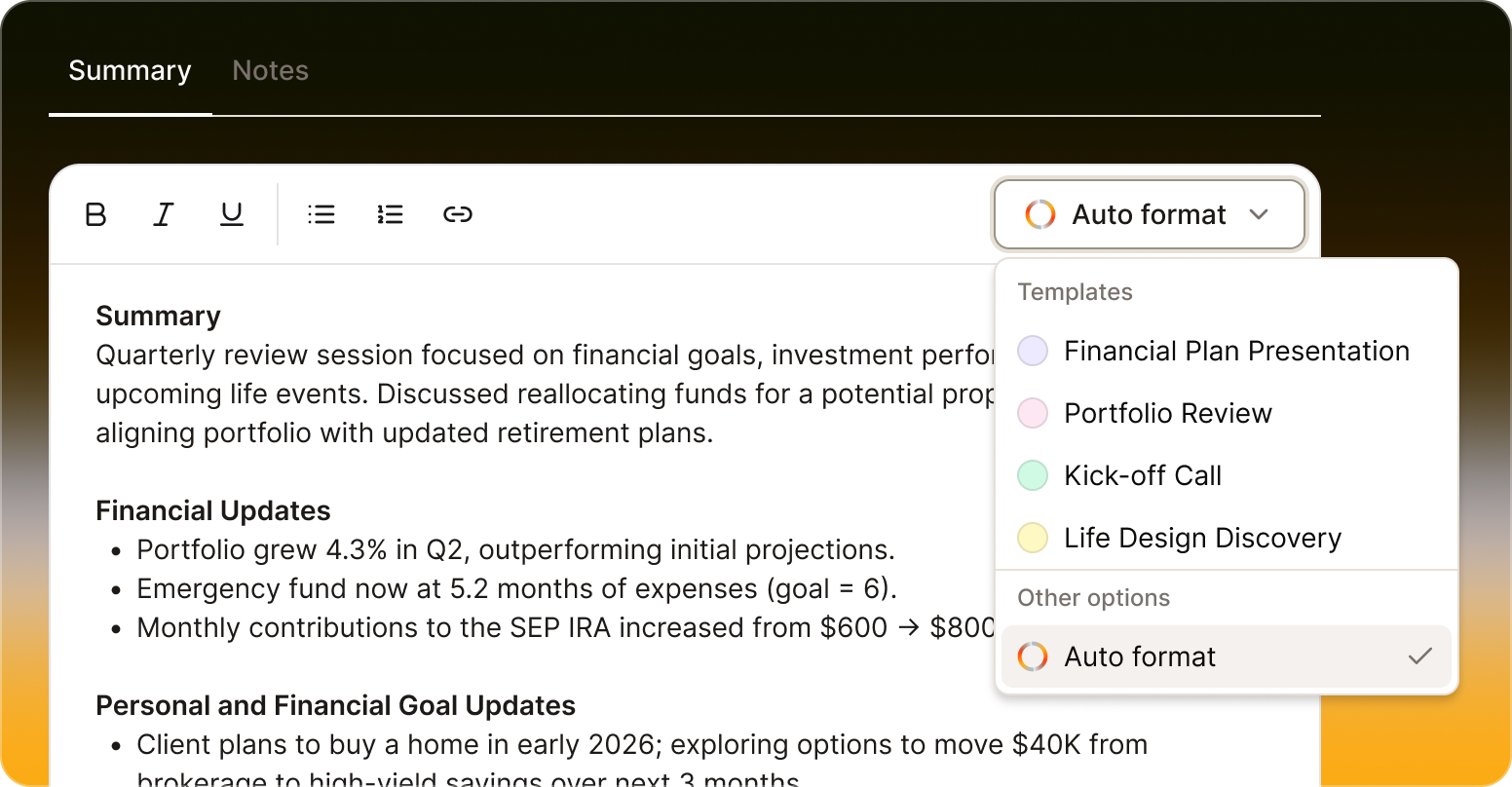 Templates help you maintain consistency across similar meeting types and match your preferred documentation style. Learn more about creating and customizing templates in our [Templates documentation](#).
## Reviewing and Editing Your Summary
Your generated summary appears in the meeting view, organized into clear sections for easy scanning. Click into any section to edit the AI-generated content. You can refine wording or add clarity, include additional context or observations, reorganize sections to match your preference. Changes save automatically as you type.
**Editing with the AI Ask Bar:** You can also edit your summary just by talking to the AI. Open the Ask Bar at the bottom of your meeting page and tell it what you'd like to change — fix a name spelling, reassign a speaker label, correct a detail, or rephrase a section. The AI understands the context of the meeting you're viewing and applies your changes directly to the summary and transcript.
For example, you can type "Correct Morrison spelling and reassign speaker on paragraph 3 to Linda" and the AI will scan the transcript, fix every instance, and show you exactly what changed. It's the fastest way to clean up your notes without manually editing each section yourself.
Learn more about the AI Ask Bar and everything it can do in our [AI Floating Bar documentation](/ask-ai/ai-ask-bar).
**Accessing the full transcript:** Click the **View transcript** button in the capture controls at the bottom of your screen to pull up the complete transcript. You can use it to verify specific quotes, find exact wording from the conversation, and reference specific moments.
**Tip**: Click **Copy transcript** on the top right to copy the entire transcript to your clipboard in one click — useful for pasting into your CRM, compliance records, or any other system where you need the full conversation on file.
## Managing Tasks
After your meeting, Continuum's AI automatically suggests tasks based on what was discussed during your conversation. These show up in the Tasks tab on the right side of your meeting view.
**Reviewing suggested tasks:** The AI identifies action items, follow-ups, and commitments made during the meeting. Each suggested task includes the task description, a suggested due date (if one was mentioned), and an assignee (if applicable).
**Working with tasks:**
* Click any suggested task to edit the details before adding it
* Click the **+** button to add the task to your active task list
* Create your own tasks manually by clicking **+ Active tasks**
* Mark tasks complete as you finish them
Once added, tasks move to your centralized **Tasks** page where you can track them alongside everything else your team is working on — filter by assignee, tag, or client, update statuses, and add detailed notes. Learn more in our [Tasks documentation](/overview/tasks).
## Keep the Conversation Going with AI Ask
The AI assistant remains available after your meeting ends, now with the complete context of what was just discussed.
**Post-meeting questions you can ask:**
* "Draft a follow-up email to this client"
* "Create action items from this meeting"
* "What are the key takeaways I should remember?"
* "Compare this conversation to our last meeting"
* "What questions did the client ask that I didn't fully answer?"
* "Generate talking points for our next meeting"
You'll see suggested prompts like "Draft a follow-up email" right there at the bottom of your screen. Click any suggestion for instant results, or type your own question in the "Ask anything" field. The AI has full access to your transcript, summary, and notes, making it incredibly powerful for post-meeting work.
## Syncing with Your CRM
Keep your CRM current by pushing meeting summaries and tasks directly from Continuum. No manual data entry required.
**To sync with your CRM:** Click the **Push to CRM** button at the top of your meeting view. This sends your meeting summary, notes, and any active tasks to your connected CRM, creating a complete record of your client interaction.
**What gets synced:**
* Meeting summary organized by your chosen template
* Notes you added before and during the meeting
* Active tasks with due dates and assignees
* Meeting metadata (date, time, attendees)
**Need to set up your CRM?** If you haven't connected your CRM yet, learn how to set up the integration in [Settings > Integrations](#). Continuum supports major CRM platforms financial advisors use.
## Sharing Your Meeting
Share your meeting summary and notes with your team while maintaining control over who can access and edit your content.
**To share a meeting:** Click the **Share** button at the top of your meeting view to open sharing options.
Templates help you maintain consistency across similar meeting types and match your preferred documentation style. Learn more about creating and customizing templates in our [Templates documentation](#).
## Reviewing and Editing Your Summary
Your generated summary appears in the meeting view, organized into clear sections for easy scanning. Click into any section to edit the AI-generated content. You can refine wording or add clarity, include additional context or observations, reorganize sections to match your preference. Changes save automatically as you type.
**Editing with the AI Ask Bar:** You can also edit your summary just by talking to the AI. Open the Ask Bar at the bottom of your meeting page and tell it what you'd like to change — fix a name spelling, reassign a speaker label, correct a detail, or rephrase a section. The AI understands the context of the meeting you're viewing and applies your changes directly to the summary and transcript.
For example, you can type "Correct Morrison spelling and reassign speaker on paragraph 3 to Linda" and the AI will scan the transcript, fix every instance, and show you exactly what changed. It's the fastest way to clean up your notes without manually editing each section yourself.
Learn more about the AI Ask Bar and everything it can do in our [AI Floating Bar documentation](/ask-ai/ai-ask-bar).
**Accessing the full transcript:** Click the **View transcript** button in the capture controls at the bottom of your screen to pull up the complete transcript. You can use it to verify specific quotes, find exact wording from the conversation, and reference specific moments.
**Tip**: Click **Copy transcript** on the top right to copy the entire transcript to your clipboard in one click — useful for pasting into your CRM, compliance records, or any other system where you need the full conversation on file.
## Managing Tasks
After your meeting, Continuum's AI automatically suggests tasks based on what was discussed during your conversation. These show up in the Tasks tab on the right side of your meeting view.
**Reviewing suggested tasks:** The AI identifies action items, follow-ups, and commitments made during the meeting. Each suggested task includes the task description, a suggested due date (if one was mentioned), and an assignee (if applicable).
**Working with tasks:**
* Click any suggested task to edit the details before adding it
* Click the **+** button to add the task to your active task list
* Create your own tasks manually by clicking **+ Active tasks**
* Mark tasks complete as you finish them
Once added, tasks move to your centralized **Tasks** page where you can track them alongside everything else your team is working on — filter by assignee, tag, or client, update statuses, and add detailed notes. Learn more in our [Tasks documentation](/overview/tasks).
## Keep the Conversation Going with AI Ask
The AI assistant remains available after your meeting ends, now with the complete context of what was just discussed.
**Post-meeting questions you can ask:**
* "Draft a follow-up email to this client"
* "Create action items from this meeting"
* "What are the key takeaways I should remember?"
* "Compare this conversation to our last meeting"
* "What questions did the client ask that I didn't fully answer?"
* "Generate talking points for our next meeting"
You'll see suggested prompts like "Draft a follow-up email" right there at the bottom of your screen. Click any suggestion for instant results, or type your own question in the "Ask anything" field. The AI has full access to your transcript, summary, and notes, making it incredibly powerful for post-meeting work.
## Syncing with Your CRM
Keep your CRM current by pushing meeting summaries and tasks directly from Continuum. No manual data entry required.
**To sync with your CRM:** Click the **Push to CRM** button at the top of your meeting view. This sends your meeting summary, notes, and any active tasks to your connected CRM, creating a complete record of your client interaction.
**What gets synced:**
* Meeting summary organized by your chosen template
* Notes you added before and during the meeting
* Active tasks with due dates and assignees
* Meeting metadata (date, time, attendees)
**Need to set up your CRM?** If you haven't connected your CRM yet, learn how to set up the integration in [Settings > Integrations](#). Continuum supports major CRM platforms financial advisors use.
## Sharing Your Meeting
Share your meeting summary and notes with your team while maintaining control over who can access and edit your content.
**To share a meeting:** Click the **Share** button at the top of your meeting view to open sharing options.
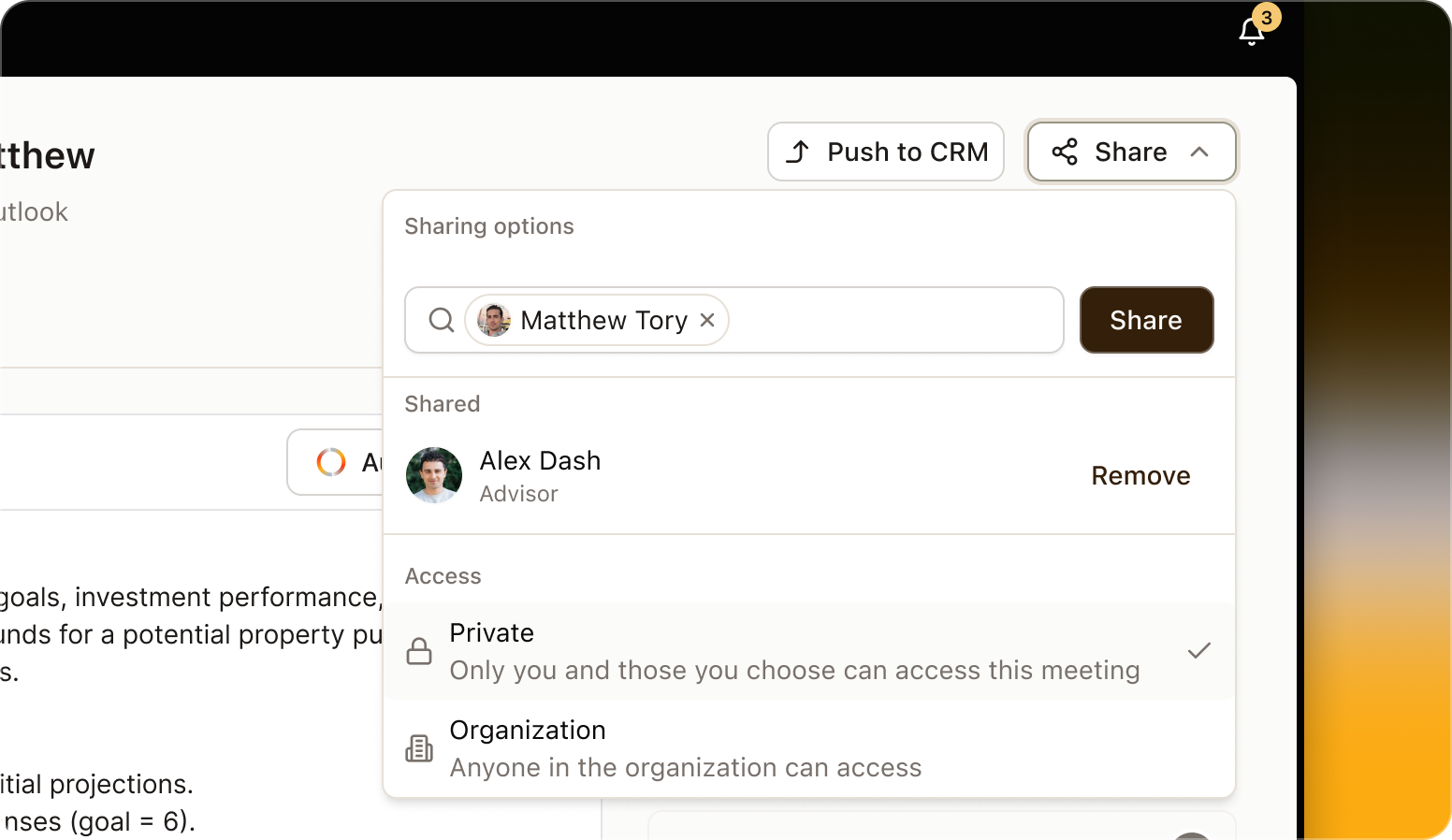 **Default sharing preference:**
* **Private** - Only you can access this meeting (default)
* **Organization** - Anyone in your organization can access this meeting
* **Specific people** - Share with selected team members by searching for their names
**Choosing an access level:** When you share a meeting, you choose an access level for each person:
* **Can view** - Read the summary, transcript, notes, and tasks.
* **Can edit** - Everything in **Can view**, plus the ability to update the meeting title, participants, next steps, and notes. This is useful for an assistant who manages your follow-ups.
**Owner-only actions:** A few actions always stay with the meeting owner, regardless of someone's access level: re-sharing the meeting, "Call me," and deleting the meeting.
## Deleting a Meeting
To delete a meeting, open it or find it in your meeting list, choose **Delete** from the meeting's menu, and confirm.
Deletes are permanent and can't be undone. You can't delete a meeting while it's in an active phone call.
***
## Finding Past Meetings
All your captured meetings live in the Meetings page, making it easy to find and reference past conversations.
**Search and filter:**
* Search by client name, meeting title, or content
* Filter by date range, participants, or tags
* View meetings by client to see complete conversation history
**Tagging meetings:** Add tags to meetings for better organization:
* Client type (new prospect, existing client, high-priority)
* Meeting purpose (planning review, portfolio update, discovery call)
* Topics discussed (retirement, estate planning, tax strategy)
Tags make it easier to find related meetings and identify patterns across your client base.
***
## Storage and Data Security
Your privacy and data security are our top priorities. Continuum uses audio during your meeting solely to generate the transcript. The audio itself is never stored on our servers.
**What Continuum stores:**
* **Transcript** - The text version of your conversation
* **Summary** - Your AI-generated summary (regenerated when you change templates)
* **Notes** - Any notes you added before, during, or after the meeting
* **Tasks** - Action items created from the meeting
**What we don't store:**
* **Audio recordings** - Audio is processed in real-time for transcription, then immediately discarded.
This approach ensures your sensitive client conversations remain secure while still giving you all the documentation and insights you need.
**Data retention:** Your transcripts, summaries, notes, and tasks are stored securely for as long as you need them. You have full control over your data and can delete meetings at any time.
Deleted meetings cannot be recovered, so make sure to export any information you need before deleting. If you've synced the meeting to your CRM, that record remains in your CRM—only the Continuum record is deleted.
***
## Continuous Improvement
The more you use Continuum, the better it becomes at understanding your preferences and needs.
**What improves over time:**
* Summary quality and relevance for your specific practice
* Recognition of recurring topics and client concerns
* Suggested prompts tailored to your workflow
* Action item identification based on your patterns
You can provide feedback on any summary by clicking the thumbs up/down icons. This helps Continuum learn what's most valuable to you and improves future summaries.
**Default sharing preference:**
* **Private** - Only you can access this meeting (default)
* **Organization** - Anyone in your organization can access this meeting
* **Specific people** - Share with selected team members by searching for their names
**Choosing an access level:** When you share a meeting, you choose an access level for each person:
* **Can view** - Read the summary, transcript, notes, and tasks.
* **Can edit** - Everything in **Can view**, plus the ability to update the meeting title, participants, next steps, and notes. This is useful for an assistant who manages your follow-ups.
**Owner-only actions:** A few actions always stay with the meeting owner, regardless of someone's access level: re-sharing the meeting, "Call me," and deleting the meeting.
## Deleting a Meeting
To delete a meeting, open it or find it in your meeting list, choose **Delete** from the meeting's menu, and confirm.
Deletes are permanent and can't be undone. You can't delete a meeting while it's in an active phone call.
***
## Finding Past Meetings
All your captured meetings live in the Meetings page, making it easy to find and reference past conversations.
**Search and filter:**
* Search by client name, meeting title, or content
* Filter by date range, participants, or tags
* View meetings by client to see complete conversation history
**Tagging meetings:** Add tags to meetings for better organization:
* Client type (new prospect, existing client, high-priority)
* Meeting purpose (planning review, portfolio update, discovery call)
* Topics discussed (retirement, estate planning, tax strategy)
Tags make it easier to find related meetings and identify patterns across your client base.
***
## Storage and Data Security
Your privacy and data security are our top priorities. Continuum uses audio during your meeting solely to generate the transcript. The audio itself is never stored on our servers.
**What Continuum stores:**
* **Transcript** - The text version of your conversation
* **Summary** - Your AI-generated summary (regenerated when you change templates)
* **Notes** - Any notes you added before, during, or after the meeting
* **Tasks** - Action items created from the meeting
**What we don't store:**
* **Audio recordings** - Audio is processed in real-time for transcription, then immediately discarded.
This approach ensures your sensitive client conversations remain secure while still giving you all the documentation and insights you need.
**Data retention:** Your transcripts, summaries, notes, and tasks are stored securely for as long as you need them. You have full control over your data and can delete meetings at any time.
Deleted meetings cannot be recovered, so make sure to export any information you need before deleting. If you've synced the meeting to your CRM, that record remains in your CRM—only the Continuum record is deleted.
***
## Continuous Improvement
The more you use Continuum, the better it becomes at understanding your preferences and needs.
**What improves over time:**
* Summary quality and relevance for your specific practice
* Recognition of recurring topics and client concerns
* Suggested prompts tailored to your workflow
* Action item identification based on your patterns
You can provide feedback on any summary by clicking the thumbs up/down icons. This helps Continuum learn what's most valuable to you and improves future summaries.