> ## Documentation Index
> Fetch the complete documentation index at: https://help.oncontinuum.com/llms.txt
> Use this file to discover all available pages before exploring further.
# Setup Guide
> Follow the steps below to get started
## Step 1 - Sign Up
## Step 2 - Installing Continuum
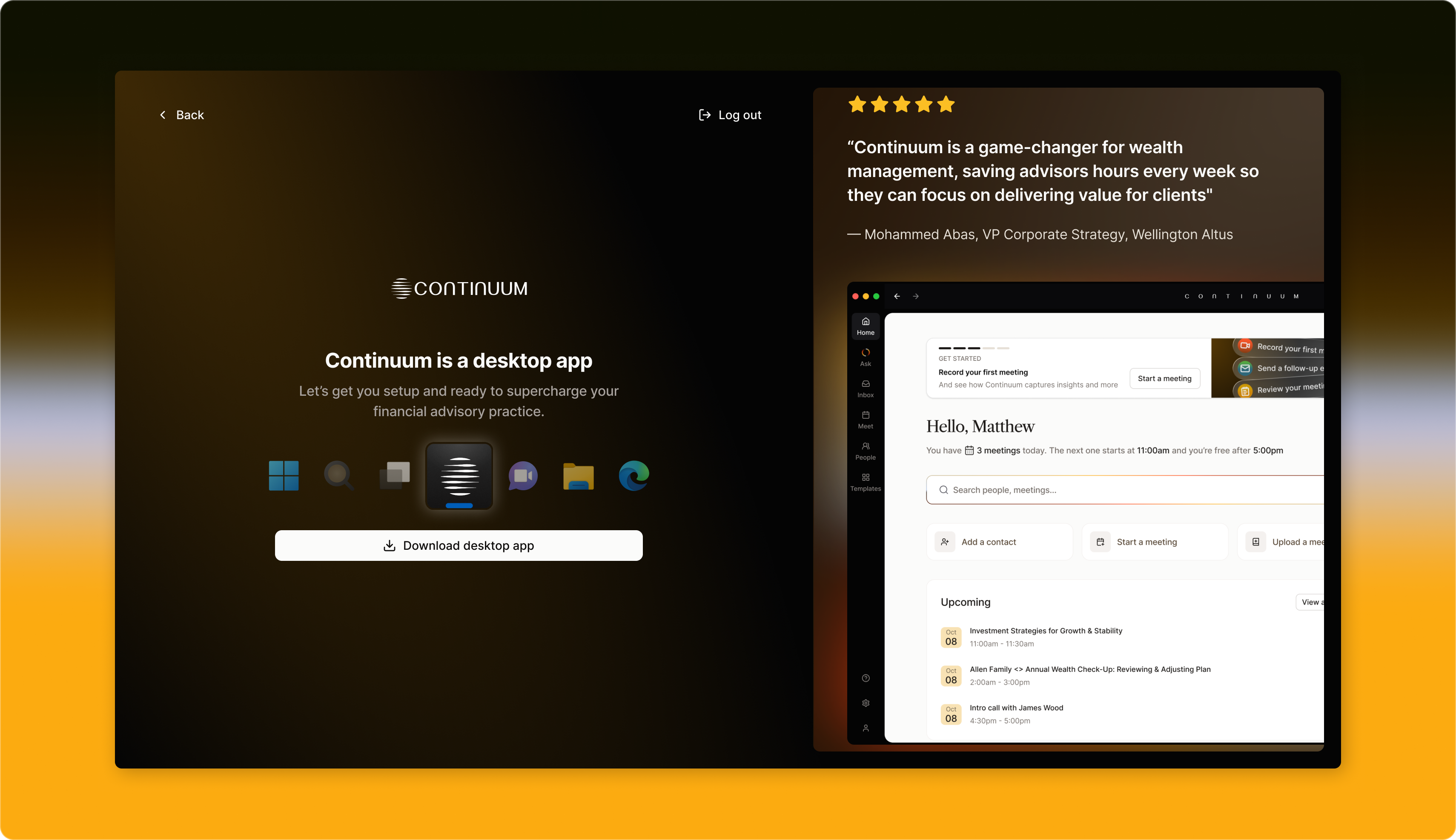 Continuum runs on **Windows**, **MacOS**, **iOS**, and **Android**, linked linked to your **Microsoft or Google account**.
Once you’ve completed the sign up flow in Step 1, you’ll be prompted to download Continuum to your device.
1. Download Continuum for your operating system:
* **Windows:** [Download for Windows](https://apps.microsoft.com/detail/xpfd9gdp053pst?hl=en-US\&gl=CA)
* **macOS:** [Download for Mac](http://dl.oncontinuum.com/)
* Continuum requires a minimum of Windows 10 or macOS 12 (Monterey) to run, but works best on the latest versions of both.
2. Open the installer and follow the prompts.
* Open Continuum.exe from your Downloads folder
* The Continuum installer should run
* Open the Continuum.dmg from your Downloads
* Drag the Continuum icon into your Applications folder
* Open the Continuum app from your Applications folder
* Find Continuum in the [**App Store (iOS)**](https://apps.apple.com/us/app/continuum-ai/id6749549104) or [**Google Play (Android)**](https://play.google.com/store/apps/details?id=com.oncontinuum.app\&pli=1)
* Install and open Continuum
* Now log in with Microsoft or Google
When finished, open the app and **sign in with the same Microsoft or Google account** you used on the web.
**Tip:** IT-approved installation may be required for enterprise environments. Contact your IT team if you’re unable to install locally.
## Step 3 - Calendar and Audio permissions
Continuum runs on **Windows**, **MacOS**, **iOS**, and **Android**, linked linked to your **Microsoft or Google account**.
Once you’ve completed the sign up flow in Step 1, you’ll be prompted to download Continuum to your device.
1. Download Continuum for your operating system:
* **Windows:** [Download for Windows](https://apps.microsoft.com/detail/xpfd9gdp053pst?hl=en-US\&gl=CA)
* **macOS:** [Download for Mac](http://dl.oncontinuum.com/)
* Continuum requires a minimum of Windows 10 or macOS 12 (Monterey) to run, but works best on the latest versions of both.
2. Open the installer and follow the prompts.
* Open Continuum.exe from your Downloads folder
* The Continuum installer should run
* Open the Continuum.dmg from your Downloads
* Drag the Continuum icon into your Applications folder
* Open the Continuum app from your Applications folder
* Find Continuum in the [**App Store (iOS)**](https://apps.apple.com/us/app/continuum-ai/id6749549104) or [**Google Play (Android)**](https://play.google.com/store/apps/details?id=com.oncontinuum.app\&pli=1)
* Install and open Continuum
* Now log in with Microsoft or Google
When finished, open the app and **sign in with the same Microsoft or Google account** you used on the web.
**Tip:** IT-approved installation may be required for enterprise environments. Contact your IT team if you’re unable to install locally.
## Step 3 - Calendar and Audio permissions
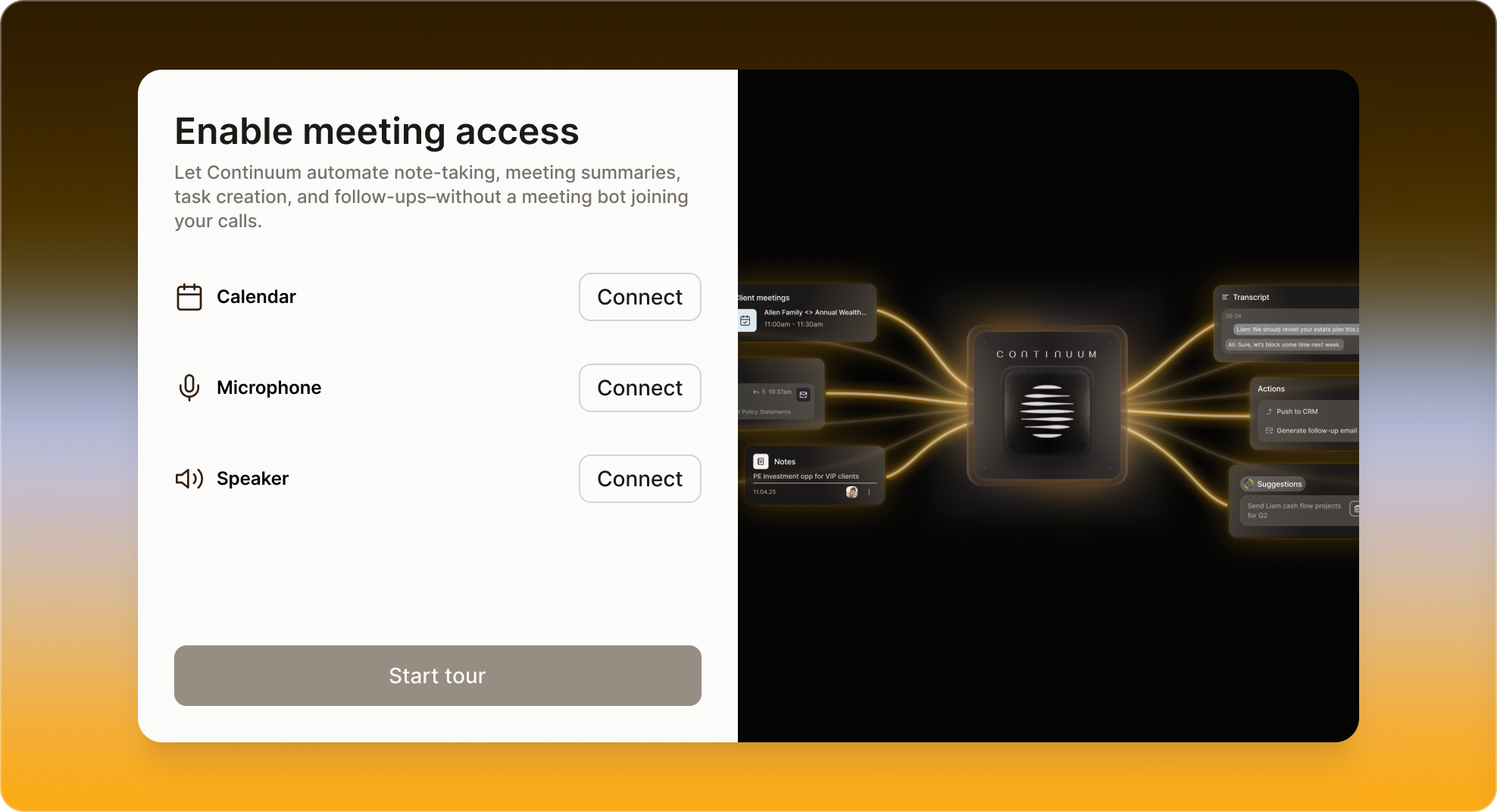 When you first open Continuum, you’ll be asked to grant permissions so the app can:
* Access your **calendar** to detect upcoming meetings.
* Use your **microphone** **and speaker** to transcribe audio during meetings.
You can adjust these later in your system settings if needed.
## Step 4 - Test Recording and AI Notes
When you first open Continuum, you’ll be asked to grant permissions so the app can:
* Access your **calendar** to detect upcoming meetings.
* Use your **microphone** **and speaker** to transcribe audio during meetings.
You can adjust these later in your system settings if needed.
## Step 4 - Test Recording and AI Notes
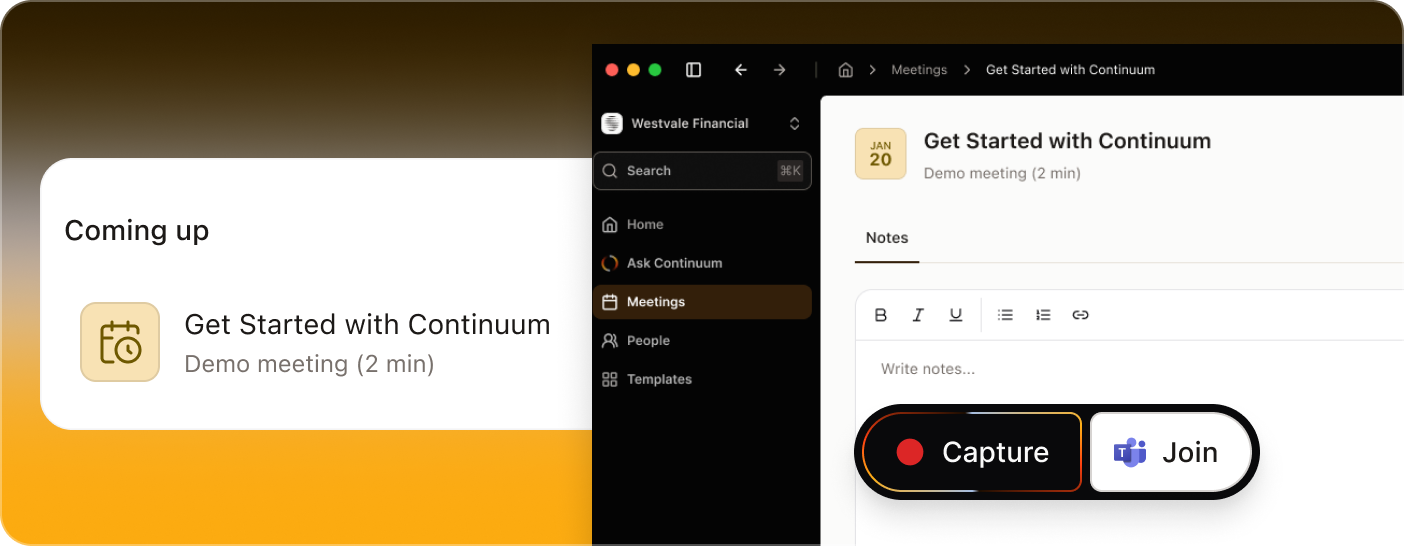 When you open Continuum for the first time, you’ll see a **Sample Meeting** pre-populated in your dashboard. You can use it to try out recording, transcription, and AI notes.
1. Click into the **Sample Meeting**.
2. Press **Play** to start recording — Continuum will capture audio from your device. Try talking out loud or even playing a video on YouTube.
3. Watch the **waveform bars** move to confirm transcription is active.
4. When you’re ready, press **Stop,** then click **Generate Notes.**
5. Within a few seconds, you’ll see a full **AI-generated summary**, **key discussion points**, and **action items** appear in your notes view.
This is a safe space to experiment. The Sample Meeting is **private** to you and not shared with your organization.
#### **Now you're all set!**
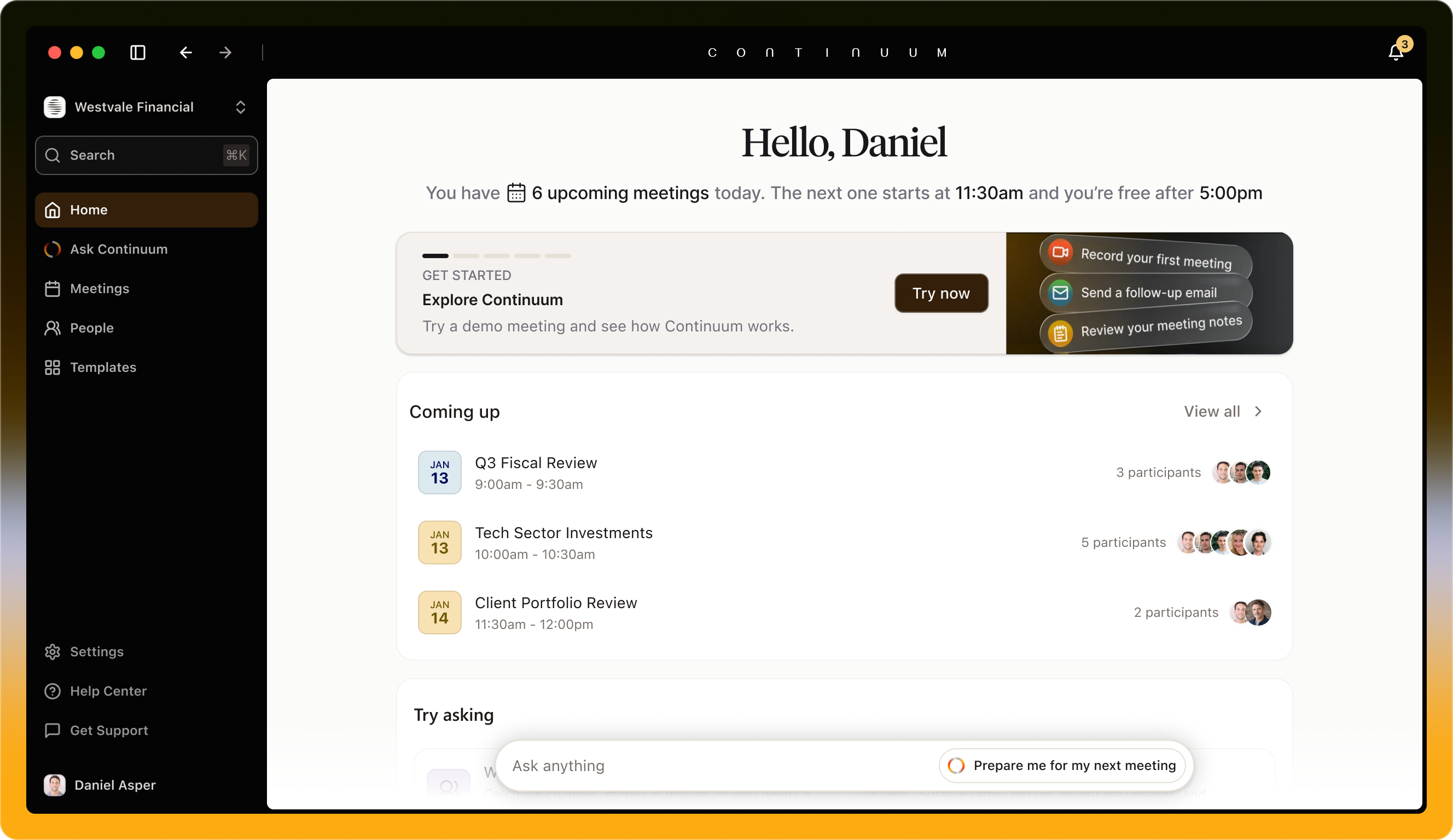
Your Continuum app should now look something like this, showing your upcoming meetings, and the suggestions about what you can ask the Continuum AI.
When you open Continuum for the first time, you’ll see a **Sample Meeting** pre-populated in your dashboard. You can use it to try out recording, transcription, and AI notes.
1. Click into the **Sample Meeting**.
2. Press **Play** to start recording — Continuum will capture audio from your device. Try talking out loud or even playing a video on YouTube.
3. Watch the **waveform bars** move to confirm transcription is active.
4. When you’re ready, press **Stop,** then click **Generate Notes.**
5. Within a few seconds, you’ll see a full **AI-generated summary**, **key discussion points**, and **action items** appear in your notes view.
This is a safe space to experiment. The Sample Meeting is **private** to you and not shared with your organization.
#### **Now you're all set!**
Your Continuum app should now look something like this, showing your upcoming meetings, and the suggestions about what you can ask the Continuum AI.